
How to create an Order
An order is the sale itself: the vehicle, the price, the part exchange, any products, and what the customer still owes. It is created from the enquiry, and everything after it - the order form, the invoice, the payments - hangs off it.
Before you start
The enquiry needs a vehicle attached. If it has not got one, open the enquiry and use Add Vehicle first: you cannot sell a car the deal does not name.
Creating one
Open the enquiry from Enquiries.
Select Create Order. You can also start from the car itself: open it in Stock and select Sell vehicle.
Work down the dialog. Which sections appear depends on where you started and what the enquiry already holds - starting from an enquiry that names its customer, the dialog opens straight on the pricing:
Customer - who you are selling to, and where the sale came from. Shown when the sale does not already have one, as when you start from the vehicle in Stock.
Pricing - the Price and any Discount, the Purchase type, the Handover date, and the Finance provider where the sale is funded by a lender. Where the deal came from an accepted offer, the price is set by that offer and cannot be changed here.
Part exchange - the Valuation, and the Finance settlement amount and Finance lender if the customer's car is still on finance. Shown once a part exchange is on the enquiry.
Products - warranties, paint protection, anything else you are selling alongside.
Notes - anything that should sit on the deal.
Check the summary. It totals the vehicle price, discount, products, part exchange, settlement and deposits already taken, and shows the Balance due.
Select Create order.
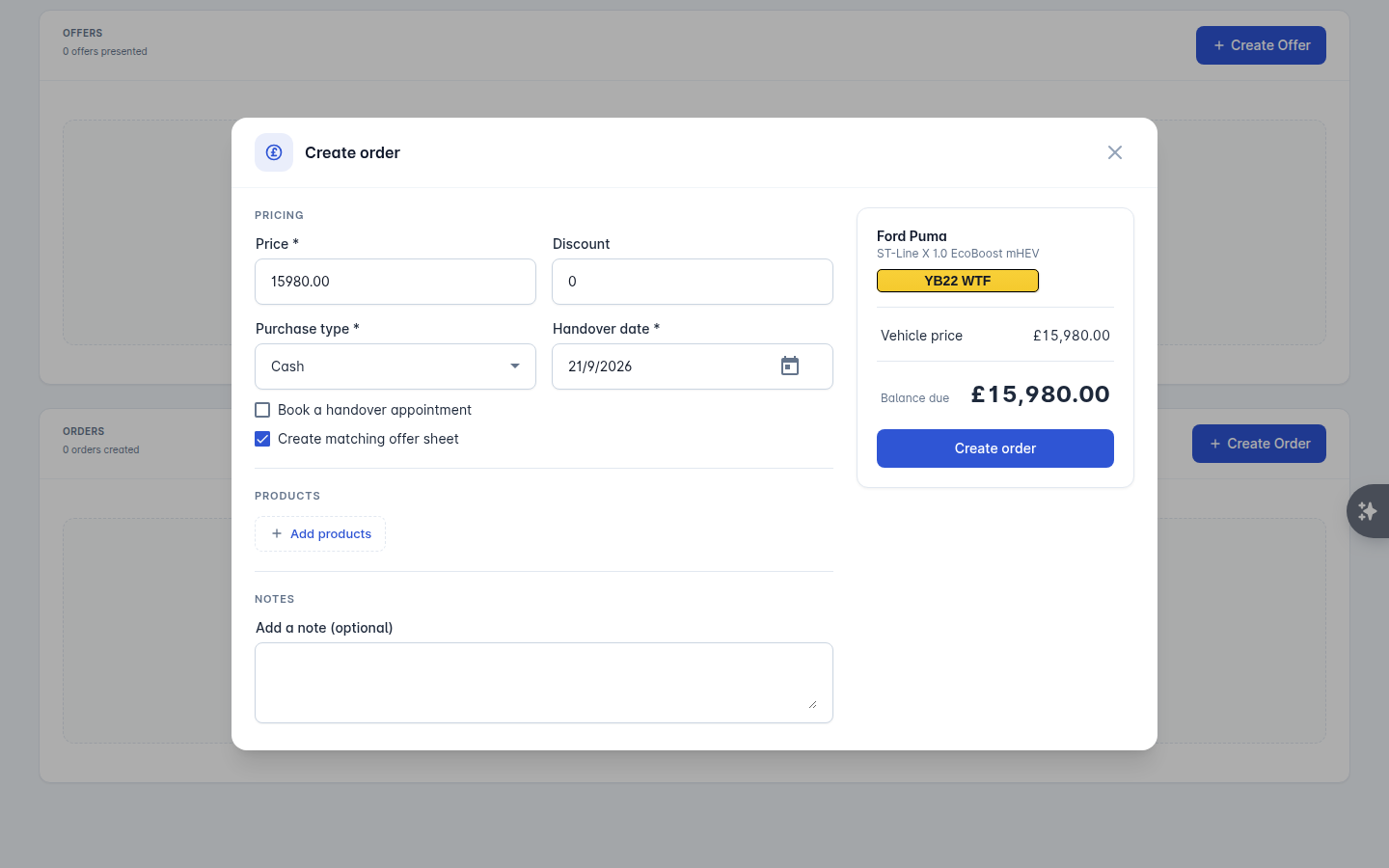
Two options in the dialog are worth knowing:
Book a handover appointment puts the handover in the calendar as you create the order, with a salesperson and a duration.
Create matching offer sheet produces an offer document for the same figures, for a customer who wants the numbers in writing.
After the order
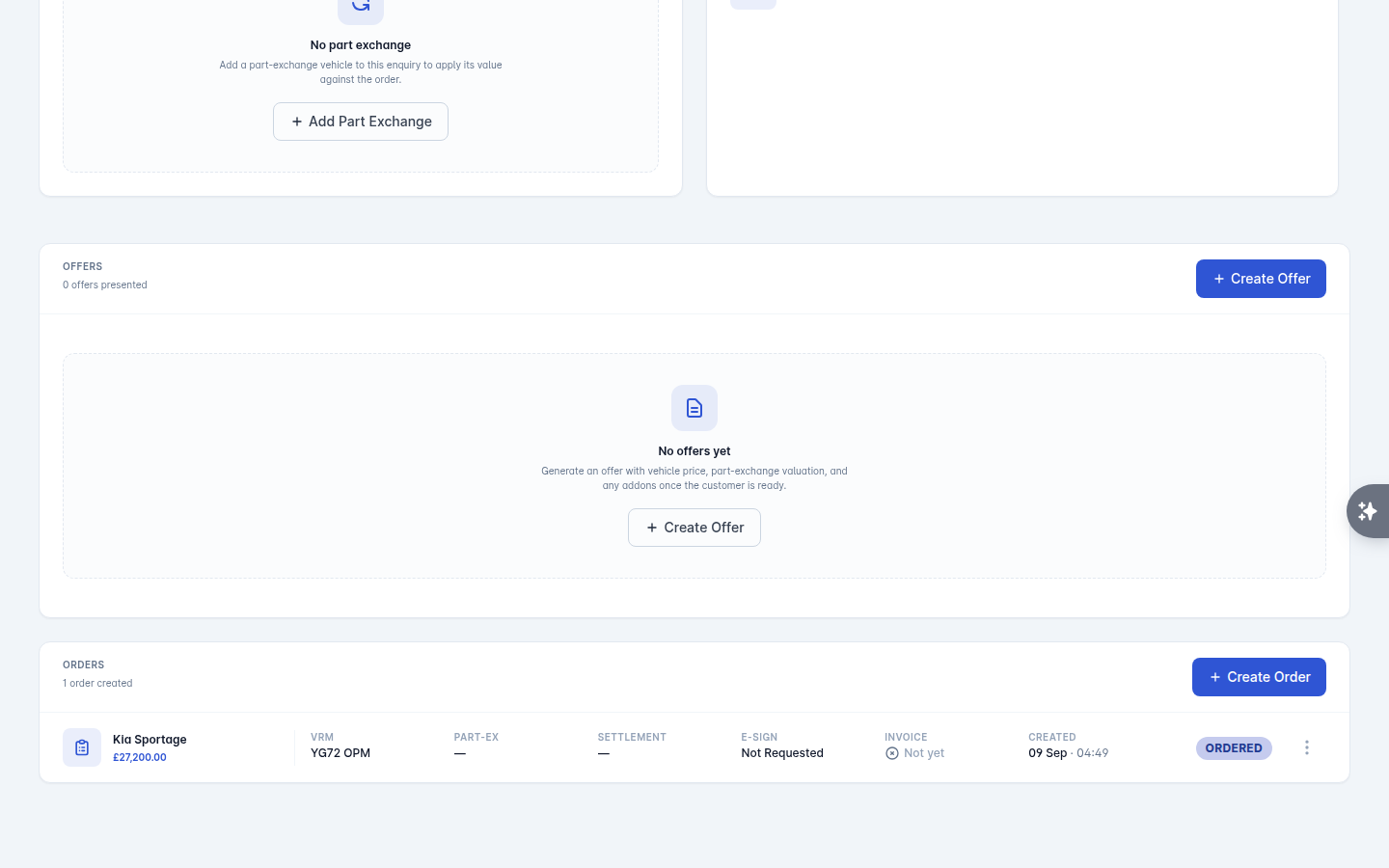
The order form is generated and available to view, download, email to the customer or e-sign. From the enquiry you can then Create Invoice, take payments, or Cancel Order if the deal falls through.
If your dealership uses the simple sales workflow
Some dealerships are set up to skip the order and offer paperwork and invoice the sale straight away. On those the button says Create invoice rather than Create Order, and the dialog above is the same one - it creates the invoice at the end instead of an order. Nothing else in this guide changes. If you would rather have order forms, ask support to switch the simple sales workflow off.