
How to add Notes to Enquiries
Notes are the memory of the deal: what was said on the call, what the customer cares about, what you promised. Anyone who picks the enquiry up later reads them first.
Adding a note
Open the enquiry from Enquiries, or from the customer's record.
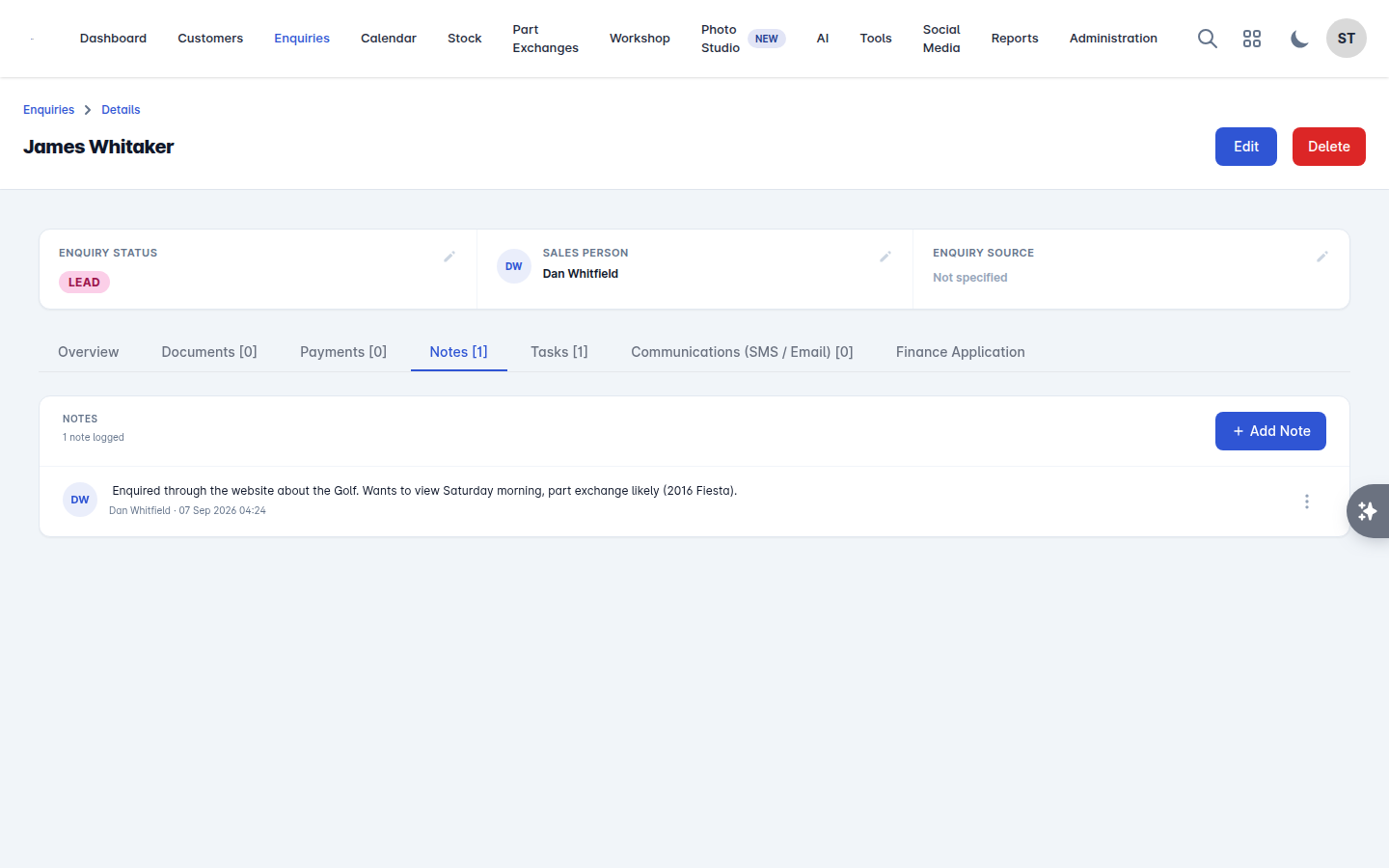
Select the Notes tab. The tab carries a count, so Notes [3] means three are already logged. The other tabs on an enquiry are Overview, Documents, Payments, Tasks, Communications (SMS / Email) and, where the customer applied for finance through your website, Finance Application.
Select Add Note.
Type the note and select Save.
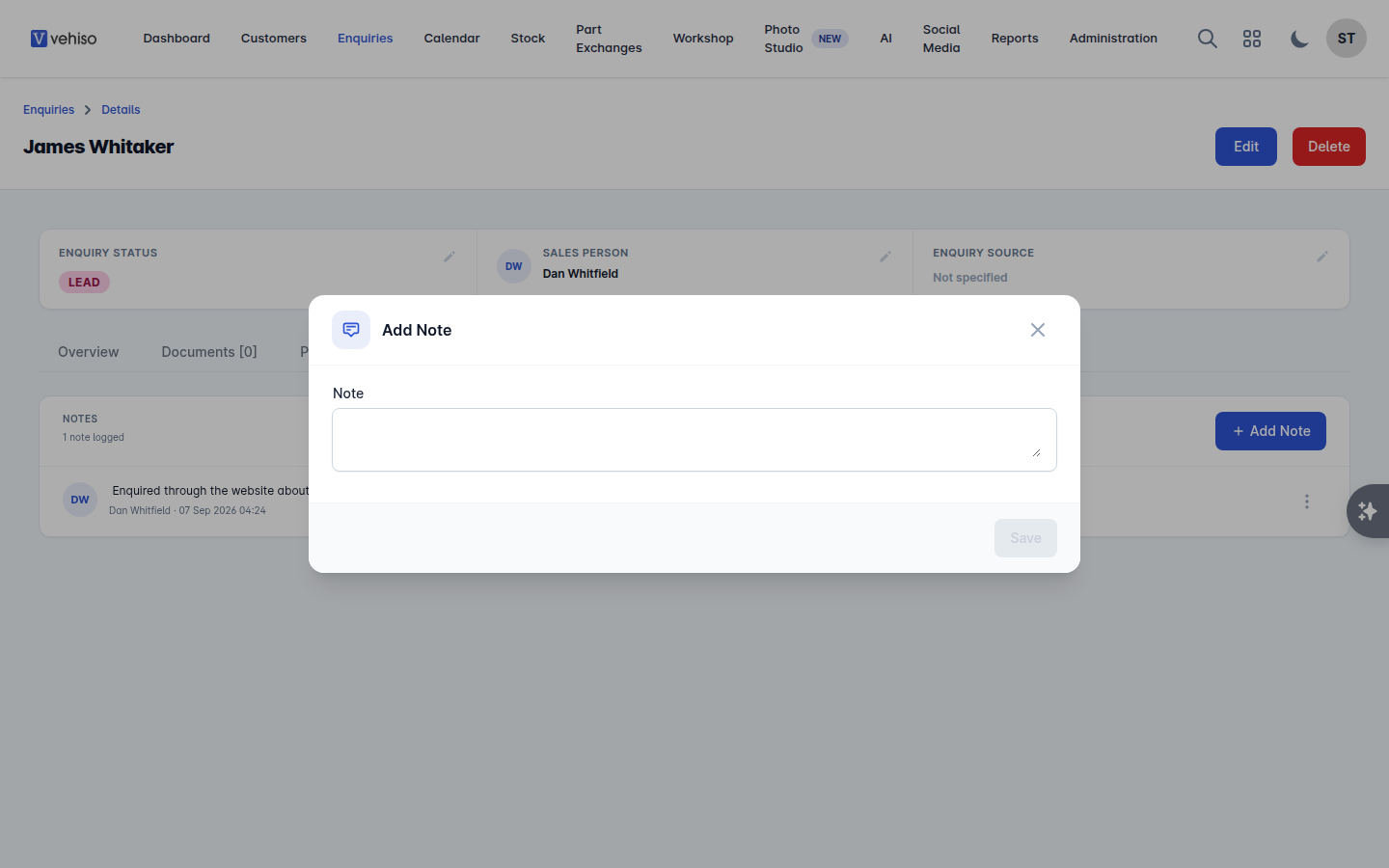
The note is stored against the enquiry with who wrote it and when, and the tab label counts how many notes are logged.
Notes, tasks and appointments
Three different things, and using the right one saves you chasing:
A note records what happened. It is not a reminder and nobody is told about it.
A task is something to do, with an owner and a due date. Add one with Add Task.
An appointment is time booked with the customer. Add one with Add Appointment, and it appears in the calendar.
Vehicles have their own notes too, on the vehicle's page in Stock. Keep vehicle facts there - MOT booked, key missing - and keep the conversation on the enquiry.