
How to create a Vehicle Purchase Order
A purchase order records what you paid for a car and who you bought it from, and produces a document you can sign and file.
Creating one
Go to Stock and open the vehicle. Find it in the list and use Actions > Details, or search for it by registration, VIN, or make and model.
On the vehicle page, select Actions > More > Create Purchase Order.
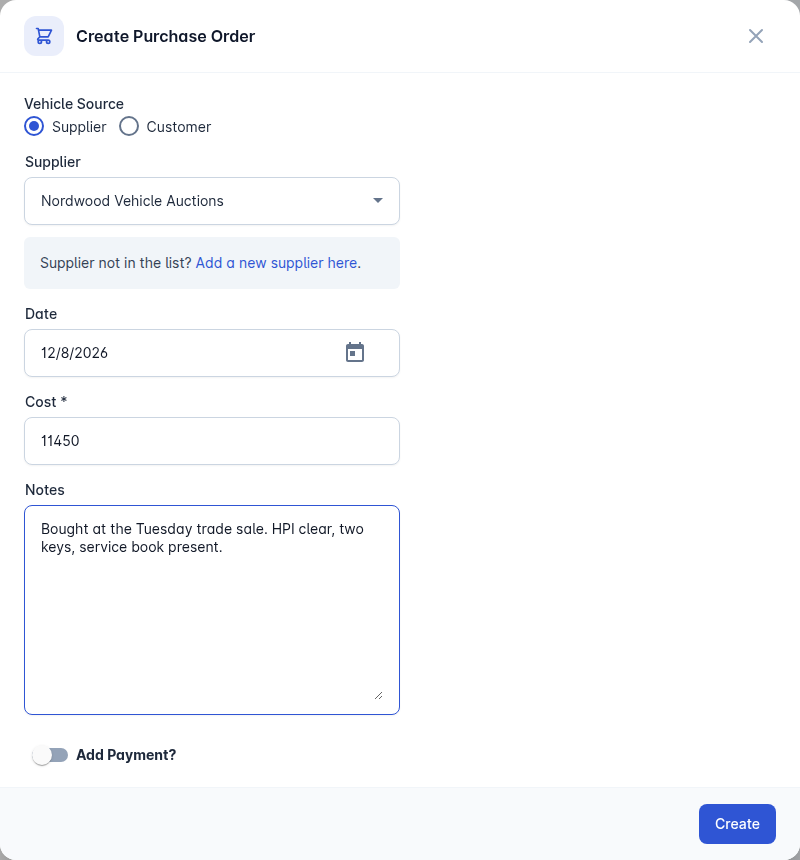
Fill in the purchase order:
Vehicle Source - where the car came from.
Supplier or Customer - who you bought it from. If the supplier is not in the list, use Add a new supplier here.
Date and Cost.
Notes - anything that belongs on the paperwork.
Add Payment? - tick this to record what you have already paid, with the Amount Paid, Payment Method and Payment Date.
Select Create.
After it is created
The same Actions > More menu then offers View Purchase Order, which opens the document to print or file, and Delete Purchase Order if you raised it against the wrong car.
The purchase price on the order is what your margin is worked out from, so it is worth getting right the first time.