
How to create a Vehicle Checklist
The vehicle checklist is a document generated against a car in your stock: the pre-delivery checks, signed and filed with the rest of the paperwork.
Creating one
Go to Stock and open the vehicle. Find it in the list and use Actions > Details, or search for it by registration, VIN, or make and model.
Select Actions > More > Create Vehicle Checklist.
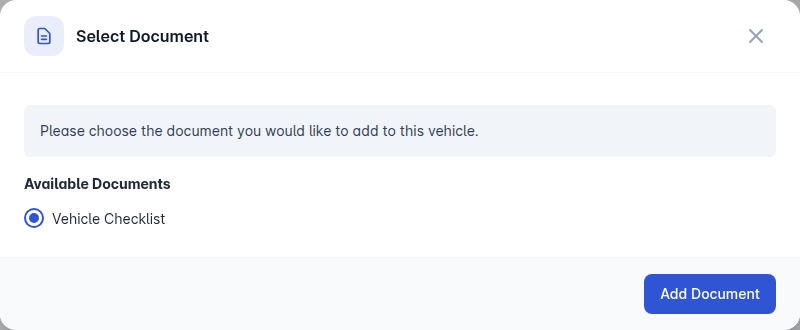
The Select Document dialog opens with the checklist chosen under Available Documents. Fill in anything the document asks for.
Select Add Document.
After it is created
Actions > More then offers View Vehicle Checklist to download it, and Delete Vehicle Checklist to remove it and start again.
One checklist is held against a vehicle at a time, so creating a new one means deleting the old one first.
The wording of the checklist itself is a document template. Your other documents live under Administration > Documents, where you can see what each one is for and which ones need signing.