
Tools
Quick vehicle lookups that do not need a car in your stock: check a registration before you buy it, value a trade-in over the phone, check an MOT or ULEZ status while a customer is on the line.
Tools use UK vehicle data, so they are available to dealers in Great Britain.
Go to Tools.
Full Car Check
Everything about a registration in one go.
Select New check.
Enter the Registration.
Select Run check.
You get back:
Tax status and when it is due
MOT status and expiry
ULEZ compliance - Compliant, Not compliant, Check needed or Not known. Classic vehicles are flagged as possibly exempt
Vehicle details - make, model, colour, fuel type, engine size, CO2, year, first registered, wheelplan, V5C issued date and whether it is marked for export
MOT history - each test with its date, result, expiry, mileage and any defects or advisories
Specification - power, torque, top speed, cylinders, aspiration, doors, seats, kerb weight, fuel tank, body shape and Euro standard
Factory options - what was standard and what was optional
Download PDF saves the check. Past checks are listed so you can go back to one.
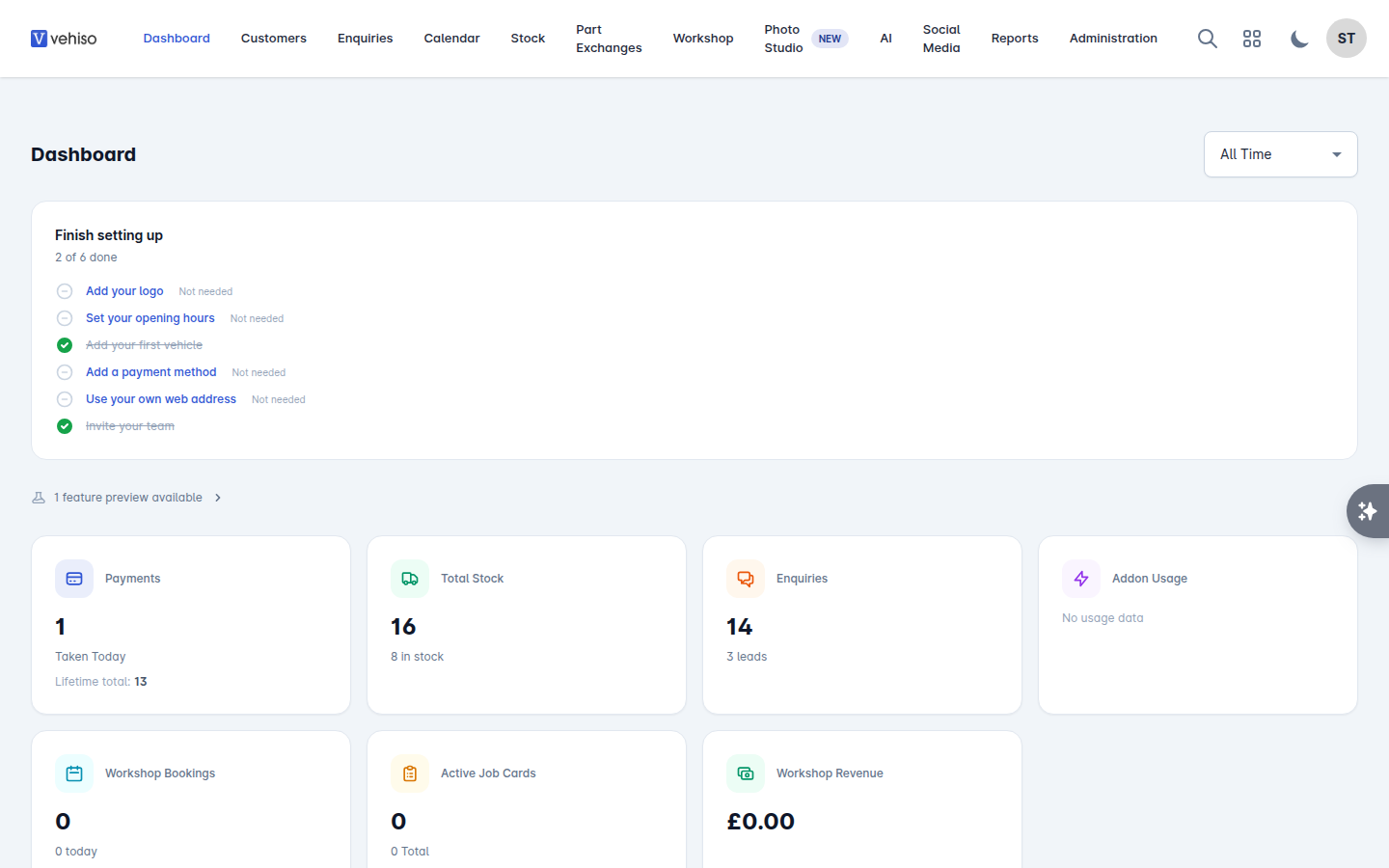
Run one before you buy at auction, and again before you advertise. The export marker and the advisory history are the two things that most often change a price.
MotorCheck
MotorCheck runs vehicle history, specification and condition alert reports. Unlike the other tools, it runs on your own MotorCheck account: each check is charged to that account, not to your Vehiso balance.
Connecting it
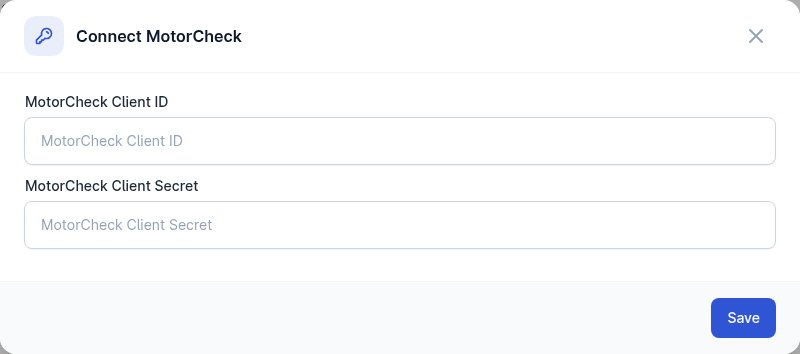
An administrator connects it once, under Administration > Settings > Stock Feeds & Integrations, in the Integrations section:
Select Add API key on MotorCheck.
Enter your MotorCheck Client ID and MotorCheck Client Secret in the Connect MotorCheck dialog.
Select Save.
Until that is done, the tool tells you to ask an administrator to connect your dealership's account. Disconnect removes the saved key and stops further checks; reports you have already paid for are kept.
Running a check
Go to Tools > MotorCheck and select New check.
Enter the Registration.
Choose which check to run.
Tick anything under Add to this check.
Select Run check.
Past checks are listed with their vehicle and date. Some reports come back from MotorCheck as a PDF - download it to see the full detail.
Checks against a stock vehicle
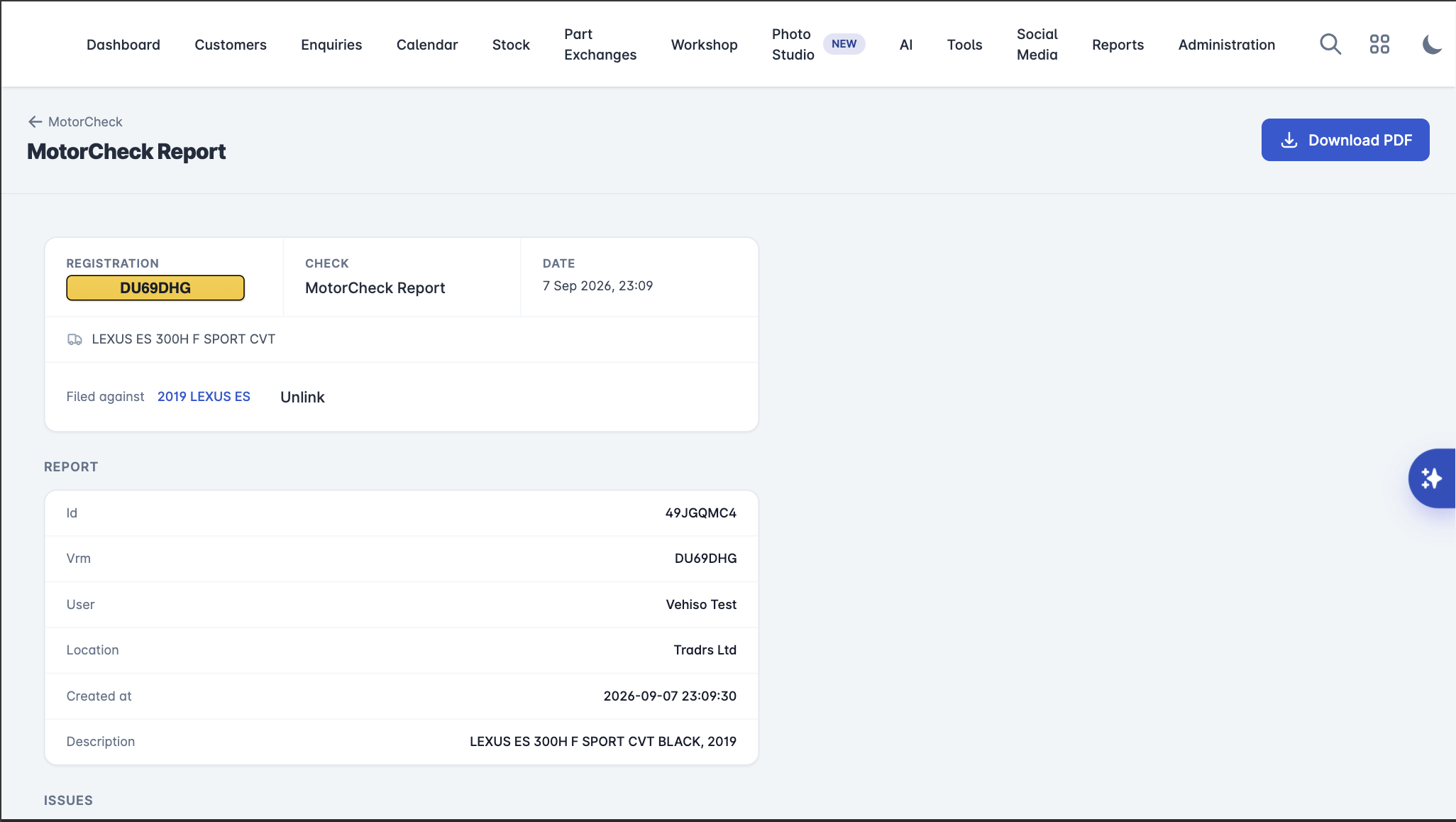
A vehicle in stock has a Vehicle Checks tab. From there you can Run a MotorCheck on this vehicle, and any report filed against it is listed with View and Unlink.
Filing works from either end. Open a check from Tools > MotorCheck and it shows whether it is Filed against a vehicle or Not filed; use File against a vehicle, Find a vehicle by registration and File here to attach it. If no stock vehicle matches the registration, the dialog says so. Unlink detaches it again.
Running the history check before you retail a car, and filing it against the vehicle, means the answer is on the record when a customer asks about it a month later.
Valuations
Select New valuation.
Enter the Registration and the Mileage.
Choose the Provider.
Select Get valuation.
You get a Headline price and a Price breakdown by band. Past valuations are listed with their date and mileage.
Valuations need a valuation provider, such as AutoTrader or VehicleDataGlobal. If you do not have one, the page explains how to add it. Each valuation uses one call from your balance.
MOT Check
Enter a registration to see the current MOT status and the full test history, including failures and advisories.
ULEZ Check
Enter a registration to check ULEZ compliance, with the fuel type and Euro standard behind the answer.
Where else these appear
A vehicle's MOT History tab holds the same MOT data for cars in your stock, with Refresh MOT History.
Valuations can be run against a vehicle in stock and against a part exchange on an enquiry. See Part exchanges.
The AI Assistant can run these checks in chat.