
Payments, finance and accounting
Three related settings panels: how you take money, how you offer finance, and how it all reaches your accounts.
Payments
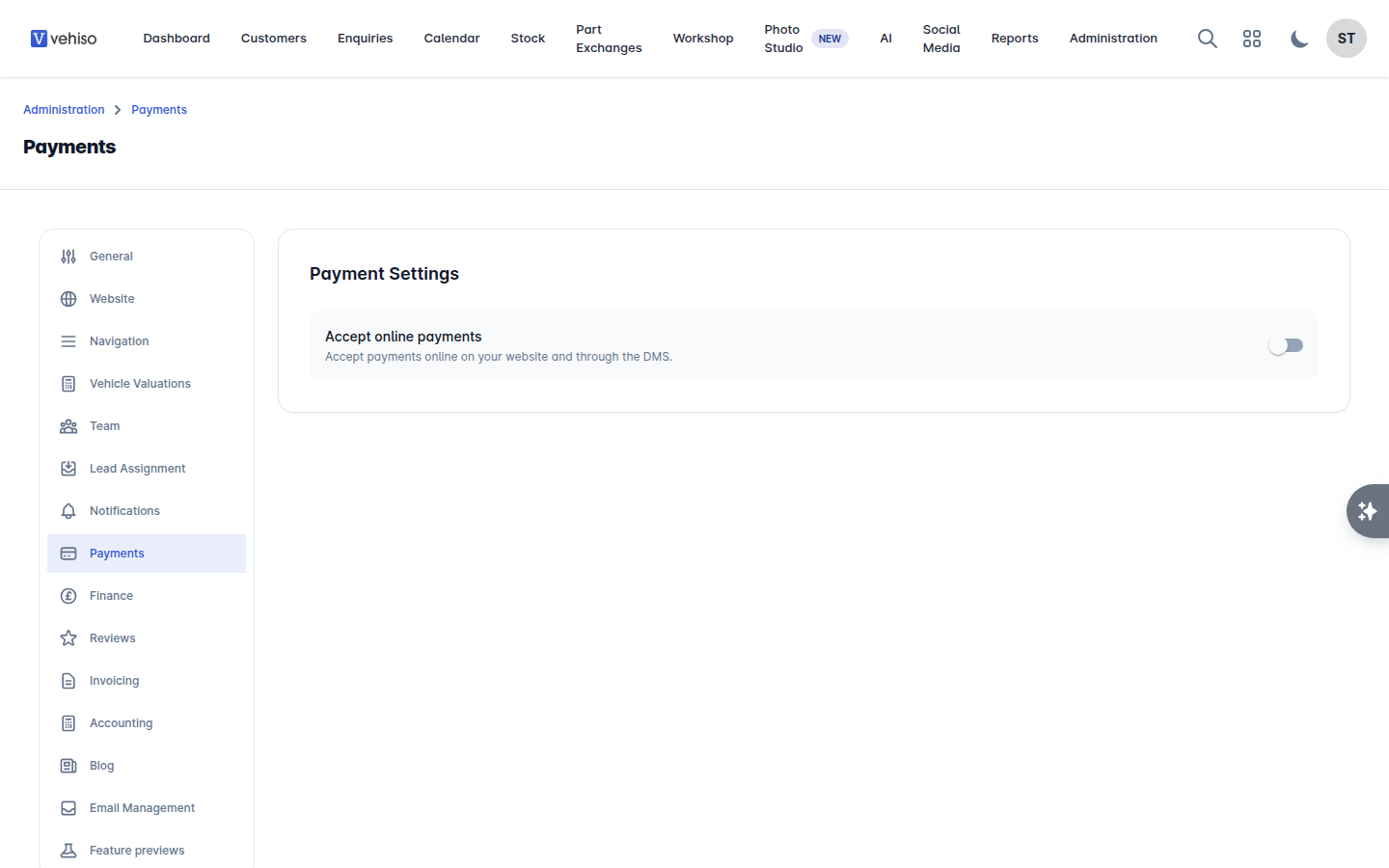
Go to Administration > Settings > Payments.
Turn on Accept online payments to take payments on your website and through the back office.
Connect a provider under Payment Providers. Vehiso supports Stripe, PayPal and Square.
Follow the provider's setup. A provider part way through shows Finish Setup.
With Stripe you can also Enable Apple Pay and Enable Google Pay.
Once a provider is connected you can:
Take Card Payment on an enquiry.
Request Payment to send the customer a payment link.
Send Payment Link on a workshop invoice.
Take deposits and reservations through your website.
Payments taken through a provider can be refunded but not deleted, so the record and the money stay in step. See Invoices and payments.
Disconnect removes a provider.
Finance
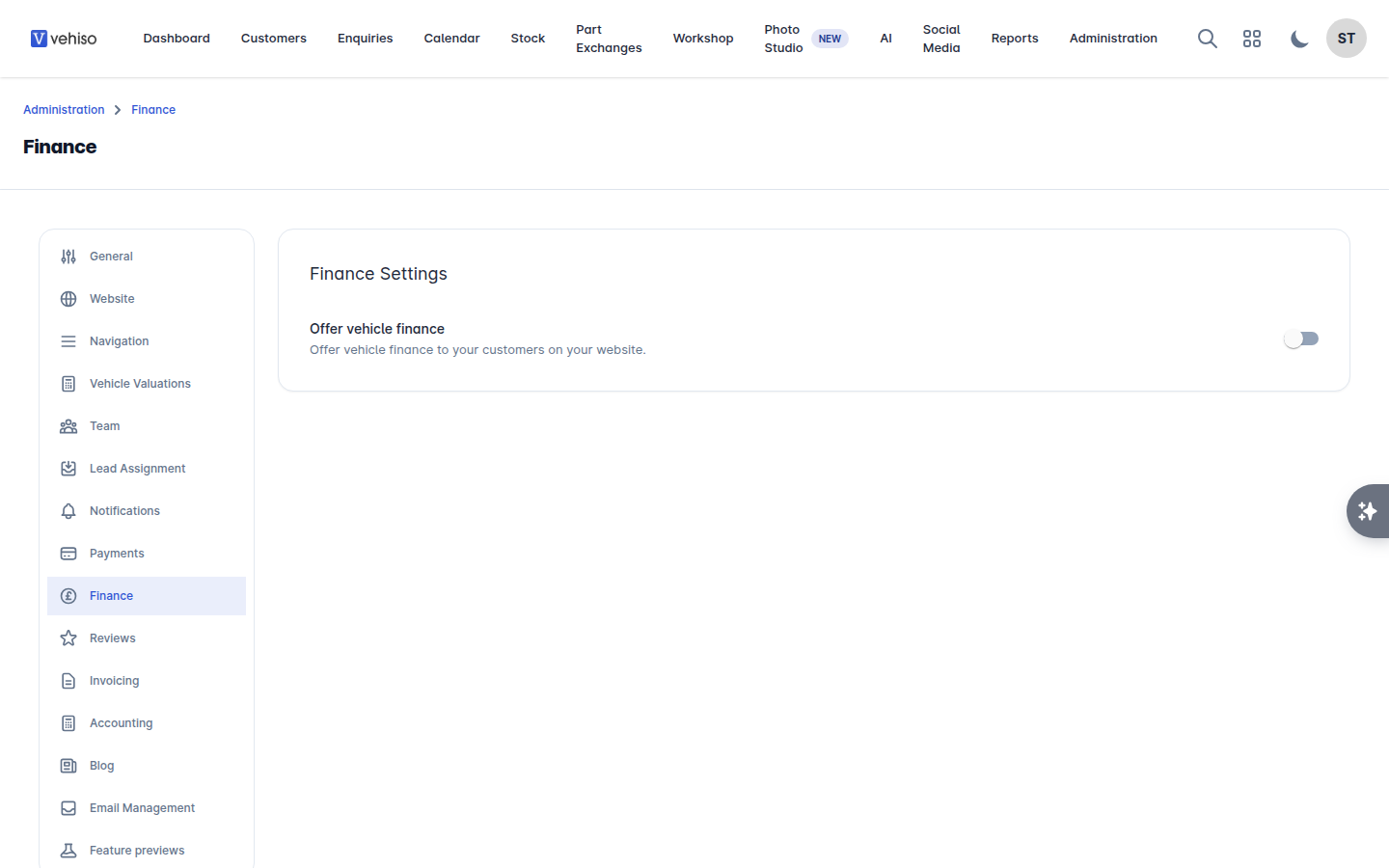
Go to Administration > Settings > Finance.
Turn on Offer vehicle finance to offer finance to customers on your website.
Connect your providers under Finance Providers. Each shows Connected or Not yet connected, with Connect or Update Connection, and a switch to enable it.
Set your Finance Disclosure Statement - the regulated wording shown to customers.
Set the Finance Apply Button Text and Finance Apply Button URL if you send customers to an external application.
Some providers offer a choice of what appears on a vehicle page - a Calculator or a soft search, for example. Choose the journey that suits how you sell.
Finance applications made through your website arrive as enquiries with a Finance tab. See Working an enquiry.
Where an order is on finance, the Commission Disclosure document needs completing. The enquiry warns you if it has not been.
Accounting
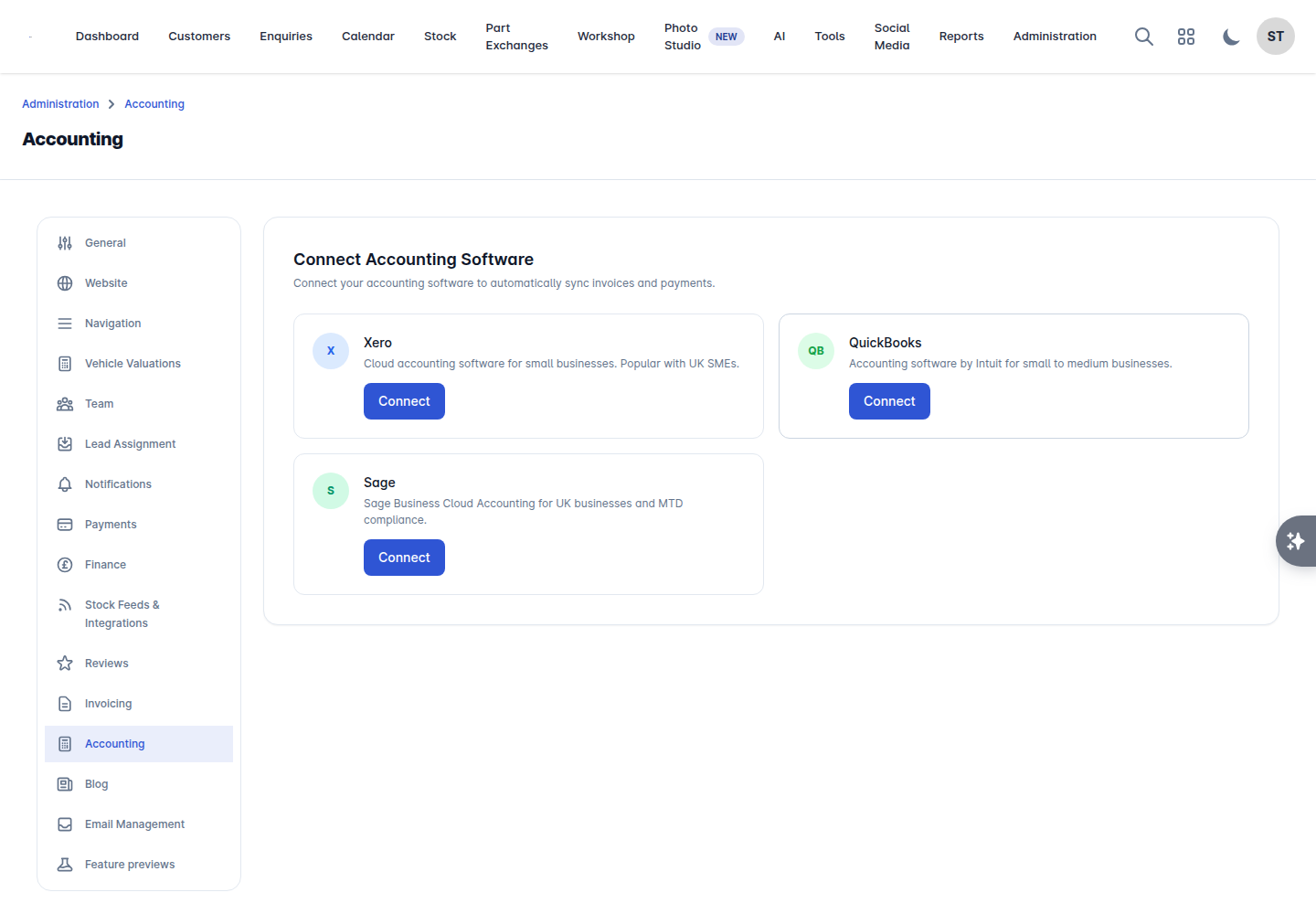
Connect Xero or Sage and your invoices and payments sync across automatically.
Go to Administration > Settings > Accounting.
Select Connect and authorise your accounting software.
Choose the Organisation to connect, if you have more than one.
Set up your mappings before you rely on it - see below.
Turn on Sync Payments to push payments across when invoices are marked as paid.
Mappings
Manage Mappings is where you tell Vehiso which nominal codes to post to.
Account Mappings - map each category to a nominal code.
Tax Code Mappings - map your VAT schemes to tax codes. For the margin scheme, pick the no-VAT code your own accounting software offers in the list - on Xero that is usually something like NONE, on Sage T9 - rather than assuming a particular code exists. The invoice line then shows no VAT, and the margin VAT is posted by your accountant with a period-end journal.
Bank Account Mapping - the bank account payments post to.
Refresh from your provider pulls in the latest list of accounts and codes.
Check this with your accountant before you switch the connection on. These mappings drive how every invoice posts. Vehicle finance, the margin scheme and zero or exempt rates all have specific VAT treatments, and a year of sales on the wrong nominal code is awkward to unwind.
Sync history
View Sync History shows every sync: the Date, Entity, Direction, Action and Status, filterable by status and direction. Anything that failed can be retried from here.
Check it after your first week. A failing sync is much easier to fix at ten records than at a thousand.
Disconnect ends the connection.