
Email management
Vehiso can host mailboxes on your own domain, so your team has addresses like sales@yourdealership.co.uk rather than a personal address.
Go to Administration > Settings > Email Management.
Domain status
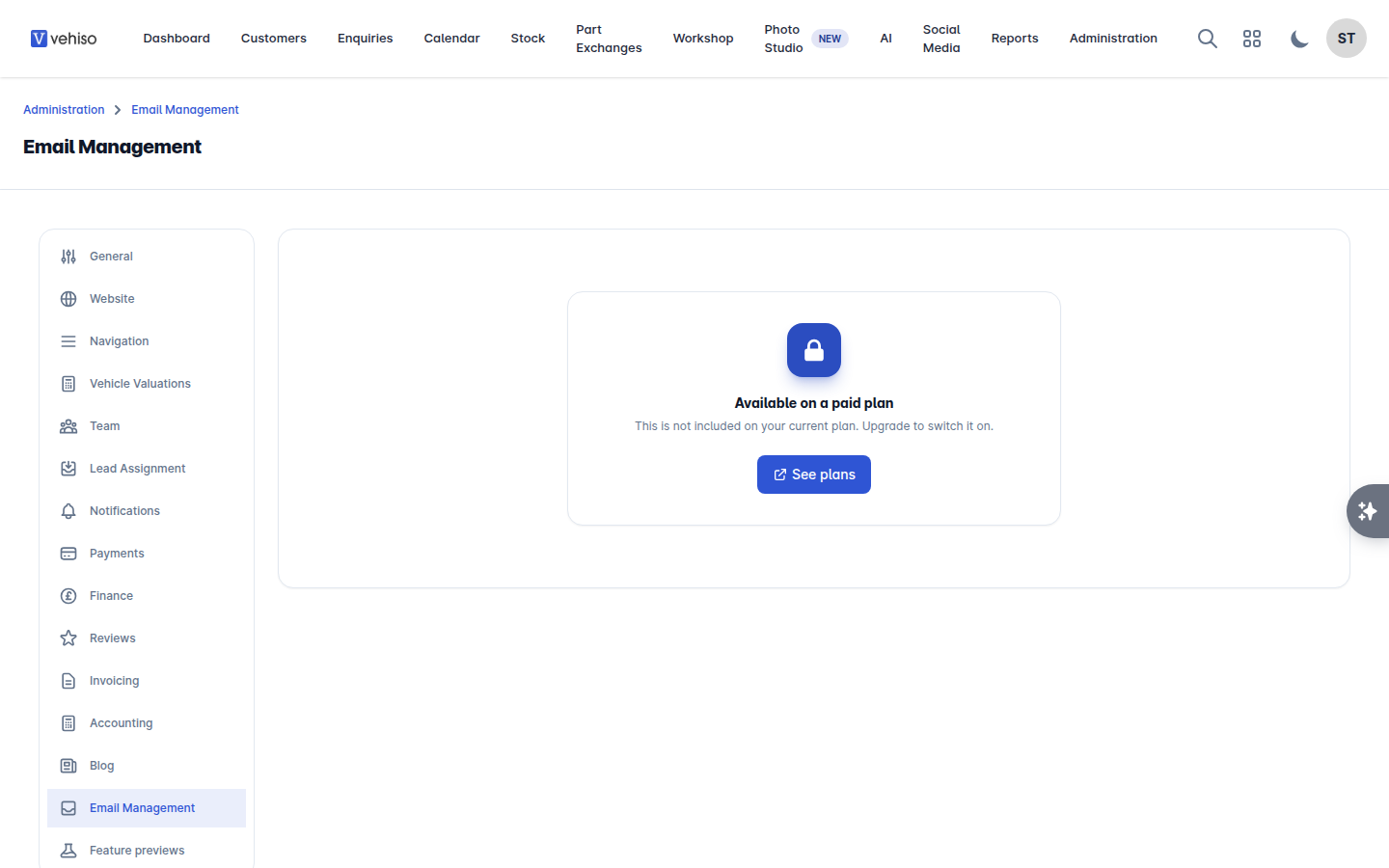
The panel first shows whether your domain is set up for email:
MX Record Added
DKIM Enabled
If manual DNS configuration is required, the records you need to add are listed. Add them at whoever manages your domain's DNS, then select Check Verification.
If your domain has not been set up for email at all, the panel says so and points you to the Email section of your Vehiso account to start that off.
Creating a mailbox
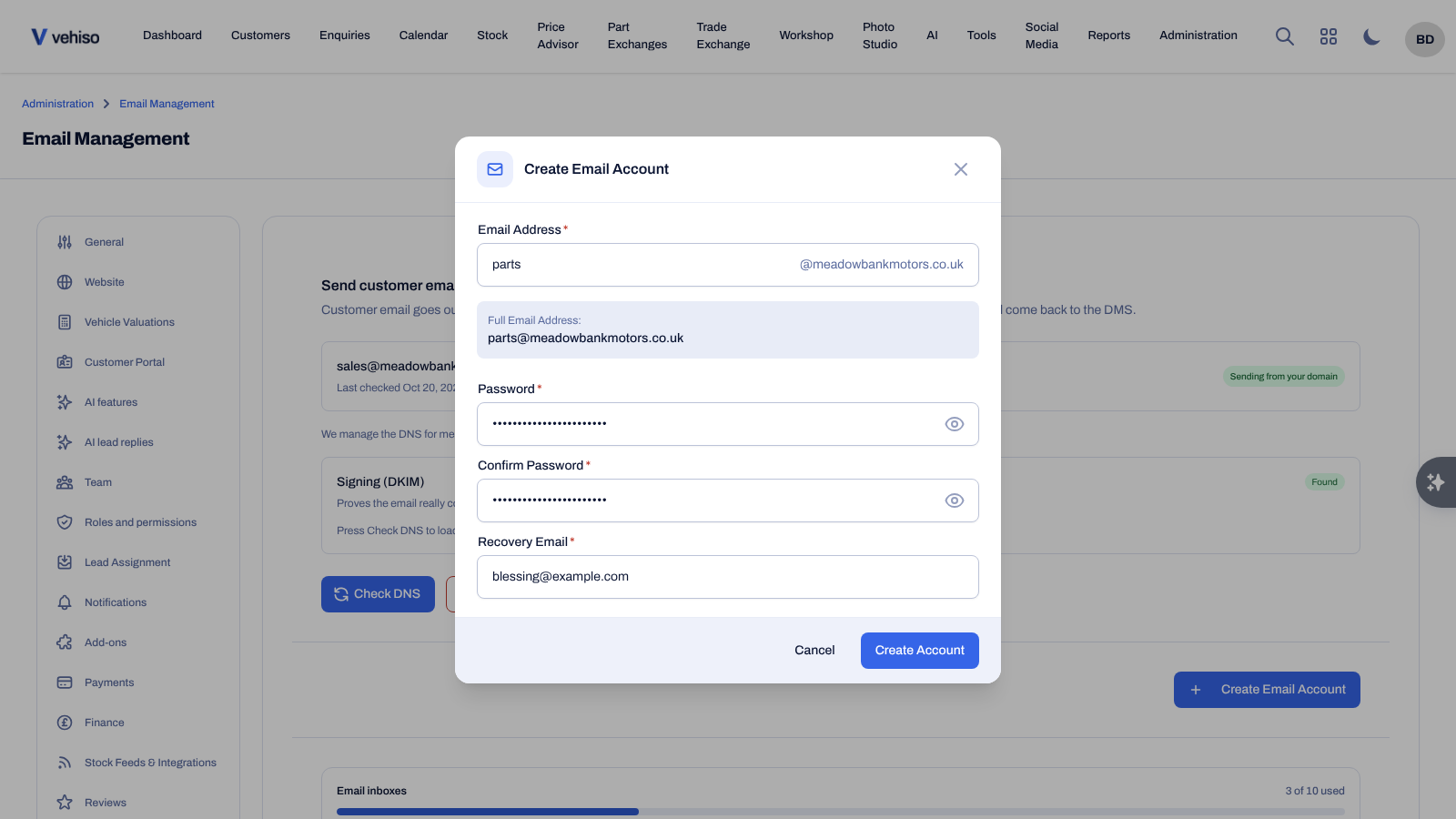
Select Create Email Account.
Enter the part before the @ under Email Address. Letters, numbers, dots, hyphens and underscores are allowed. The full address is shown as you type.
Set a Password of at least 12 characters, and confirm it.
Enter a Recovery Email, used for account recovery.
Select Create Account.
Managing mailboxes
The list shows each Email Address, its Recovery Email, Storage used and Status. Search it if you have a lot.
For each account you can:
Edit it, including turning Account Enabled on or off. A disabled account cannot be used, but its mail is kept.
Reset Password. Mailbox passwords must be at least 12 characters, the same as when the mailbox was created. The reset dialog currently lets you submit 8, but the save is then rejected, so use 12 or more. The user needs the new password to get back in, so pass it on securely rather than by email.
Your allowance
The number of mailboxes included depends on your plan. The usage meter shows how many of your Email inboxes you have used.