
Communication templates
A communication template is a message you send often, saved so nobody has to write it again: the "thanks for your enquiry" email, the appointment reminder, the "your car is ready" text.
Go to Administration > Communication Templates.
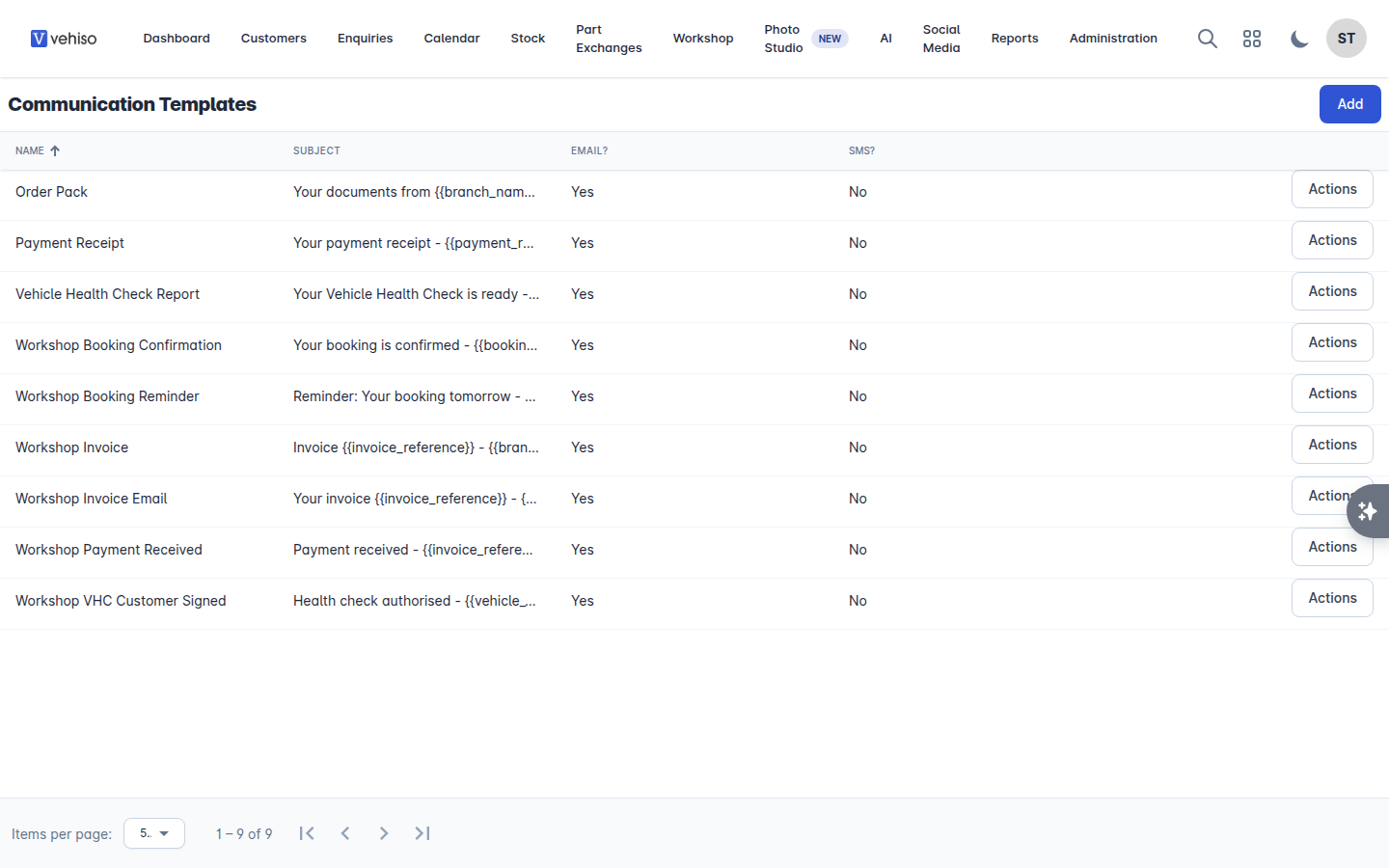
Creating one
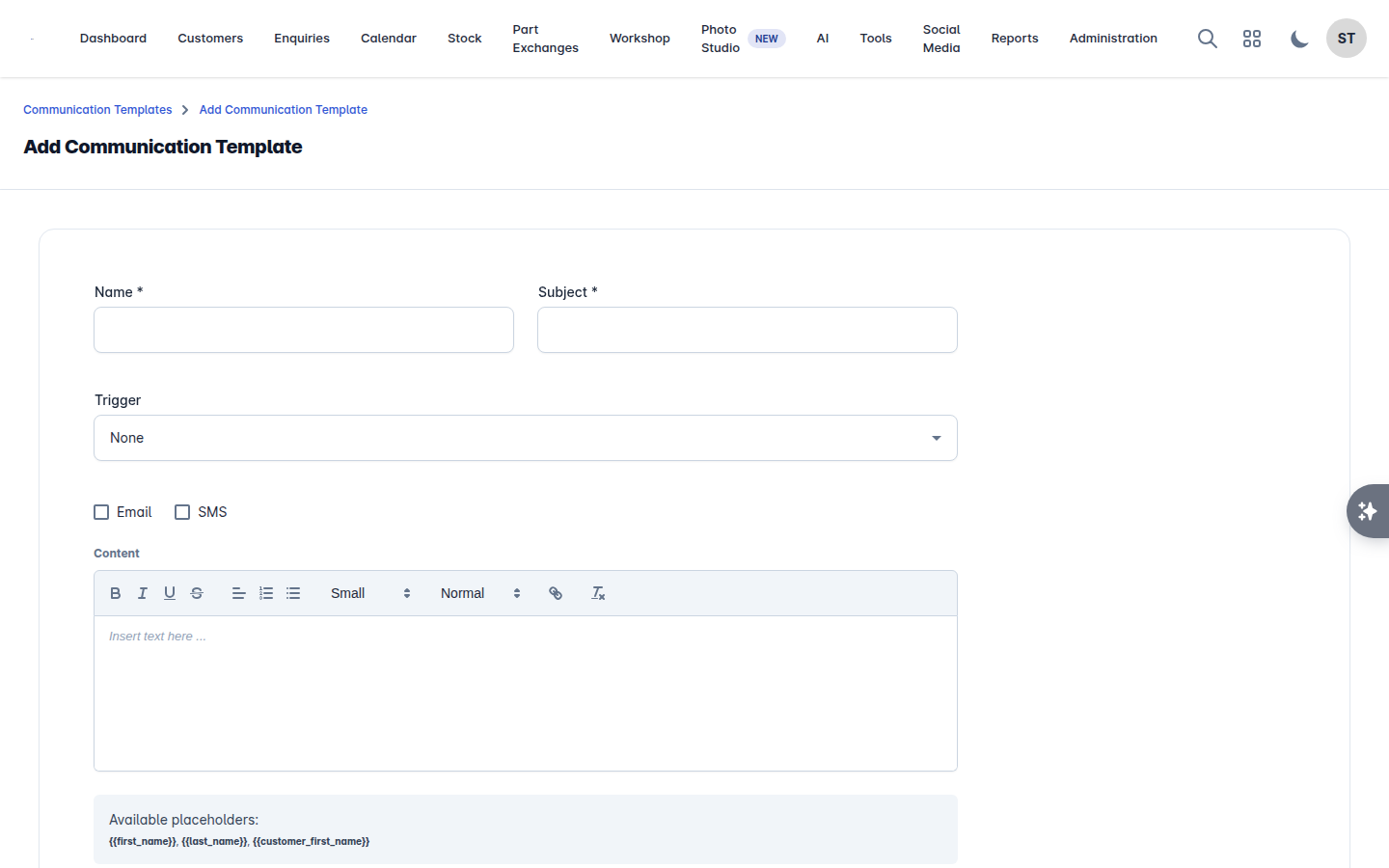
Select Add.
Enter a Name - what your team will recognise it by in the picker.
Enter the Subject for emails.
Choose a Trigger if it should be sent automatically when something happens, or leave it as None for a template your team picks manually.
Tick Email, SMS or both.
Write the Content.
Select Save.
Placeholders
Each template shows the Available placeholders for its trigger. They are filled in with the real values when the message is sent, so {{first_name}} becomes the customer's first name.
Use them rather than writing "Hi there". A message that uses the customer's name and their car's details does not read as a template, which is the whole point.
Where templates are used
Enquiries - Send Message on an enquiry lets you start from a template. See Working an enquiry.
Workshop - booking confirmations, job updates, invoices and payment receipts.
Automatic sends - anything with a trigger set goes out on its own when that event happens.
Writing ones people will actually use
Keep SMS short. It is plain text only, and it is charged per message.
Say who you are in the first line. Customers get a lot of unexpected texts.
Say what you want them to do next: reply, ring, click, come in.
Have one template per situation rather than one that tries to cover three.
Related
Templates are messages to customers. Who on your team is told when something happens is separate - see Notifications.