
AI agents
An AI agent is a job you set up once and it runs on its own: find the customers who match a description, write each of them a message, and either send it or put it in a queue for you to approve.
The obvious ones are the campaigns you know you should be running and never get round to: MOT reminders three years after the sale, a note to everyone who enquired six months ago and never bought, a follow-up on lost sales.
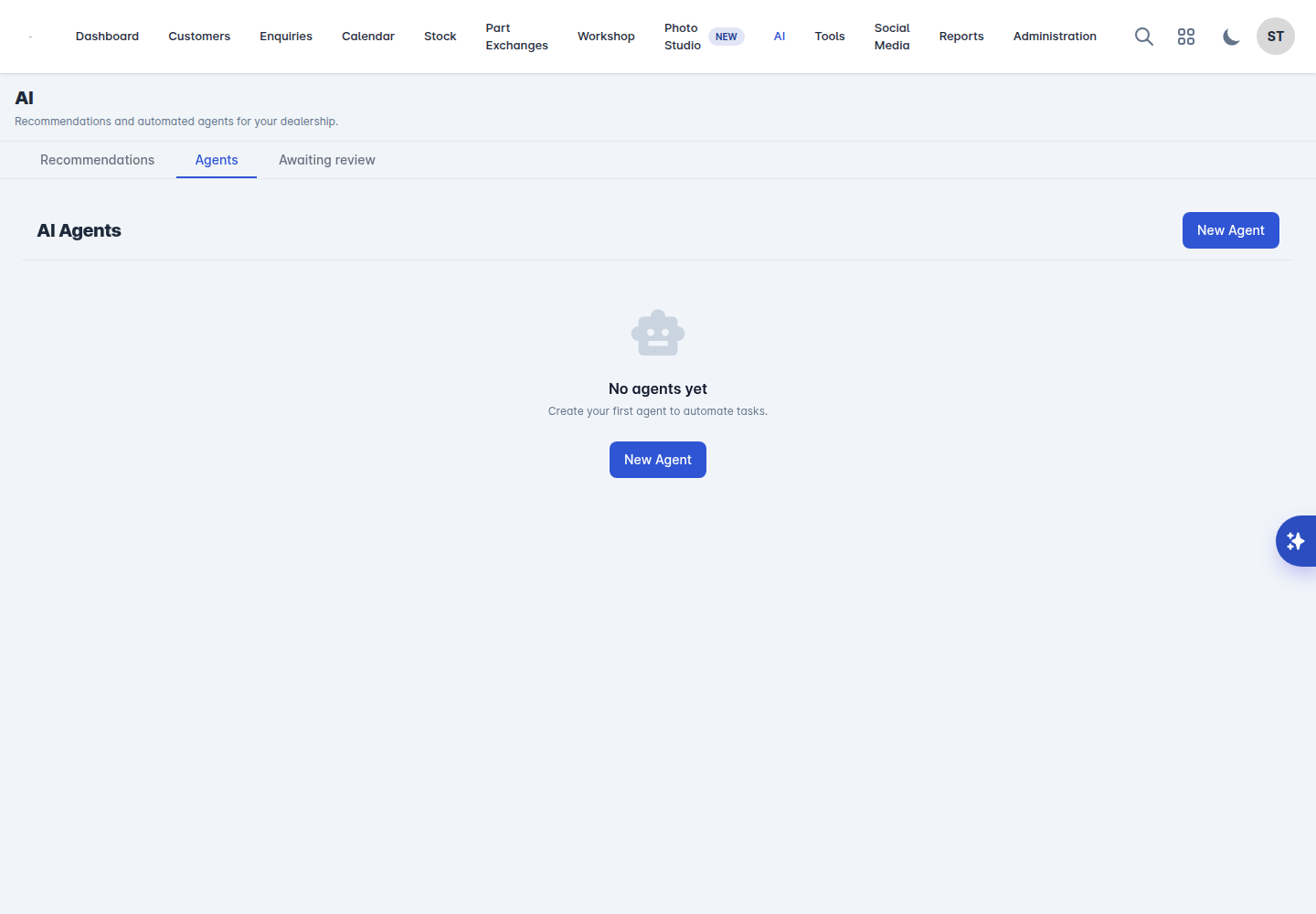
AI agents are part of a paid plan. Go to AI > Agents.
Building one
Select New Agent. There are three ways to start:
Start from a template - a ready-made agent you adjust.
Describe what you want - write it in plain English, for example "Send a monthly email to customers who bought a car 3 years ago", and Vehiso builds it for you.
Start blank.
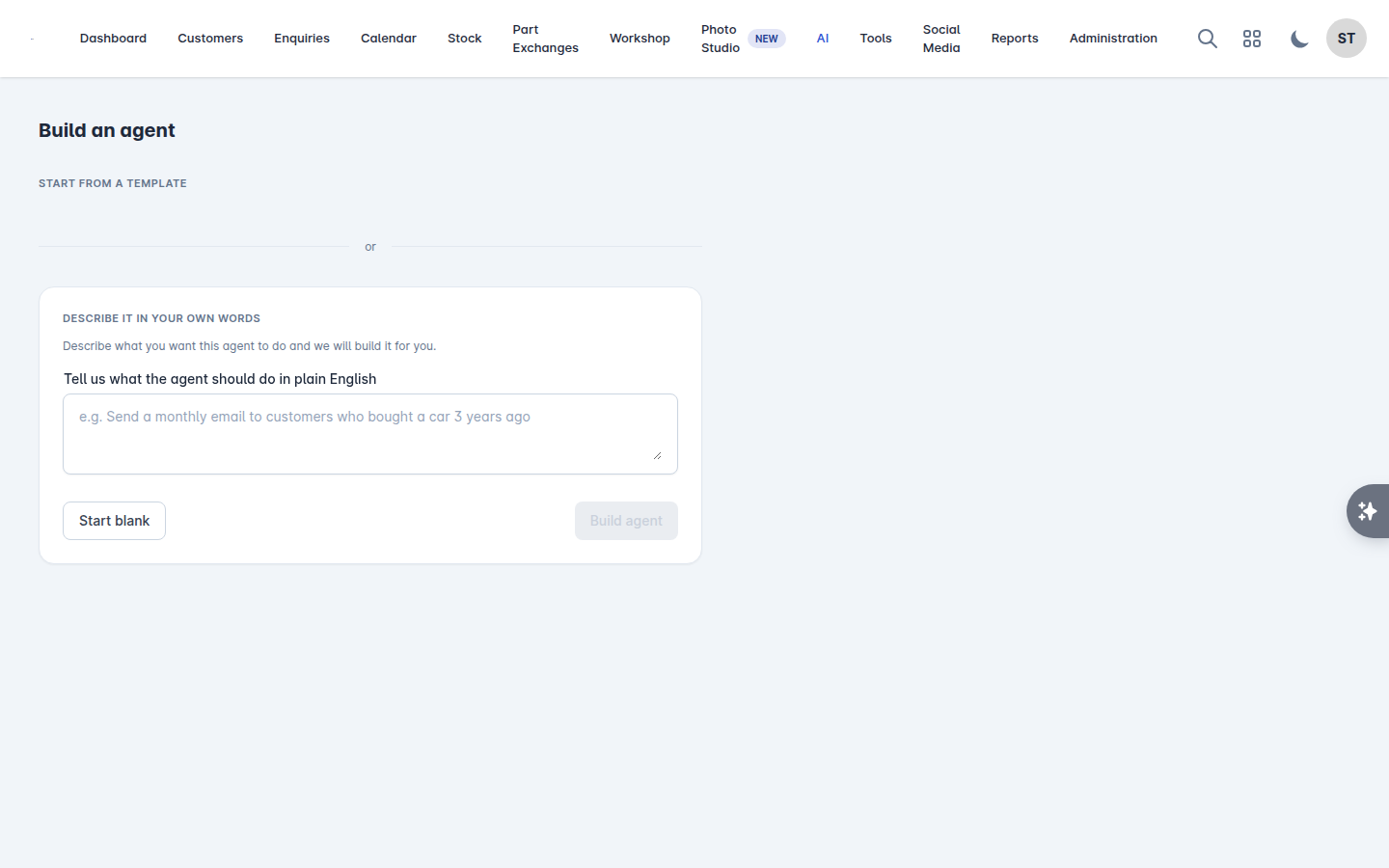
However you start, you end up on the same form, in five parts.
Name
Something you will recognise in six months: "3-year MOT reminder" rather than "Agent 4".
When it runs
Scheduled - Daily, Weekly or Monthly, at a Send time. Times use the timezone set under Administration > Settings > General.
Event - when something happens: When a new enquiry comes in, or When a vehicle is sold.
Manual - only when you run it.
Who it reaches
Build the audience from conditions. Add as many as you need and Vehiso shows you how many customers match as you go.
Condition | Use it for |
|---|---|
Enquired between | People who enquired in a date window |
Purchased between | People who bought in a date window |
Bought a car in the last | Recent buyers |
Has not purchased | Enquiries that never converted |
MOT due (months ago) | MOT reminders |
Bought a car that is N years old | Age-based replacement campaigns |
Has an email address / Has a mobile number | Making sure they are contactable |
Not contacted in | Leaving people alone for a while |
Agreed to marketing | Consent |
Latest enquiry status | Lead, Ongoing, Order or Lost sale |
Date windows count back from today, so "from 3 years ago to 2 years ago" keeps working every time the agent runs.
What it does
Channel: Email, Text message or Internal note.
Subject and Message. You can insert the customer's first name with the merge tag shown under the box.
Add personalised vehicle suggestions - the agent picks suitable cars from your current stock for each customer.
Safety
This is the part to get right.
Approval: Review before sending puts everything in a queue for you, or Send automatically lets it go.
Max recipients per run - the most customers reached in one run.
Min days between contacts - do not contact the same customer more often than this.
Maximum times to contact each customer - leave blank for no limit.
Start with Review before sending and a small recipient cap. Read what it produces for a couple of runs before you let it send on its own.
Testing and activating
Send a test emails a copy to you. It is offered for email agents only - a text message or internal note agent has no test action, so check those with a small recipient cap and Review before sending instead. Save draft keeps it without running it. Save and activate puts it live.
There is a limit on how many agents can be active at once. If you are at the limit, pause one before activating another.
The review queue
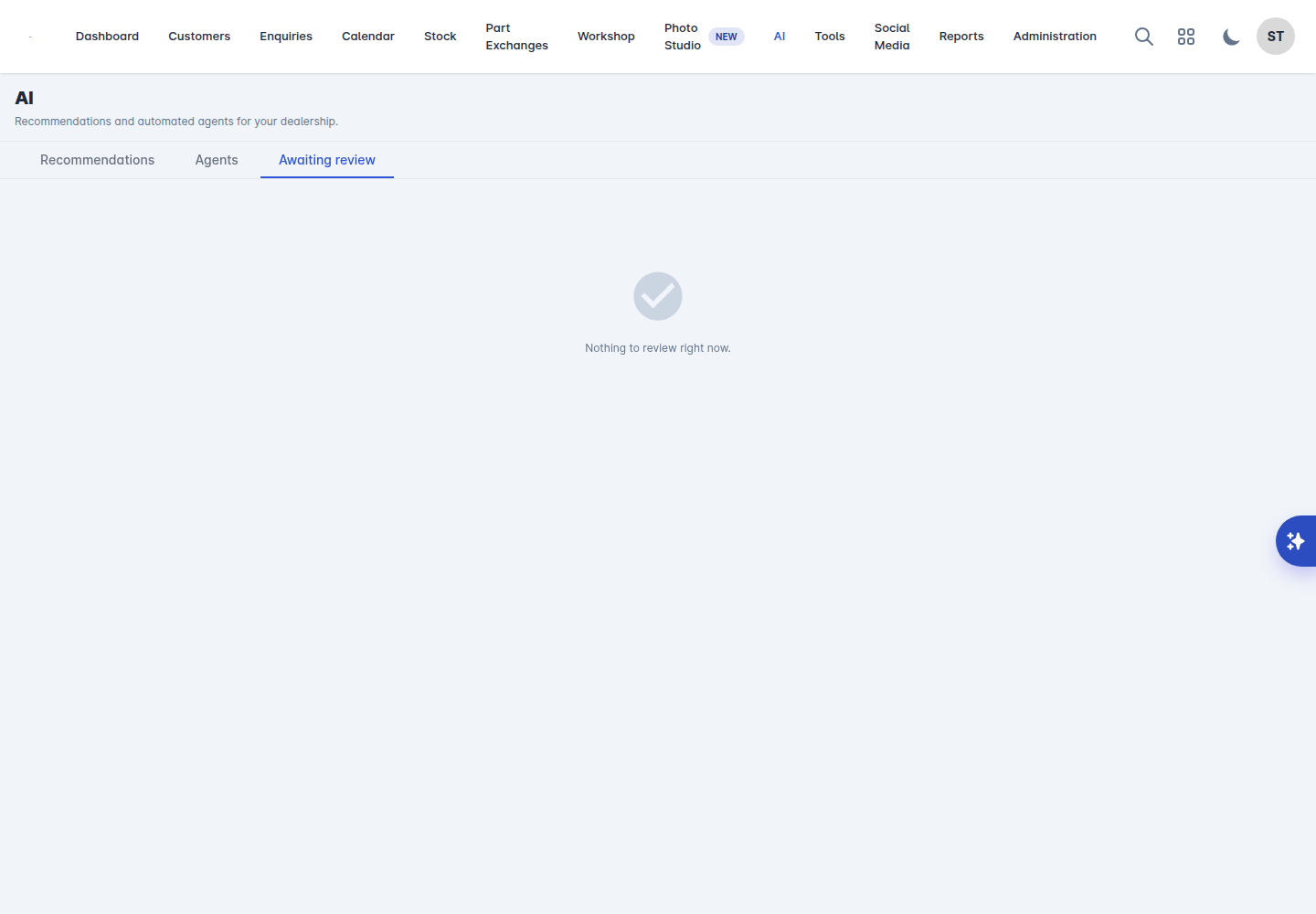
Agents set to Review before sending put their messages in AI > Awaiting review.
Each recipient shows the customer, the message and any recommended vehicles. You can:
Approve an individual message, or select several and Approve & send selected.
Approve all and send.
Reject anything you do not want going out.
View customer to check the record first.
Run history
Each agent has a Run history showing when it Started, how many customers it Matched and how many it Sent, and its status: Completed, Awaiting review, Sending, Failed or Cancelled.
The valuable part is the skipped list, which tells you why someone was left out:
Not opted in to marketing
No contact details on file
Contacted too recently
Recipient limit reached
Reached the maximum number of contacts
If an agent matched two hundred customers and contacted twelve, that is where you find out why.
Pausing and deleting
Toggle an agent between Active and Paused from the list. Delete agent permanently removes it and its history.
A word on judgement
Agents write competent, friendly messages, and they will happily send them to two hundred people. Read the first few runs properly. Check the merge tags produce something sensible. Check the vehicle suggestions are cars you would actually put in front of that customer. The customer will not know it was automated - which is exactly why it has to be right.