
Social media
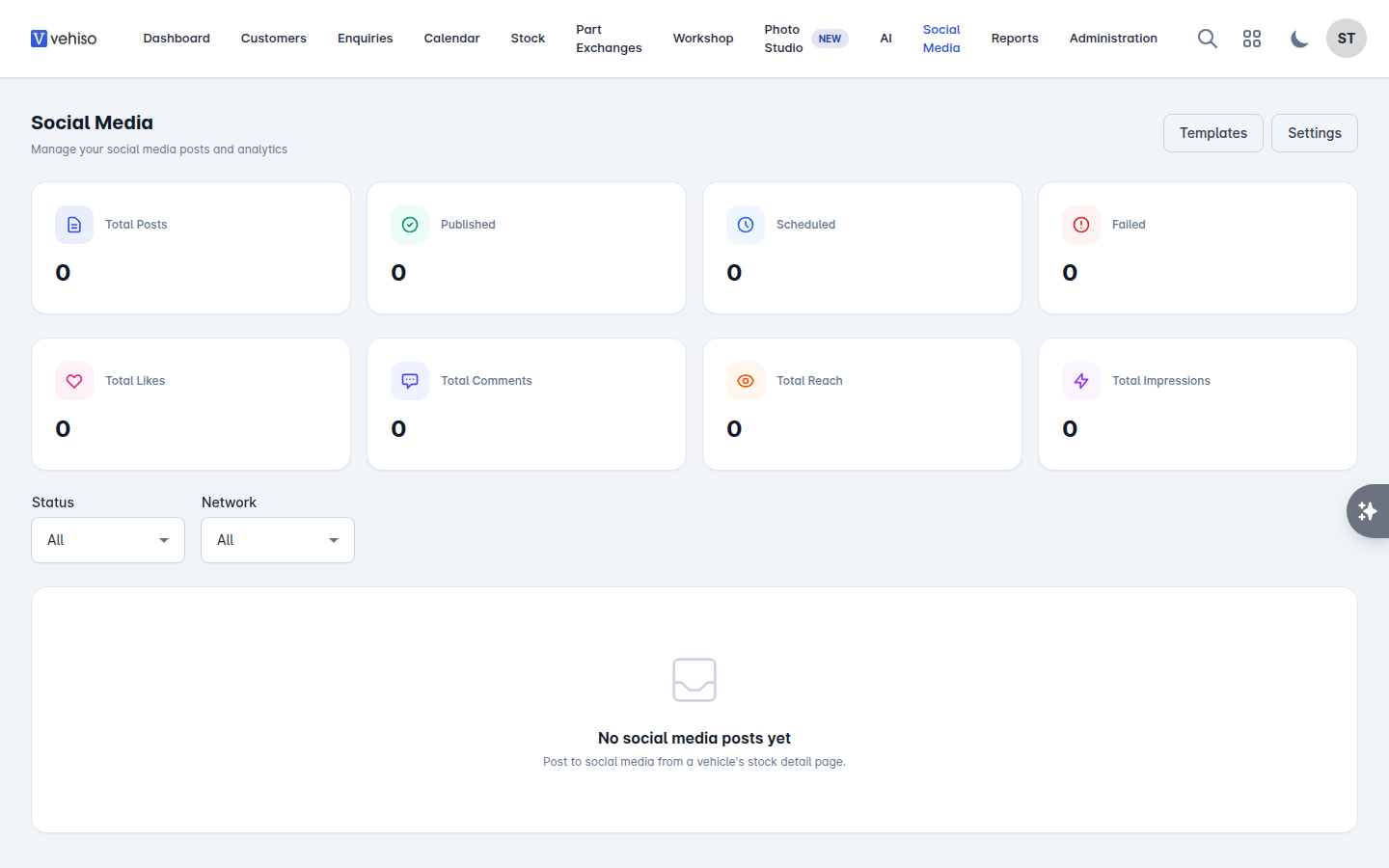
Vehiso posts your stock to your social accounts, on demand or automatically, and reports back on how the posts did.
Social posting is on the latest plans. If you are on an older plan you will be prompted to upgrade.
Go to Social Media.
Connecting your accounts
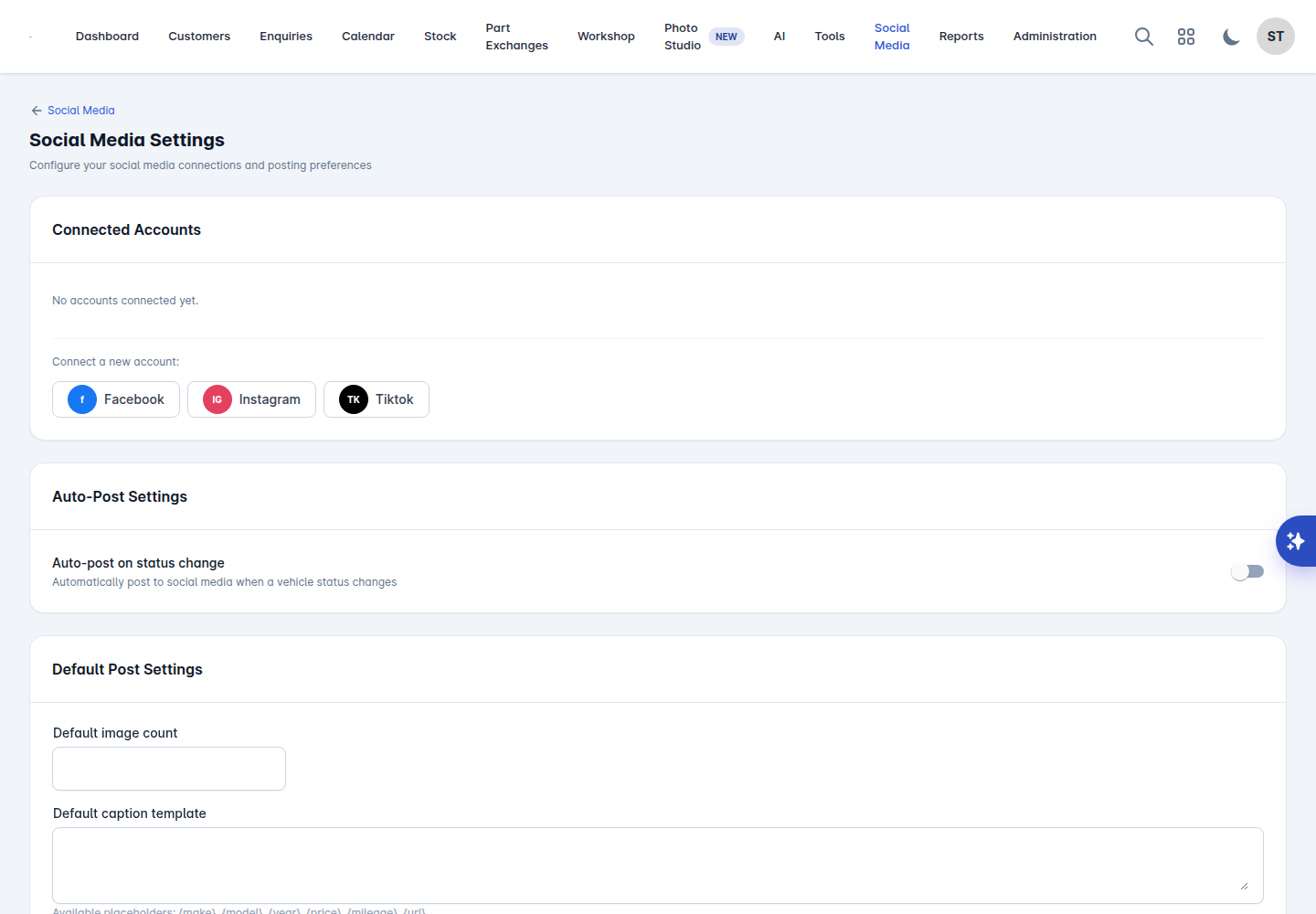
Go to Social Media > Settings.
Under Connect a new account, choose the network.
Sign in and pick the pages or accounts you want to use.
Select Connect Selected.
Connected accounts are listed with the maximum number of images each one accepts. Disconnect removes one.
Posting a vehicle
Posts are made from the vehicle. Open a car in Stock and choose to post it to social media.
Choose which accounts to Post to.
Choose the Image Style:
Original Photos - your photos as they are.
Branded Overlay - your photos with a template over them.
Collage - several photos in one image. Pick a layout: Side by Side, 4 Grid, Hero + 2 or Hero + 3.
Standalone Graphic - a generated graphic rather than a photo.
If you are using an overlay or a graphic, pick the Template.
Select the Images to include.
Write the Caption. You can use placeholders:
{make},{model},{year},{price},{mileage}and{url}.Post Now, or tick Schedule for later and set the date and time.
Image templates
Templates are the branded frame around your photos. Go to Social Media > Templates and select New Template.
Template Name
Layout Type and Collage Layout
What to show: Logo, Make & Model, Price, Custom Text
Logo Position and Text Position
Overlay Opacity, Brand Colour and Font Colour
A preview updates as you go. Set one as the Default so it is pre-selected on every post.
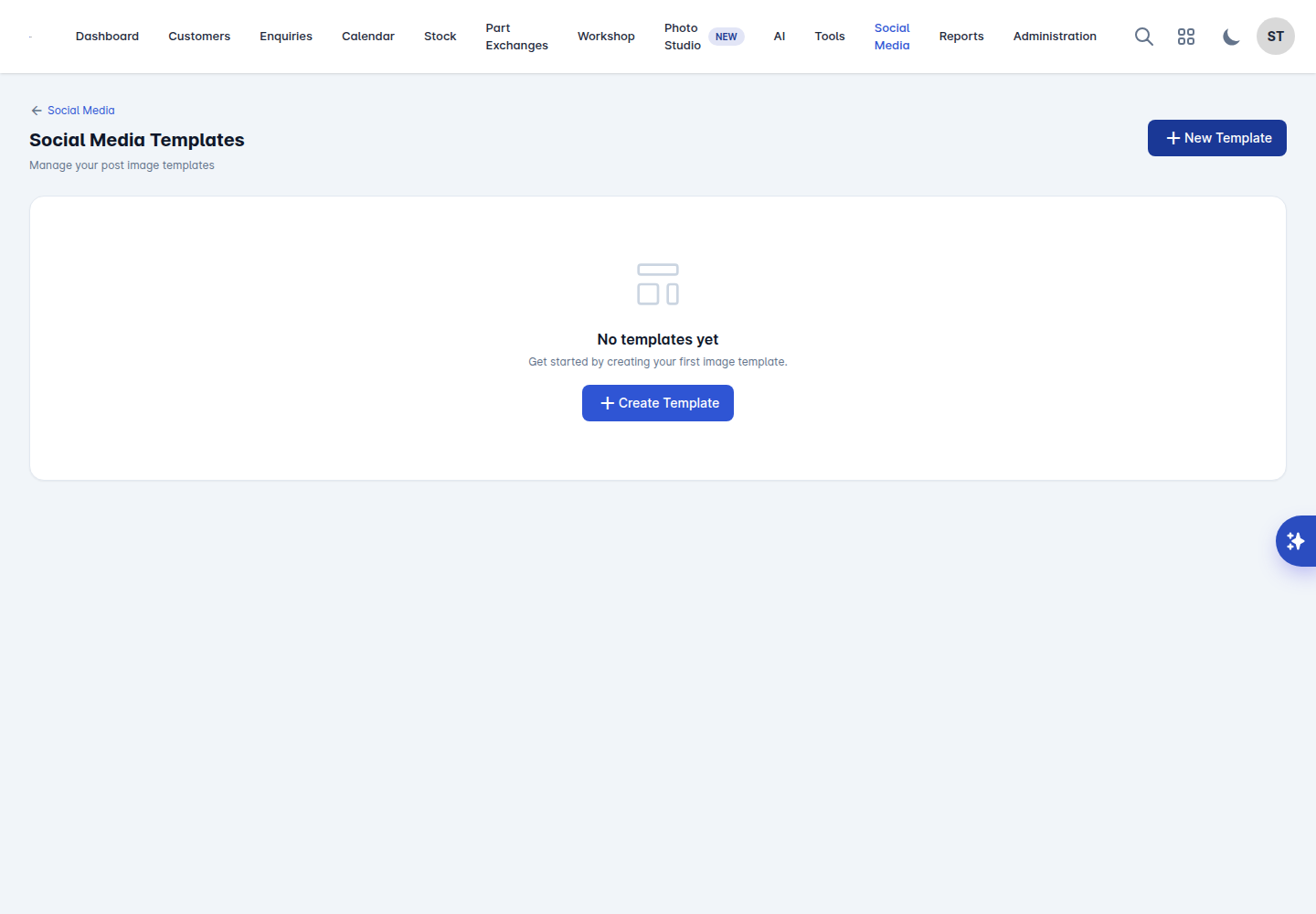
You need at least one template before you can use branded overlays or standalone graphics.
Posting automatically
In Settings, turn on Auto-post on status change and choose the Trigger on status:
In Stock
Published to Website
Then pick which accounts to post to. If you select none, all active accounts are used.
Under Default Post Settings, set the Default image count and a Default caption template, using the same placeholders.
Auto-posting every car the moment it lands is the easiest way to keep your feed alive, but it only works if your photos are ready first. Set the trigger to Published to Website rather than In Stock if cars go up before they are photographed.
Managing posts
The main Social Media screen lists every post with its status: Published, Scheduled or Failed. Filter by status or by network. From a post you can Cancel a scheduled one, Retry a failed one, View Analytics or Delete it. Select several to delete them together.
Analytics
Totals across the top cover Total Posts, Published, Scheduled, Failed, Total Likes, Total Comments, Total Reach and Total Impressions.
View Analytics on a post breaks down likes, comments, reach and impressions by network.
Look at which cars get engagement rather than which posts look nice. It is usually the cheap, sensible stock that people share.