
The website navigation menu
The menu in your website's header is built separately from your pages, so you can name a menu entry differently from the page it points at, and put entries in the order that suits you.
Go to Administration > Settings > Navigation.
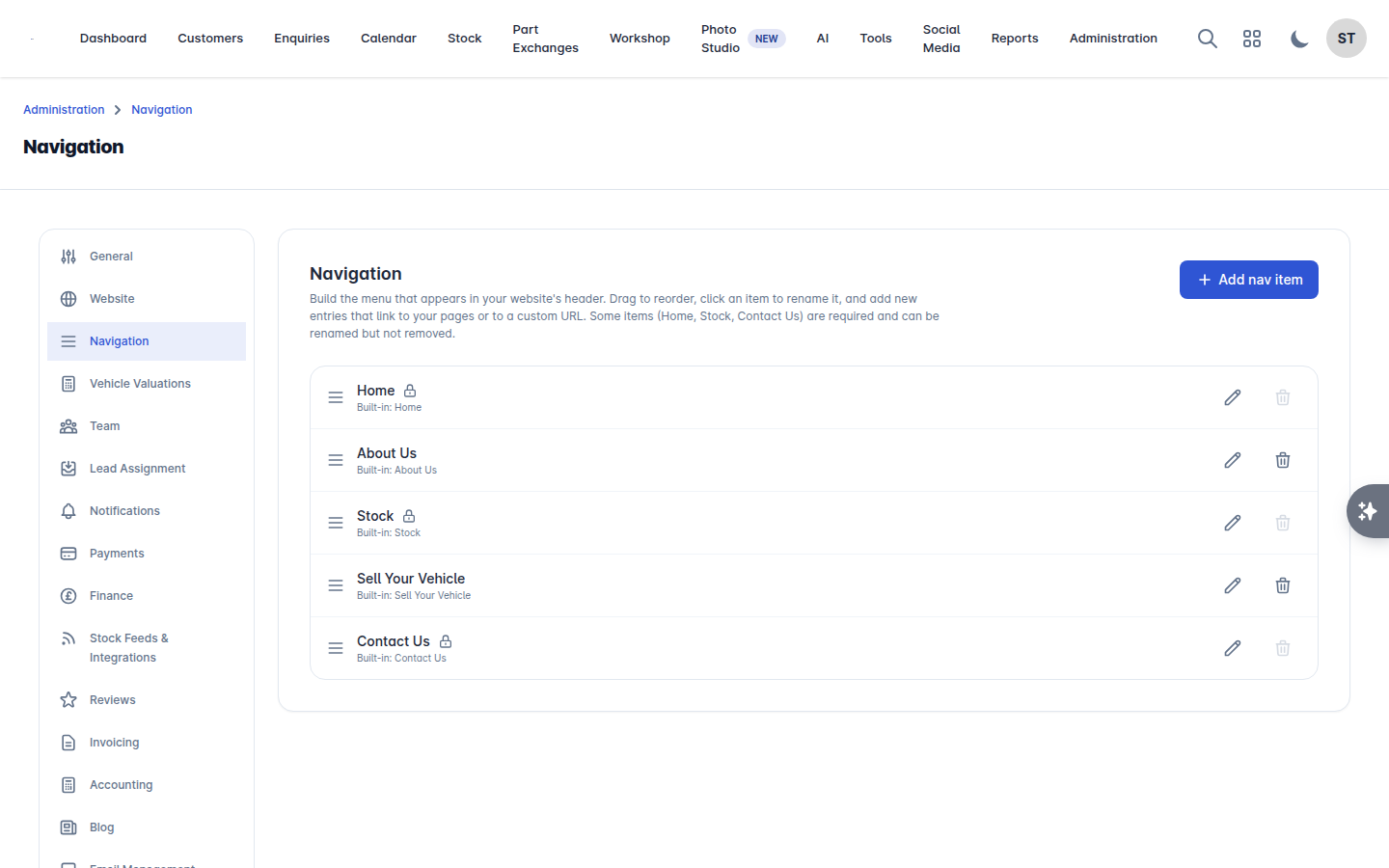
Adding an entry
Select Add nav item.
Enter the Label - the words shown in your header.
Choose the Type: a Page on your site, or a custom URL.
Pick the page, or enter the address.
Select Save changes.
To nest an entry under another, use Add child on the parent.
Reordering
Drag entries into the order you want. To move a child entry, edit it rather than dragging it.
System items
Home, Stock and Contact Us are required. You can rename them, but you cannot remove them. They are marked as system items in the list.
Things worth knowing
If every page is already in the menu, the Page list will be empty. Create the page first.
Renaming a page under Administration > Pages does not change its menu label. Change it here.
A page still has to be Published to be reachable, even with a menu entry pointing at it.
Keep it short
Five or six top-level entries is plenty. Stock, Finance, About us, Reviews, Contact. Everything else can live in the footer or inside a page - a long header menu makes it harder, not easier, for a customer to find a car.