
Pages and content blocks
Your website is made of pages. Each page has its own copy, its own settings and its own content blocks - sections you add between the standard parts of the page.
Go to Administration > Pages.
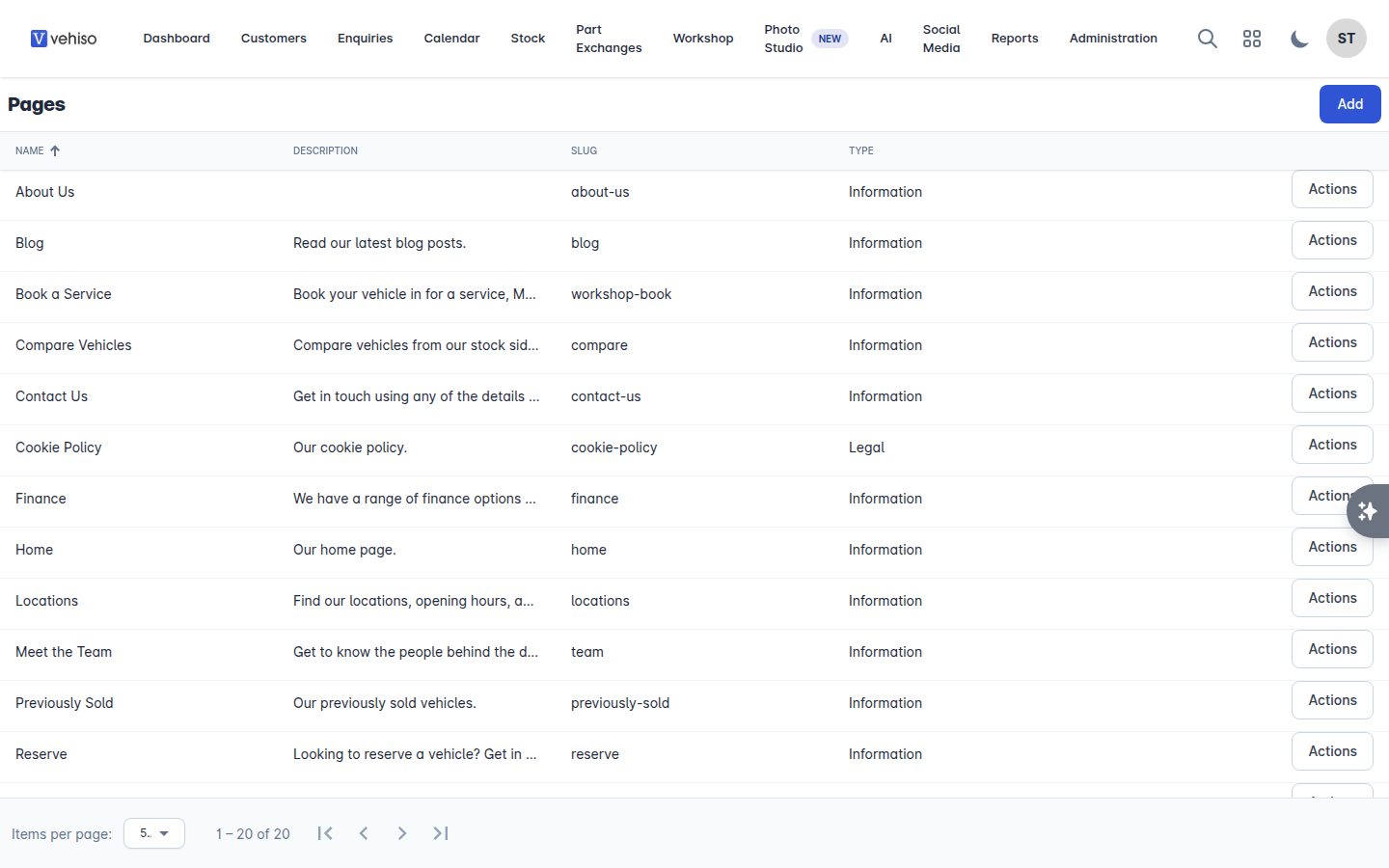
Editing a page
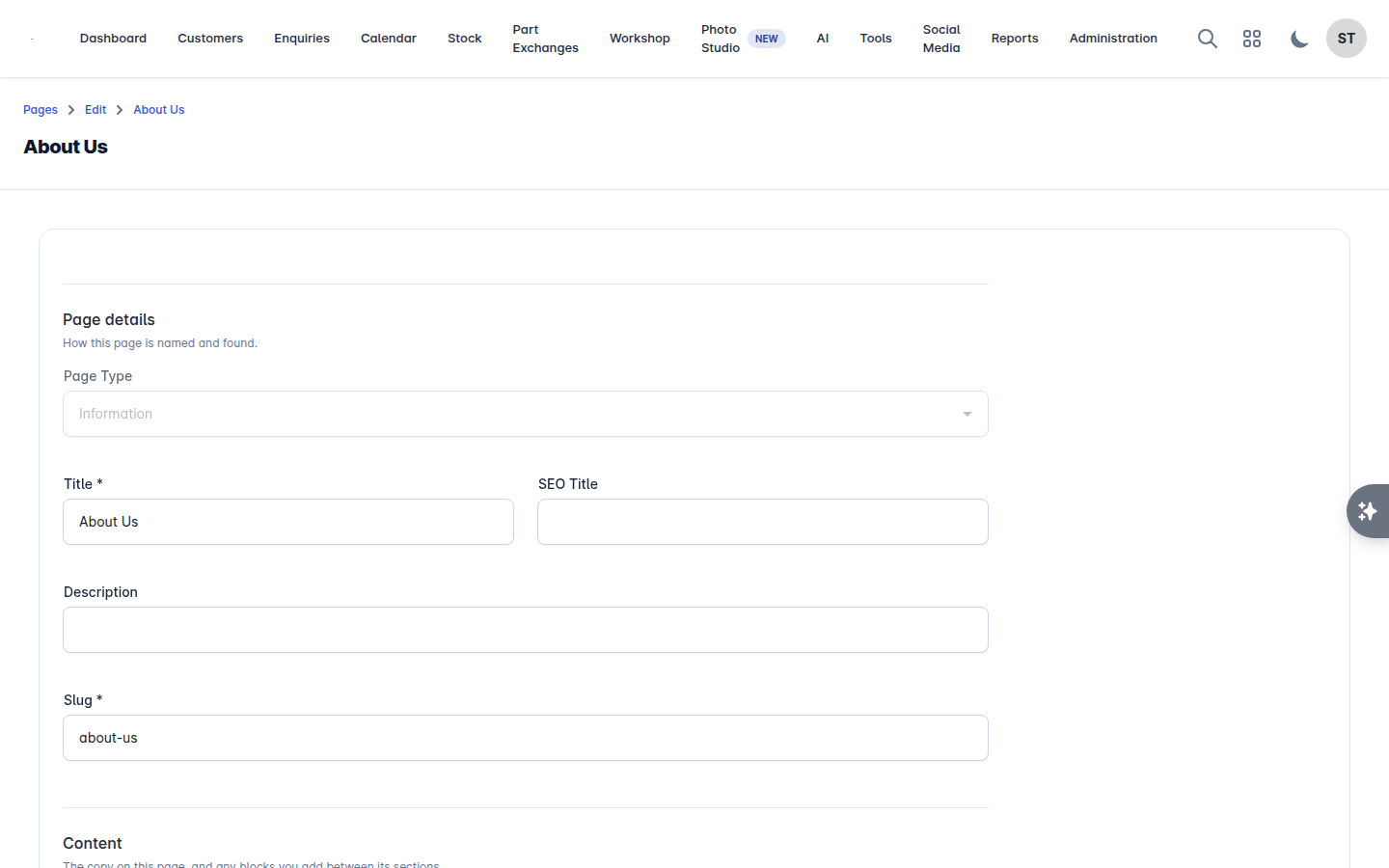
Select Edit on a page. The form is grouped into four parts:
Page details - the Title, SEO Title, Description and Slug. When you add a page, leave Automatically generate ticked unless you want to set the web address yourself. On a page your website serves at an address of its own - the home page, Stock, Contact us, Reviews, Team, Blog and the like - the Slug is shown but cannot be changed, because the address is what the site uses to find the page. Your legal pages can be renamed.
Content - the copy on the page, and the blocks you add between its sections.
Page sections - fields specific to that page type.
Visibility - whether visitors can see it.
Select Save.
Two things catch people out:
The label in your website's header is set under Navigation, not here. Renaming a page changes the page, not the menu entry. See Website navigation menu.
A page has to be Published to be visible. Use Publish and Unpublish from the page list. The standard pages your site is built around cannot be taken down or deleted, so Unpublish and Delete are not offered on them and the Visibility section is hidden when you edit one.
The compare and saved pages
Your website lets a visitor save vehicles as they browse and put a few side by side. Both lists live in the visitor's own browser, so there is nothing for you to fill in - but each has a page in your list, Compare Vehicles and Saved Vehicles, so you can set the Title, SEO Title and Description a search engine shows for it.
There is no Content to write on either, and neither can be unpublished or deleted.
Editing on the site itself
For wording and images, the visual editor is quicker: select Edit Website from Administration > Settings > Website and your live site opens with editing turned on. Change text and images in place and see them as the customer will.
Content blocks
Content blocks are your own sections, added between the built-in parts of a page. Use them for anything the standard layout does not cover: a finance explainer, an award, a seasonal offer.
On a page, open its content and select Add content block. For each block:
Give it a Block name.
Choose a Layout: Single panel, 2 cards, 3 cards or 4 cards.
Choose where it sits. On the home page the anchors are the Hero widget, Showcase text & image, Browse by brand, Reviews, Latest arrivals, Selling points and Contact. On other pages it is Top of page or Page content.
Then fill it in. Each block has a Section header (Heading and Text), and each card has a Heading, Text, Button label, Button link, Image and Text alignment.
Blocks can be reordered by dragging, hidden with Hide and shown again with Show. Adding, reordering, hiding and removing save straight away. Wording and images are edited in a dialog with its own Save, or in place on the site with Edit on site.
Reducing a block from four cards to two removes the last cards and their wording, and Vehiso warns you before it does.
Section order
Section order lets you drag the sections of your home page into the order you want. Content blocks move with the section they sit under.
Put what sells first. For most dealers that is the search widget, then latest arrivals, then selling points and reviews.
Images
Anywhere an image is asked for you can upload your own file or Use a stock photo.
The two editors differ in when the file goes up. On the page form, a file you choose is held and uploaded when you Save - the form says so with "New image will be uploaded upon saving". In the content block dialog the image uploads as soon as you choose it, and saving stores it alongside the block's wording. Either way, a failed upload tells you so.