
Parts and stock control
The parts catalogue is what your workshop sells alongside labour: what is on the shelf, what it cost, what it is charged at, and what needs ordering. Once it is set up, adding a part to a job puts a priced line on the job card and reserves what is available, ready to be issued as the work is done and invoiced with the rest of the job.
Go to Workshop > Parts.
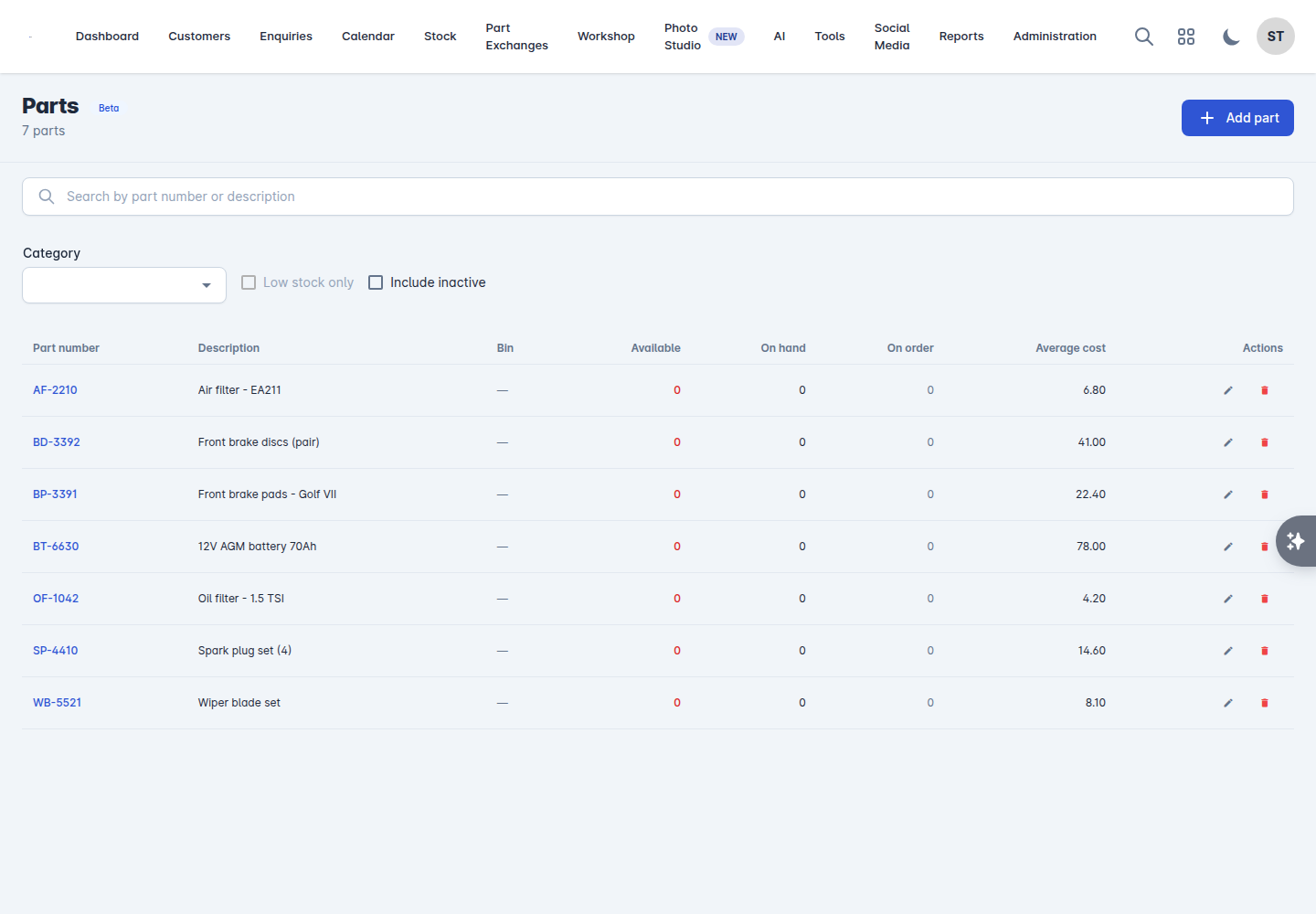
The list shows, for each part: Part number, Description, Bin, On hand, Available, On order, Average cost and Value.
On hand is what is physically there. Available is what is left once parts reserved for open jobs are taken off. The difference is what catches people out when a shelf looks full and the part is already spoken for.
Search by part number or description, filter to Low stock only, or tick Include inactive to see parts you have retired.
Adding a part
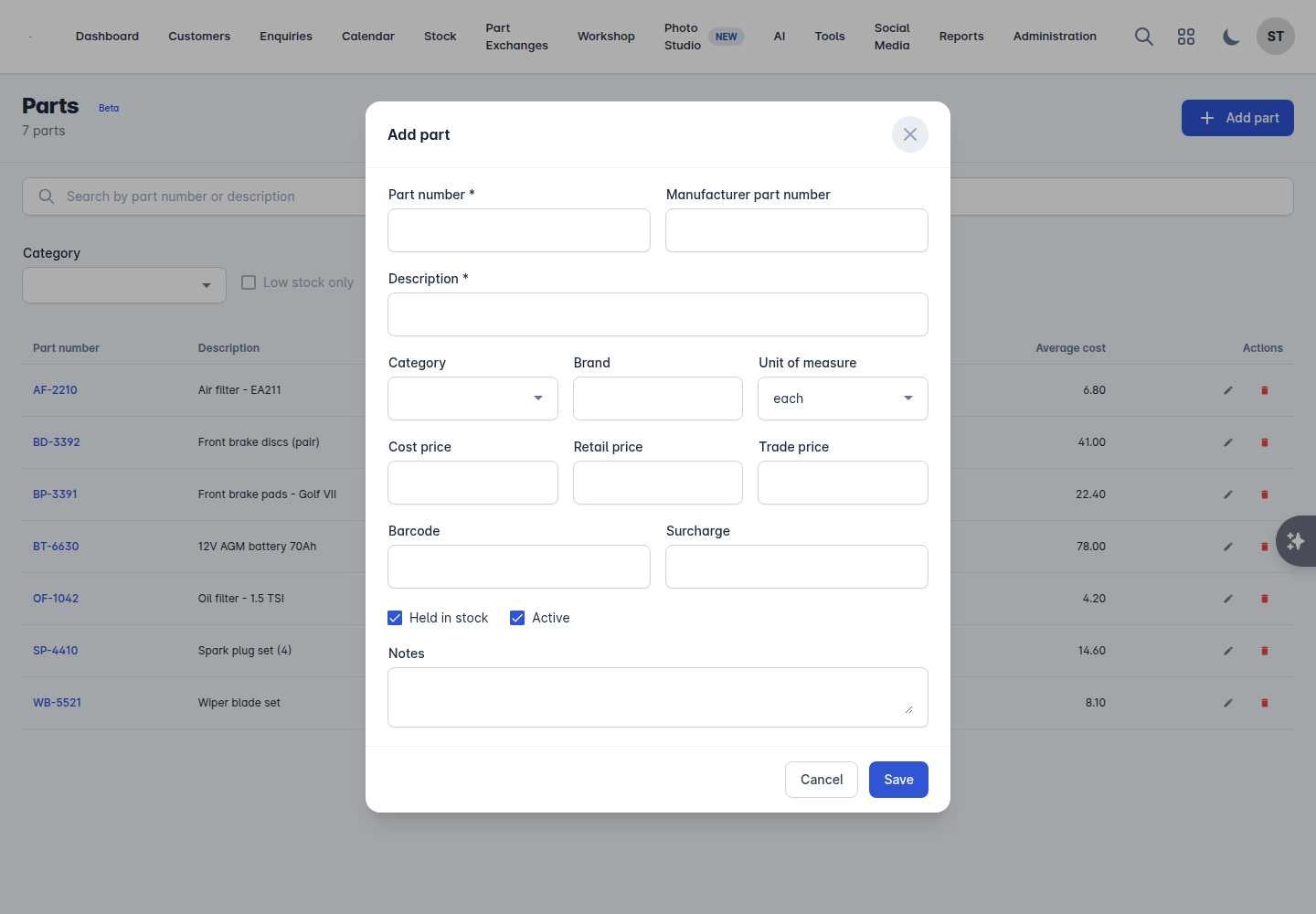
Select Add part.
Fill in the details.
Field | Notes |
|---|---|
Part number | Your own reference, and what you will search by |
Manufacturer part number | The OE or factor number |
Brand | |
Barcode | |
Category | Set your categories up under Workshop > Settings |
Unit of measure | Each, litres, metres and so on |
Held in stock | Turn off for parts you always order in rather than shelve |
Retail price and Trade price | What you charge. Leave them to be worked out by a pricing matrix if you use one |
Surcharge | The exchange unit deposit, where the factor charges one |
Active | Untick to retire a part without losing its history |
Save.
Deleting a part keeps its history but stops it being offered when adding parts to a job. Retiring it with Active is usually the better move.
The part record
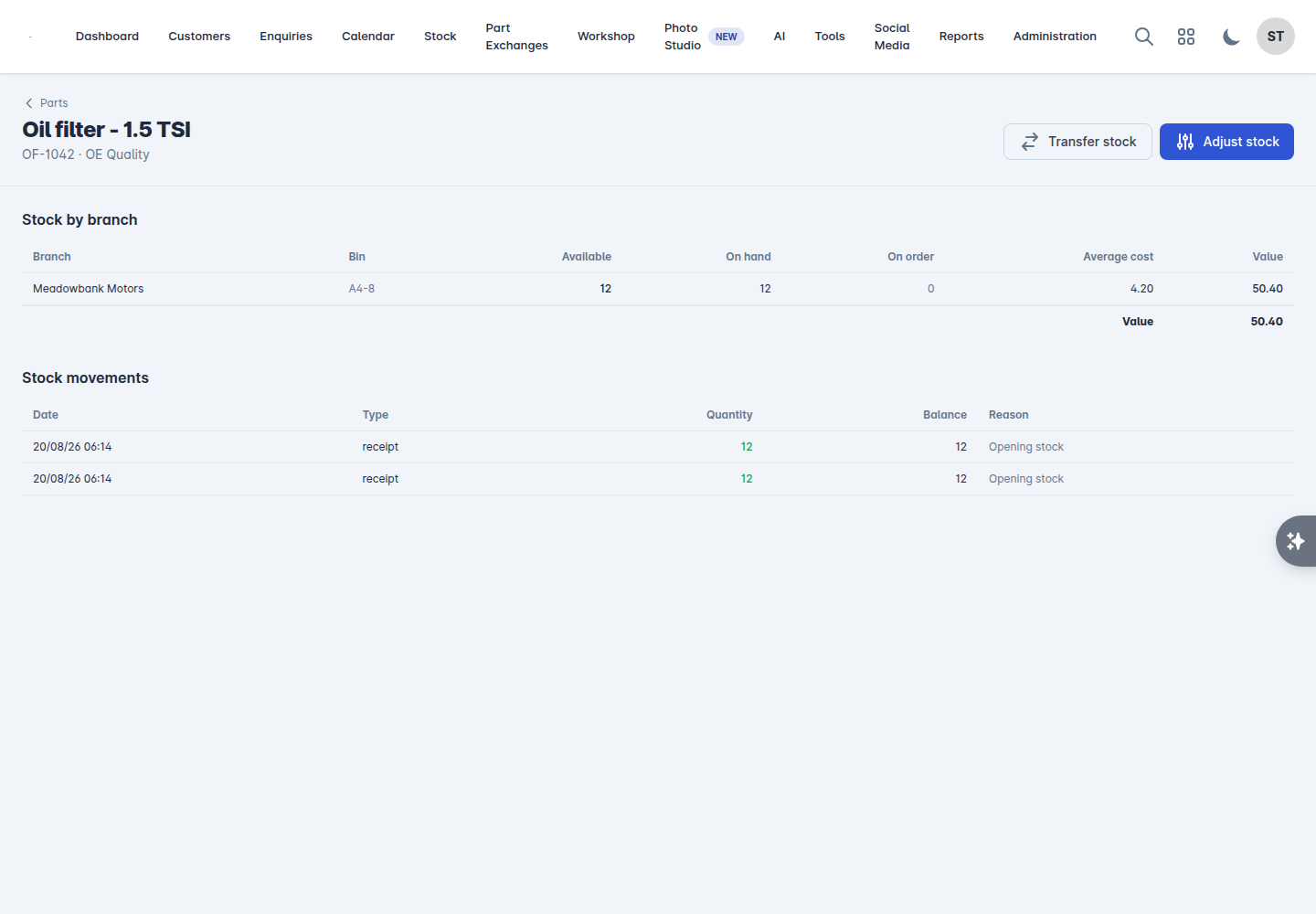
Open a part to see:
Stock by branch - what each location holds, with its Reorder at point.
Stock movements - every movement with its Date, Type, Quantity, Balance and Reason. This is the audit trail: if a figure looks wrong, the answer is here.
Its suppliers, with one marked Preferred. The preferred supplier is who the reorder screen drafts an order to.
Adjusting and transferring stock
Adjust stock corrects a figure. Enter a positive quantity to add or a negative one to remove, and give a Reason. Tick Record as a write-off where the stock is gone rather than miscounted.
Transfer stock moves parts between branches: choose From and To and the quantity.
Always adjust with a reason rather than quietly editing a number. The reason is what makes the movement history worth reading in six months.
Pricing
Under Workshop > Settings there are three sections that decide what a part sells for.
Part categories
Your own grouping for the catalogue. Categories drive reporting and make the parts list navigable once you are past a few hundred lines.
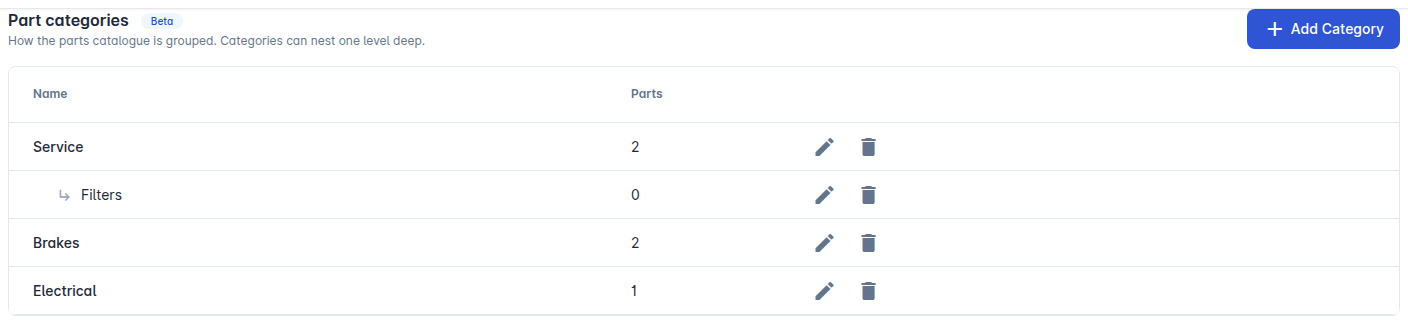
Select Add Category, give it a Name, and choose its Parent category - Top level, or an existing category to file it under. Categories nest one level deep, so a category that already has sub-categories stays at the top level until you move them out. Sort order sets the running order: lower numbers come first, and categories sharing a number are listed by name.
The list shows each category's Name and how many Parts are in it, with a sub-category shown indented under its parent. Use the edit and delete icons on the row to change one or remove it. Deleting a category keeps its parts - they are simply left uncategorised.
Parts pricing
Price matrices turn a part's cost into what the customer is charged. Without one, parts price at cost, which is rarely what you want.
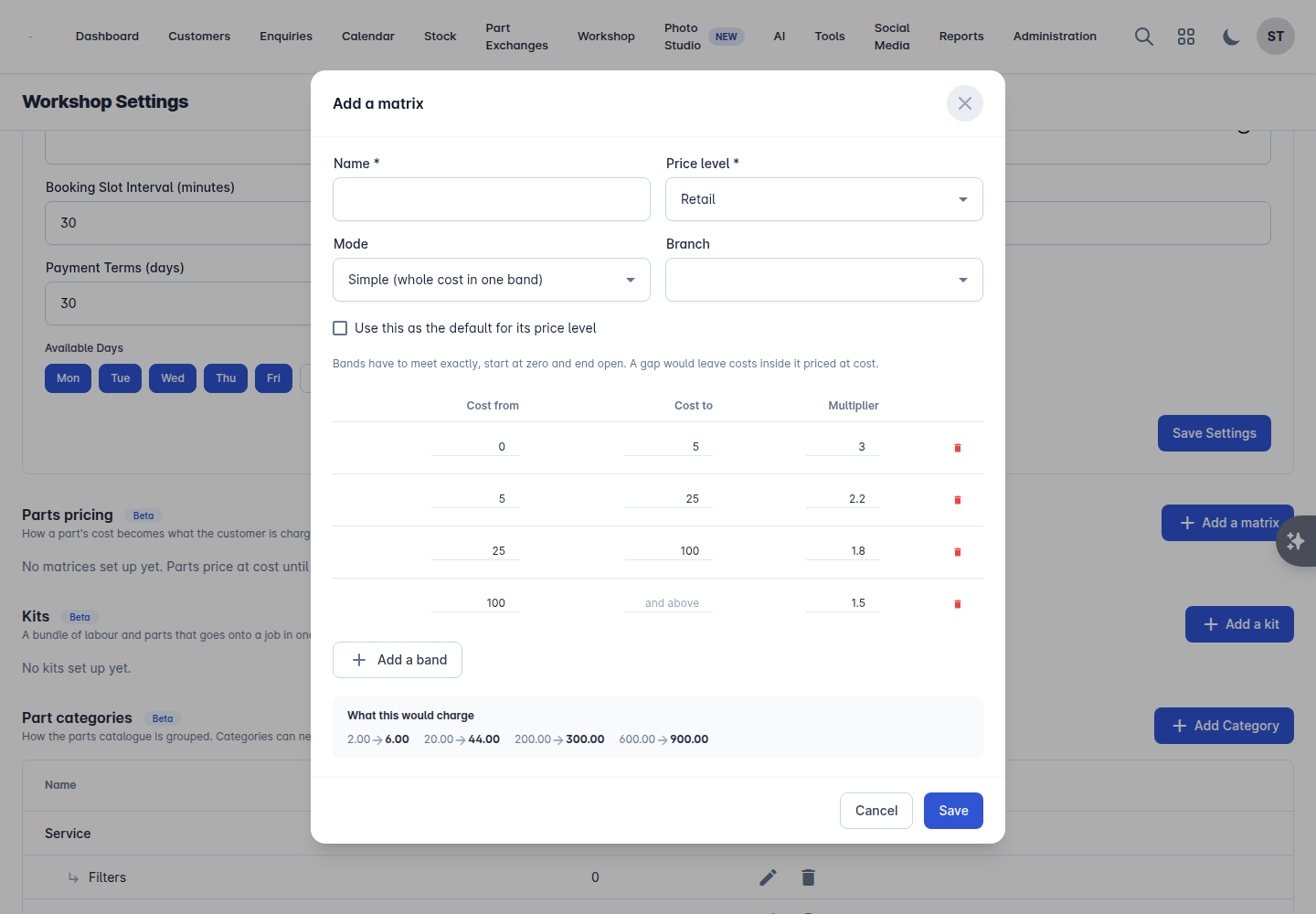
Select Add a matrix and give it a Name.
Choose the Price level it applies to: Retail or Trade.
Choose the Mode:
Simple - the whole cost sits in one band and takes that band's multiplier.
Compound - the cost slides across the bands, each part of it taking its own multiplier.
Add your bands: Cost from, Cost to and the Multiplier. The last band is open ended.
Tick Use this as the default for its price level if it should apply generally.
Bands have to meet exactly, start at zero and end open. A gap would leave any cost inside it priced at cost. The What this would charge preview shows the effect before you save.
Kits
A kit is a bundle of labour and parts that goes onto a job in one click: a full service, a cambelt job, an MOT plus retest.
Give the kit a Name and add its lines. Leave a line's price blank and it is worked out when the kit is added to a job, so a kit never sells this year's parts at last year's prices.
Using parts on a job card
On the job card's Items & Pricing tab:
Select Add Item and choose a parts line.
Use Find a part and search by part number or description.
Or select Add a line not in the catalogue for a one-off you do not stock, and type it in with its Cost price and Supplier reference.
Set the quantity and save.
Parts lines carry a Cost and a Margin column alongside the price, and the tab totals your Parts margin. That is the number to watch: labour hours are visible, parts margin quietly is not.
Each parts line shows its state:
State | Meaning |
|---|---|
Reserved | Held on the shelf for this job |
Part reserved | Some held, the rest still to come |
Awaiting | Not in stock, on order or to be ordered |
Issued | Taken off the shelf and onto the job |
If there is not enough on the shelf, Vehiso says so when you add the line and marks the job as awaiting parts. The job card then carries a This job is waiting on parts banner, so nobody wastes a ramp slot on a car that cannot be finished.
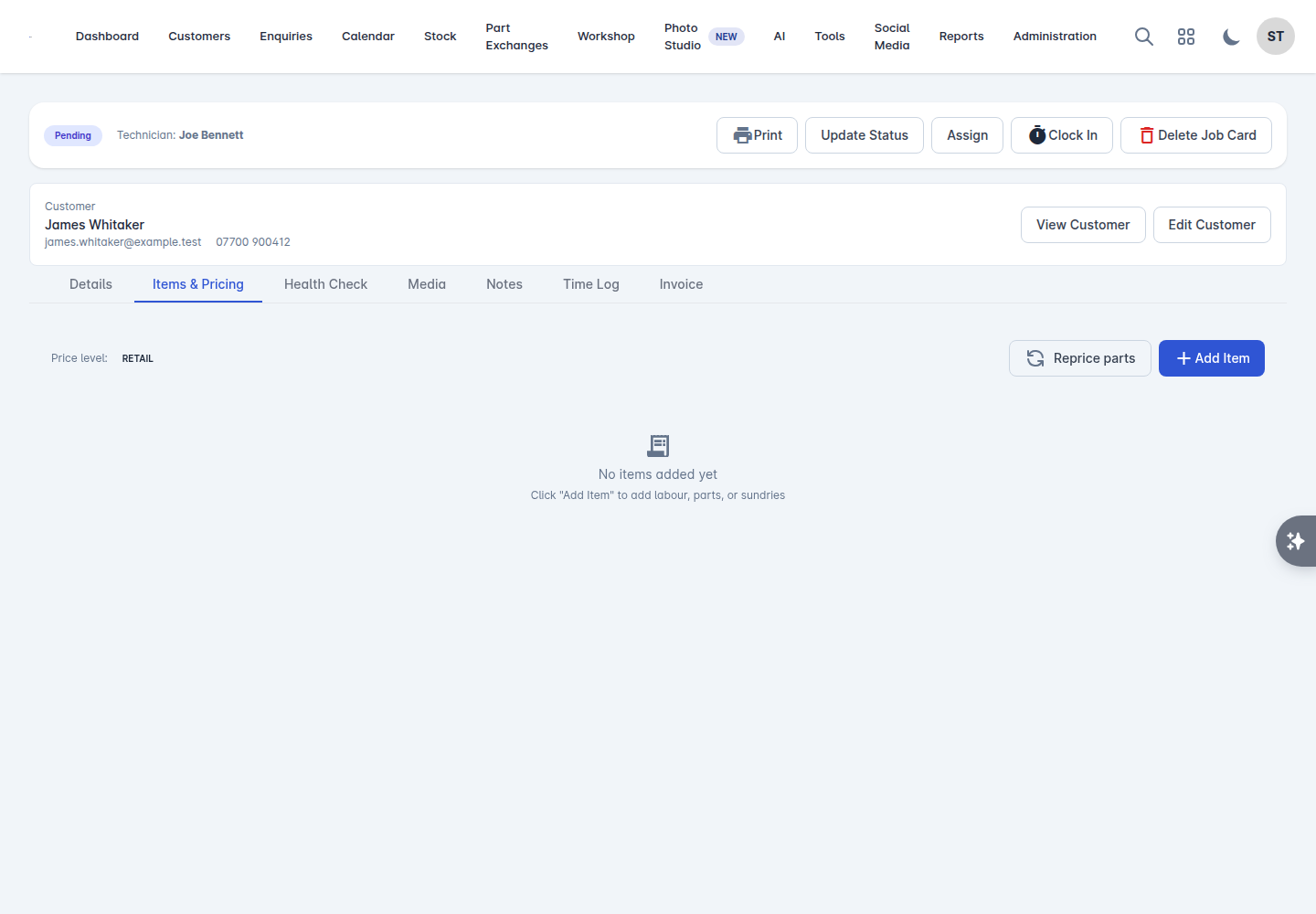
Picking list prints what the job needs, for whoever is pulling the parts. If pop-ups are blocked the print window will not open.
Reprice parts re-prices the catalogue parts on a job at that job's price level. Lines already issued are left alone.
Keeping the figures honest
Three habits do most of the work:
Adjust with a reason, never silently.
Book deliveries in as they arrive, not at month end - see Purchase orders, deliveries and returns.
Count regularly with stock takes rather than once a year.
The parts figures in your workshop report - parts revenue, gross profit, margin, stock turn, fill rate, obsolescence and stock not moving - are only worth reading if those three are being done.