
Workshop invoicing and payments
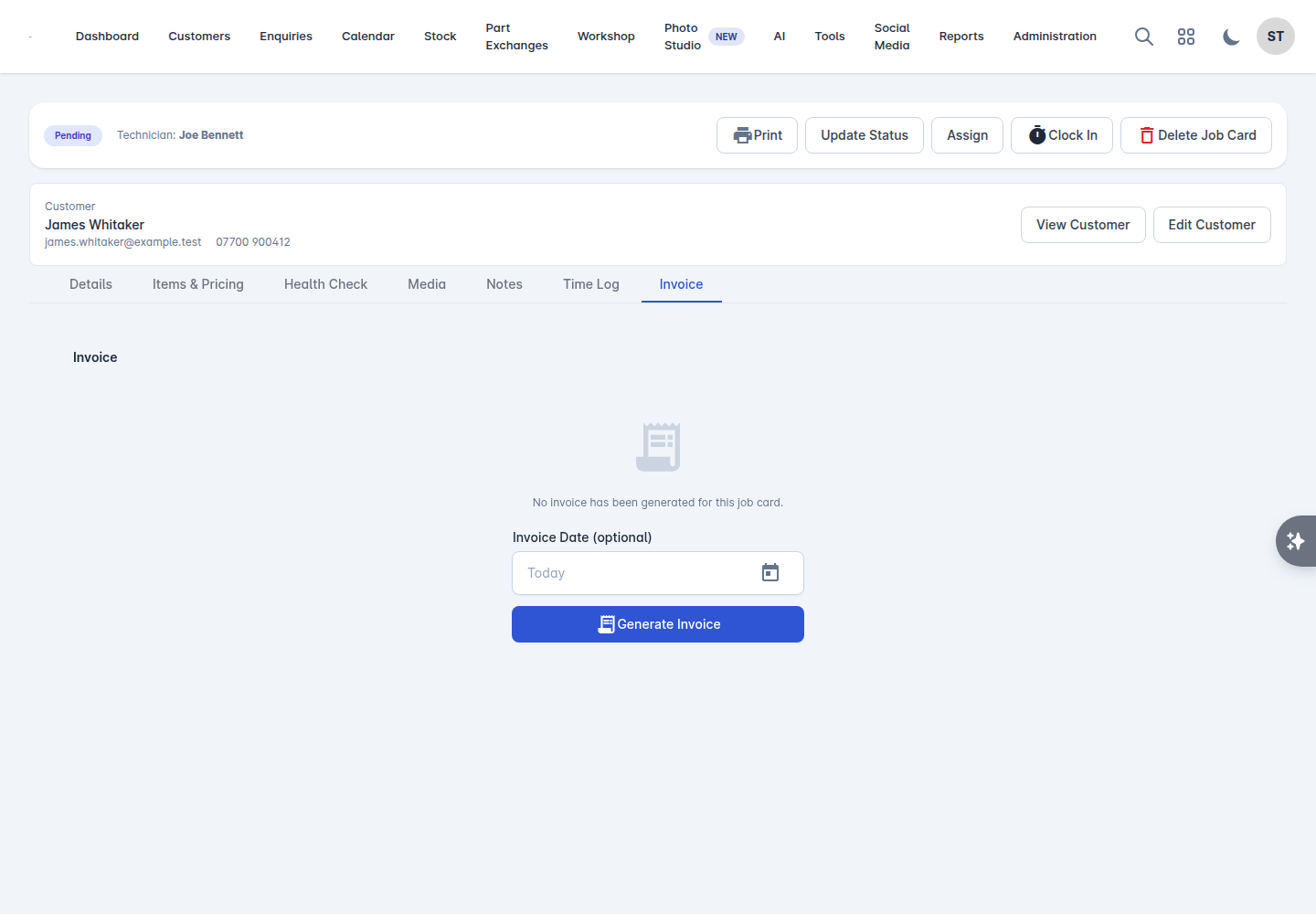
Workshop invoices come from the job card, not from an enquiry. Everything happens on the job card's Invoice tab.
Generating the invoice
Finish the work and add every item to Items & Pricing. Once an invoice exists the job card is locked and items cannot be added.
Go to the Invoice tab.
Set the Invoice Date if it is not today.
Select Generate Invoice.
The tab then shows the invoice Reference, Status and Date.
Sending it
Download Invoice gives you the PDF.
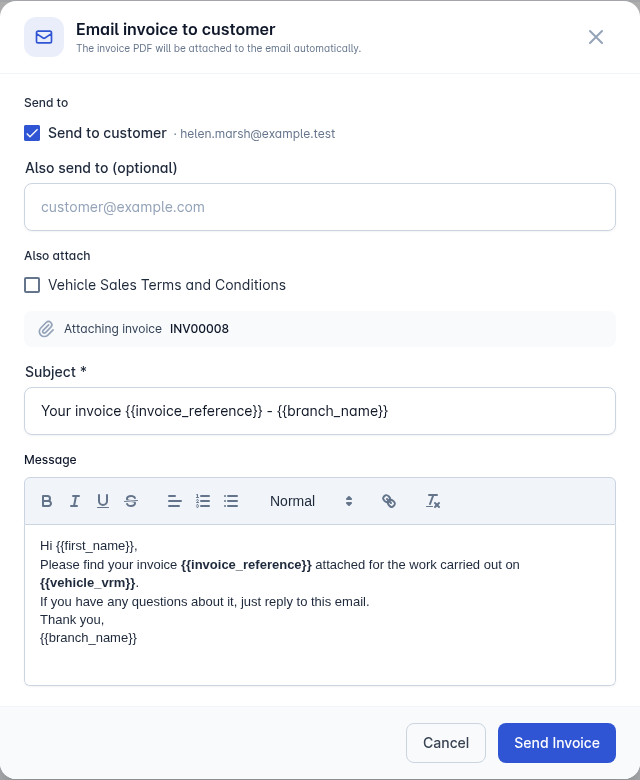
Email Invoice sends it to the customer. The PDF is attached automatically; you can edit the Recipient, Subject and Message first, and add another recipient under Also send to. A completed health check can be attached alongside it.
Send Payment Link emails the customer a link to pay online. It needs a card payment provider connected - see Payments, finance and accounting.
Getting paid
For money taken at the counter, use Record Manual Payment:
Choose the Payment Method: Cash, Bank Transfer, Card Terminal, Cheque or Other.
Add a Note if it helps.
Select Confirm Payment.
Mark as Paid settles the invoice where the money has arrived another way. Once an invoice is paid, the job card's status is locked.
Payments taken through a payment link arrive on their own.
Correcting mistakes
Void Invoice cancels it while keeping the record and your numbering intact.
Delete Invoice removes it. Use this only where the invoice should never have existed.
If work is needed after a job card has been invoiced, raise a new job card rather than reopening the old one. That keeps each invoice matched to the work it covers.
Who the invoice goes to
By default the invoice goes to the customer. Change it with the edit action next to Invoice To on the Details tab - useful for warranty companies, insurers and trade accounts.
Internal jobs on your own stock are billed internally rather than to a customer, so prep work lands on the vehicle's costs instead. See Costs, notes and tasks.
Branch and paperwork
A job card's branch issues the invoice, which is why the branch is fixed once an invoice exists. Each branch can carry its own company registration number, VAT number and FCA number - see Branches and opening hours.
Whether the technician's surname appears on workshop paperwork is controlled by Show Technician Last Name on paperwork under Administration > Settings > Invoicing.
Chasing what is owed
The workshop report has two panels worth looking at weekly:
Finished but not invoiced - work you have done and not billed.
Invoiced but unpaid, aged in days.
Both are usually a surprise the first time you look.