
Vehicle health checks
A health check is a structured inspection: a list of things to look at, each marked green, amber or red, with notes, photos, recommended actions and estimated costs. It gives the customer something to look at rather than something to take on trust, and it is the single biggest driver of authorised extra work in most workshops.
Building a template
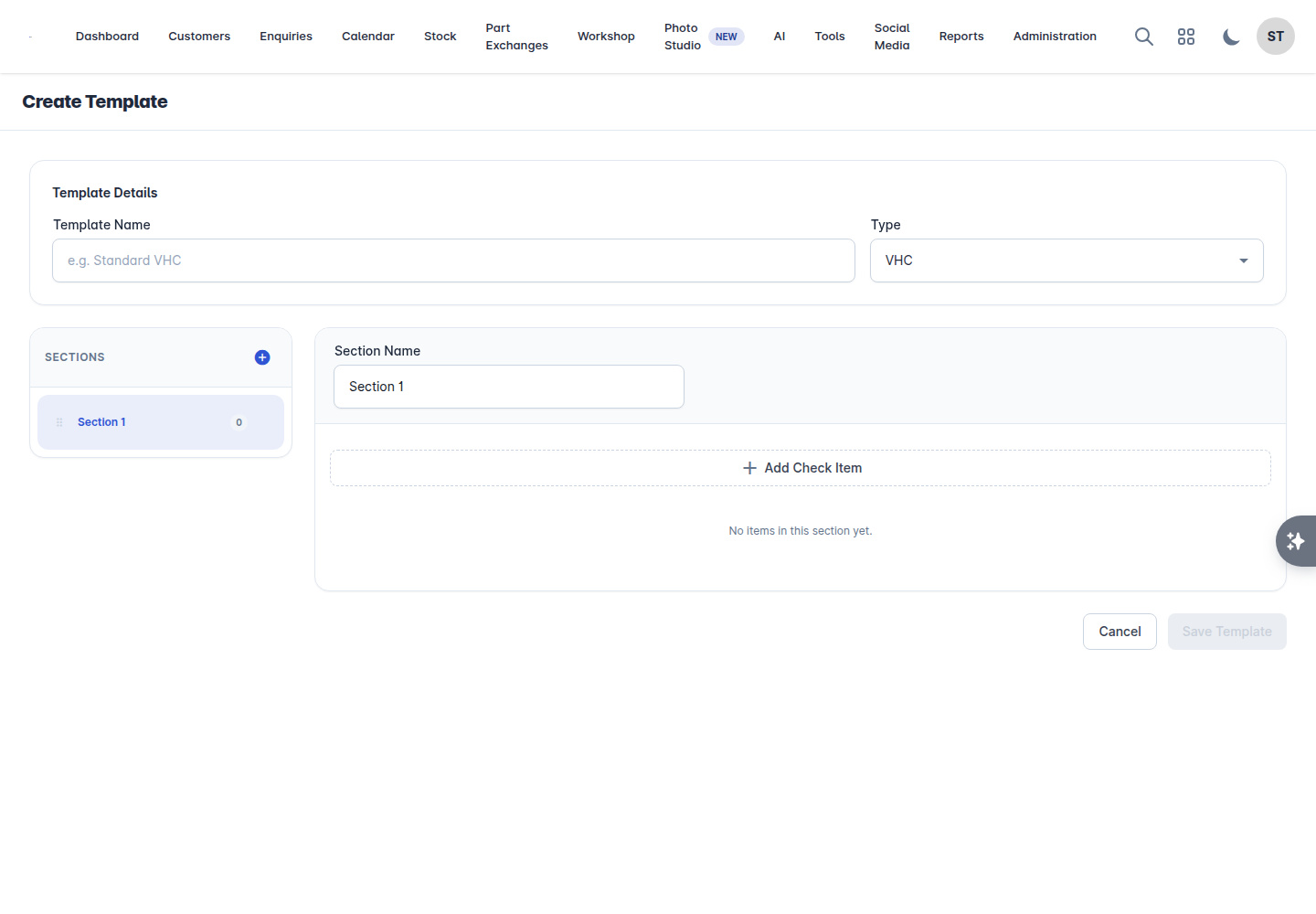
Go to Workshop > Inspection Templates.
Select Create Template.
Give it a Template Name - "Standard VHC", for example.
Add Sections with the + button. A section is a group of related checks: Brakes, Tyres, Lights, Under Bonnet.
Select a section, then Add Check Item for each thing to inspect.
Tick Required on the items that must be answered before the check can be finished.
Select Save Template.
Templates can be duplicated, which is the quickest way to make a variant, and deactivated when they are no longer used. Deleting a template removes it from the list; inspections already completed with it are not affected. Templates supplied with the product cannot be recreated from the back office once deleted, so hide rather than delete if you are unsure.
Carrying out a check
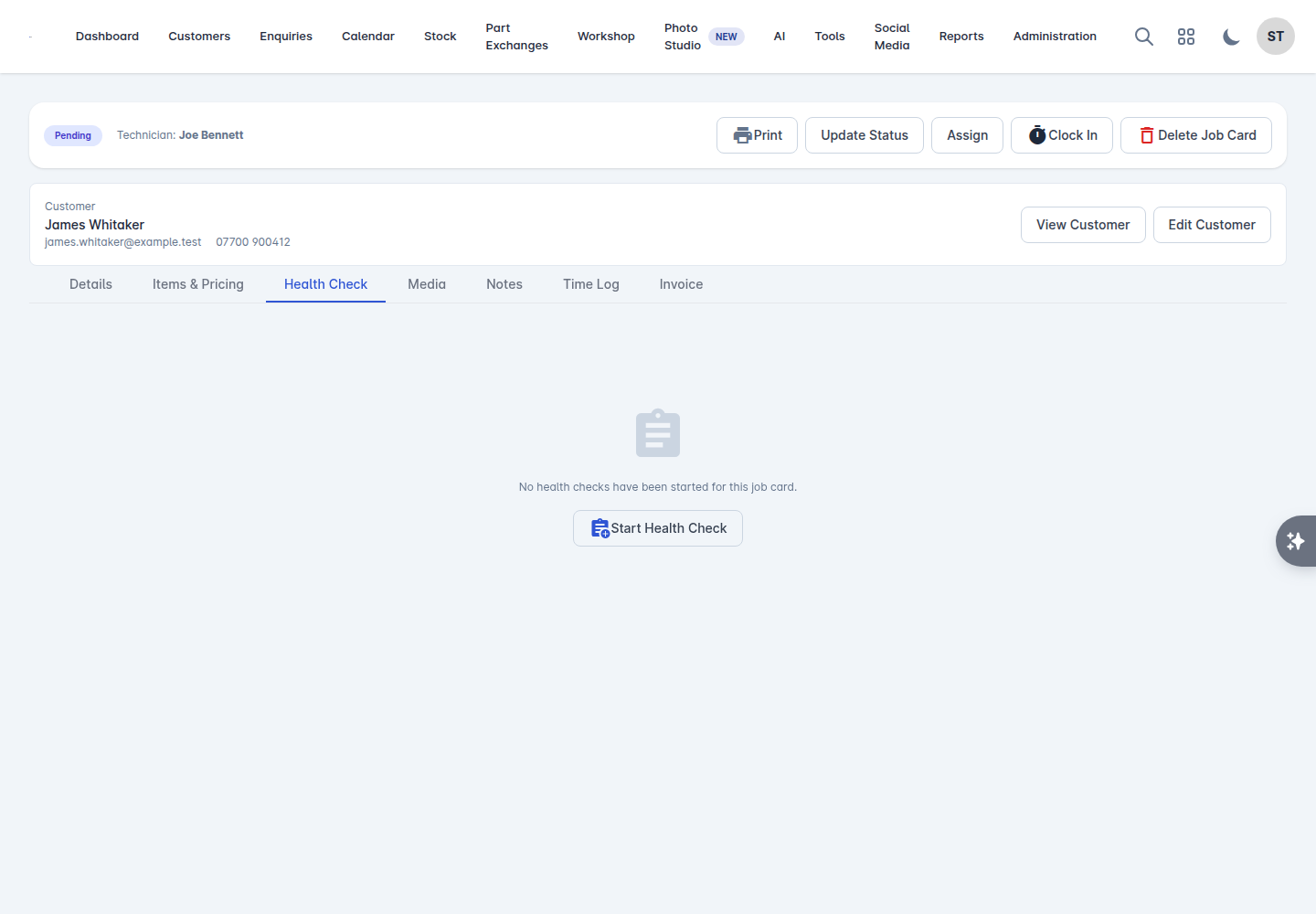
From the job card, select Start Health Check.
Choose the Template.
Enter the current Mileage if you have it.
Select Start Check.
Then work through the list. For each item:
Mark it green, amber or red.
Pass and Fail are there for pass or fail items.
Tyres take inner, middle and outer tread depths.
Use Note to add a comment and Photo to upload a picture or video.
Where work is needed, enter the Recommended Action ("Replace brake pads") and an Est. Cost, and mark it advisory or urgent.
Results and notes save as you go, a moment after you stop typing, and photos are uploaded as you add them. If a save fails you get an error on screen - it is not retried for you, so put the connection right and re-enter anything the error covered rather than reloading the page.
Finishing it
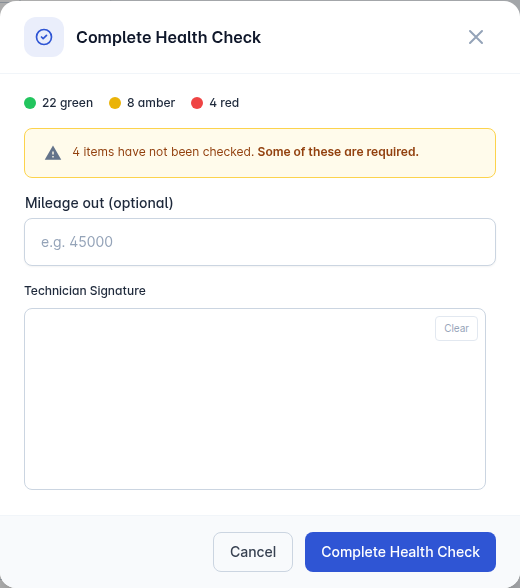
Select Complete & Sign. You get a summary of how many items are green, amber and red, and a warning if anything is unchecked - including whether any of those were required.
The technician signs on screen, and the check is completed.
Sending it to the customer
A completed health check can be sent to the customer, and resent from the job card if they lose it. That is the conversation: they see the photo of the tyre, the tread depths and the estimated cost, and either authorise the work or do not.
Any work they authorise is added to the job card as items. See Working a job card.
Rules worth knowing
A health check cannot be started on a job card that has already been invoiced. If more work is needed, raise a new job card.
Health checks can be deleted from the job card if one was started in error.
Your workshop report tracks health check completion, work identified, work authorised and your authorisation rate. If your authorisation rate is low, it is almost always the photos and the estimated costs that are missing, not the customers.