
Setting up the workshop
Before you take your first booking, tell Vehiso what you sell, what you charge and when you are open. It takes about fifteen minutes and you only do it once.
The workshop is a plan feature. If Workshop is not in your menu, it is not on your current plan.
Go to Workshop > Settings. Settings are per branch, so if you have more than one location, check you are on the right one.
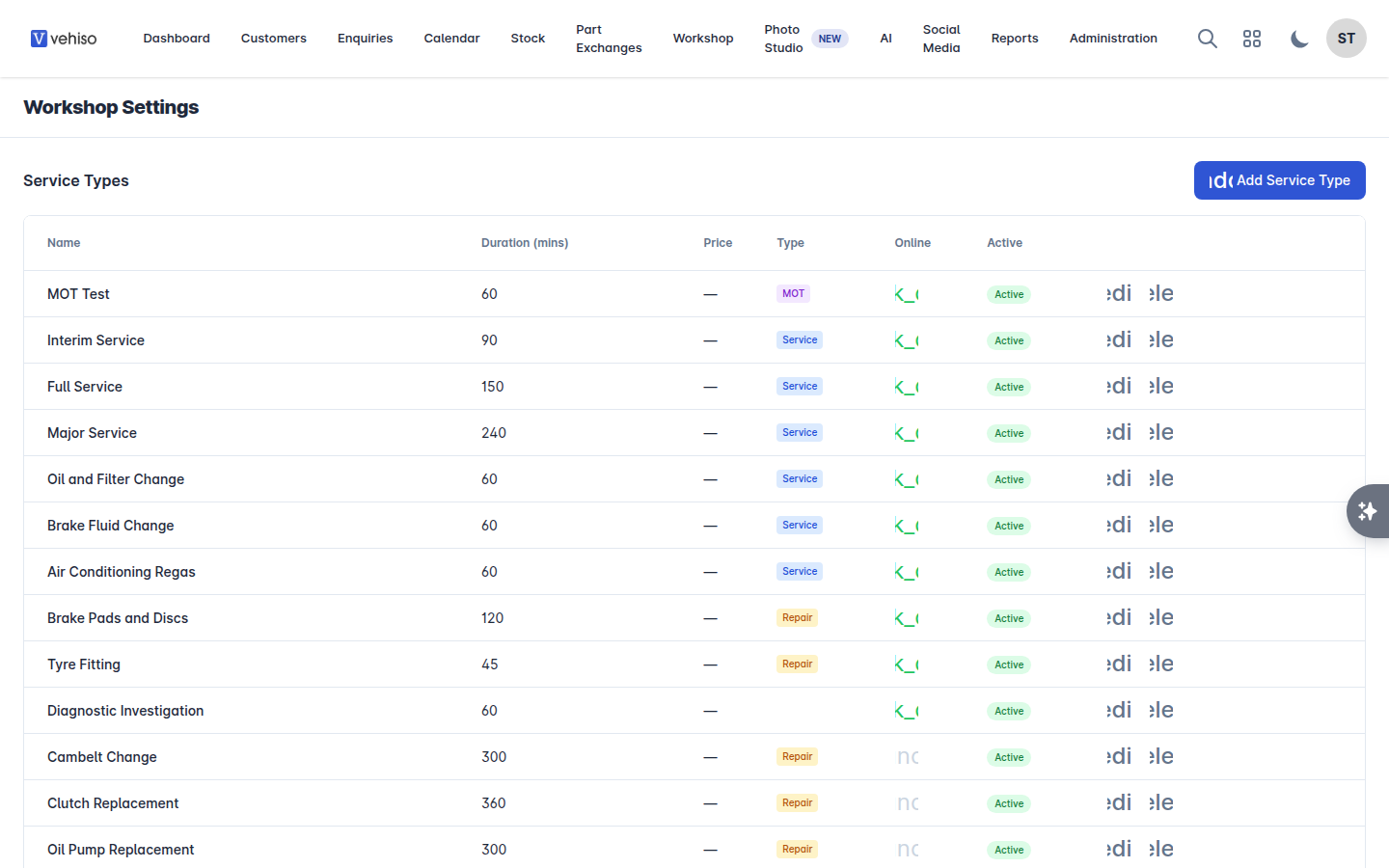
Service types
A service type is something a customer can book: an MOT, an interim service, a diagnostic hour.
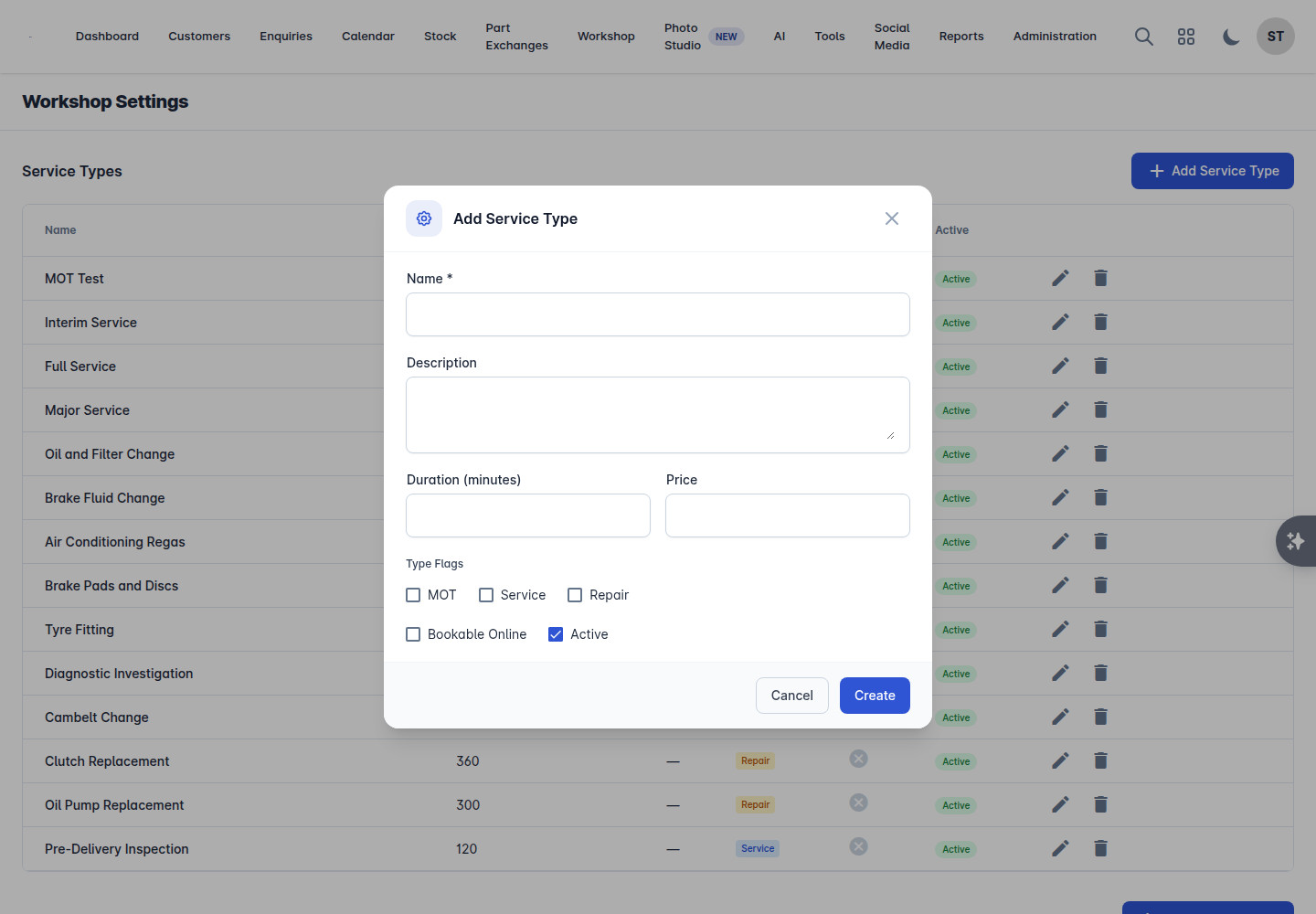
Select Add Service Type.
Enter the Name.
Set the Duration (minutes) - this is what reserves the slot in the diary.
Set the Price.
Tick the Type Flags that apply: MOT, Service or Repair.
Tick Bookable Online if customers can book it themselves from your website.
Save.
Service types can be made Inactive later rather than deleted, so historic bookings keep their meaning.
Labour rates
Select Add Labour Rate.
Enter the Name - for example "Standard", "Diagnostic" or "Warranty".
Enter the Rate per Hour.
Tick Default Rate for the one you use most.
The default rate is pre-selected whenever labour is added to a job card, so make it the one you charge most often.
Workshop capacity
This is what the booking diary is built from:
Setting | What it does |
|---|---|
Operating Hours Start and End | The working day |
Booking Slot Interval (minutes) | How finely the diary is divided |
Max Concurrent Bookings | How many jobs you can run at once - normally your number of ramps or technicians |
Available Days | The days you take bookings |
Invoicing and VAT
On the same page:
Use Standard VAT Rate (20%), or set your own Custom VAT Rate (%).
Payment Terms (days) for workshop invoices.
Job card types
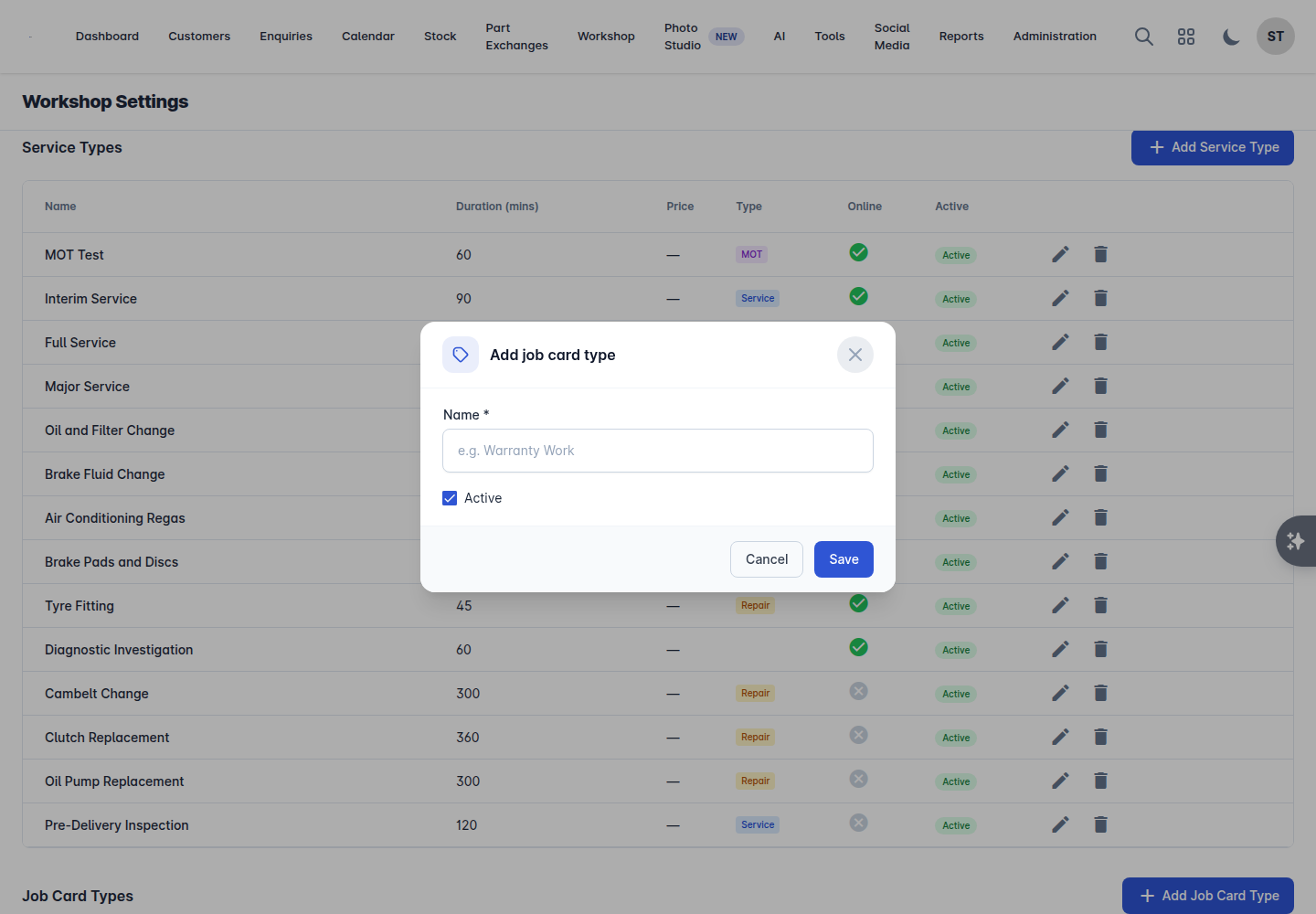
Job Card Types are the categories a job card can be raised under. Vehiso ships with a built-in set, and you can add your own - "Warranty Work", for example.
Built-in types are used elsewhere in the system, so you can rename them and hide them, but not delete them. Their internal code stays the same whatever you rename them to.
Parts settings
Three more sections on the same page decide how parts behave. They only matter once you are stocking parts - see Parts and stock control for the detail.
Part categories - your own grouping for the parts catalogue.
Parts pricing - the price matrices that turn a part's cost into what the customer is charged. Without one, parts price at cost.
Kits - a bundle of labour and parts that goes onto a job in one click, such as a full service or a cambelt job.
Technicians
Technicians need their own accounts, with the Technician role. Invite them under Administration > Settings > Team - see Your team.
A technician signs in and sees a cut-down menu: My Jobs, Time Log and Profile. They can work their job cards, clock on and off, and carry out health checks. They cannot see the sales side, and they cannot be given sales leads.
Inspection templates
Health check templates are set up separately under Workshop > Inspection Templates. See Vehicle health checks.
Parts, purchasing and stock
If your workshop holds parts, set the catalogue up next: Parts and stock control and Purchase orders, deliveries and returns.
Online booking
If you want customers to book themselves in, tick Bookable Online on the service types you are happy to take unattended, and publish your workshop booking page under Administration > Pages. Bookings made there arrive in Workshop > Bookings marked as having come from your website.