
Advertising your stock
Vehiso publishes your stock to your own website and to the advertising channels you are connected to. There are two places to control it: the switches on a vehicle's Advert Details tab, and the dealership-wide Stock Feeds & Integrations settings.
Per vehicle
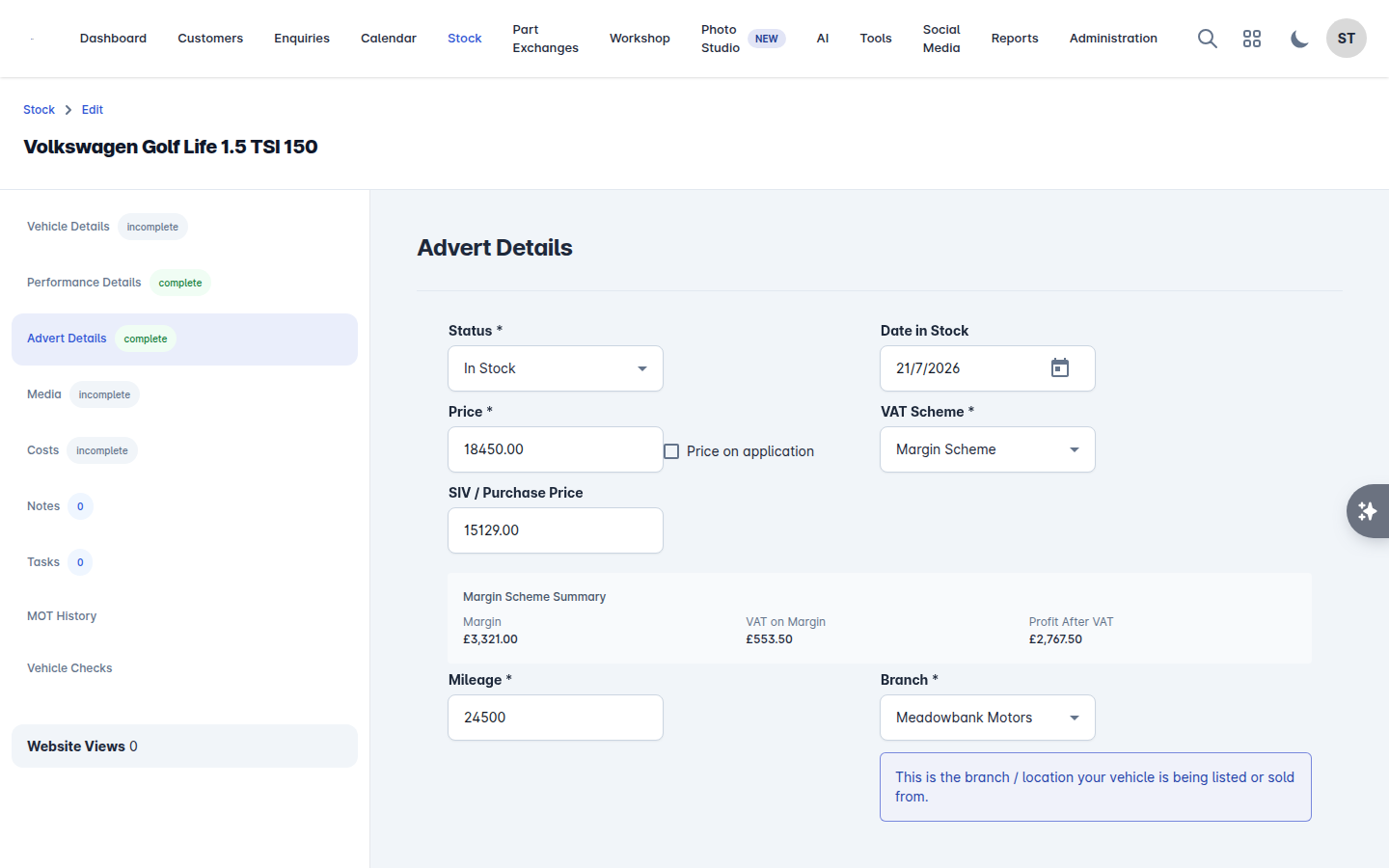
Open the vehicle, go to Advert Details and scroll to the bottom. You get a switch for each destination you have turned on in settings:
Setting | What it does |
|---|---|
Publish to Website? | Show this car on your own website |
Show on Previously Sold? | Keep it visible in your previously sold gallery once it has gone |
Push to AutoTrader? | Advertise it on AutoTrader |
Export to CarGurus? | |
Export to Motors? | |
Export to CarFinance247? | |
Export to ChooseMyFinance? | |
Exported to Zuto? | Tracking for Zuto adverts published through third parties |
A switch only appears for a feed you have enabled, so a dealership with nothing connected sees Publish to Website? on its own.
Where a car is on AutoTrader, the vehicle also gets an AutoTrader Adverts tab listing its advert channels. These come from AutoTrader itself: a channel marked Capped or Rejected can only be changed with AutoTrader, not from here.
Several vehicles at once
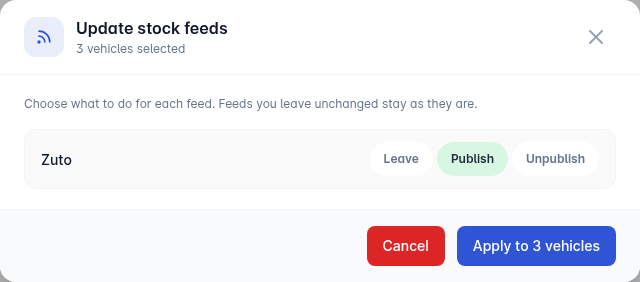
From the Stock list, tick the vehicles you want (or Select all on page) and choose Update stock feeds. For each feed pick Publish, Unpublish or Leave, then apply it to the selected vehicles. Feeds you leave alone stay exactly as they are.
Connecting a channel
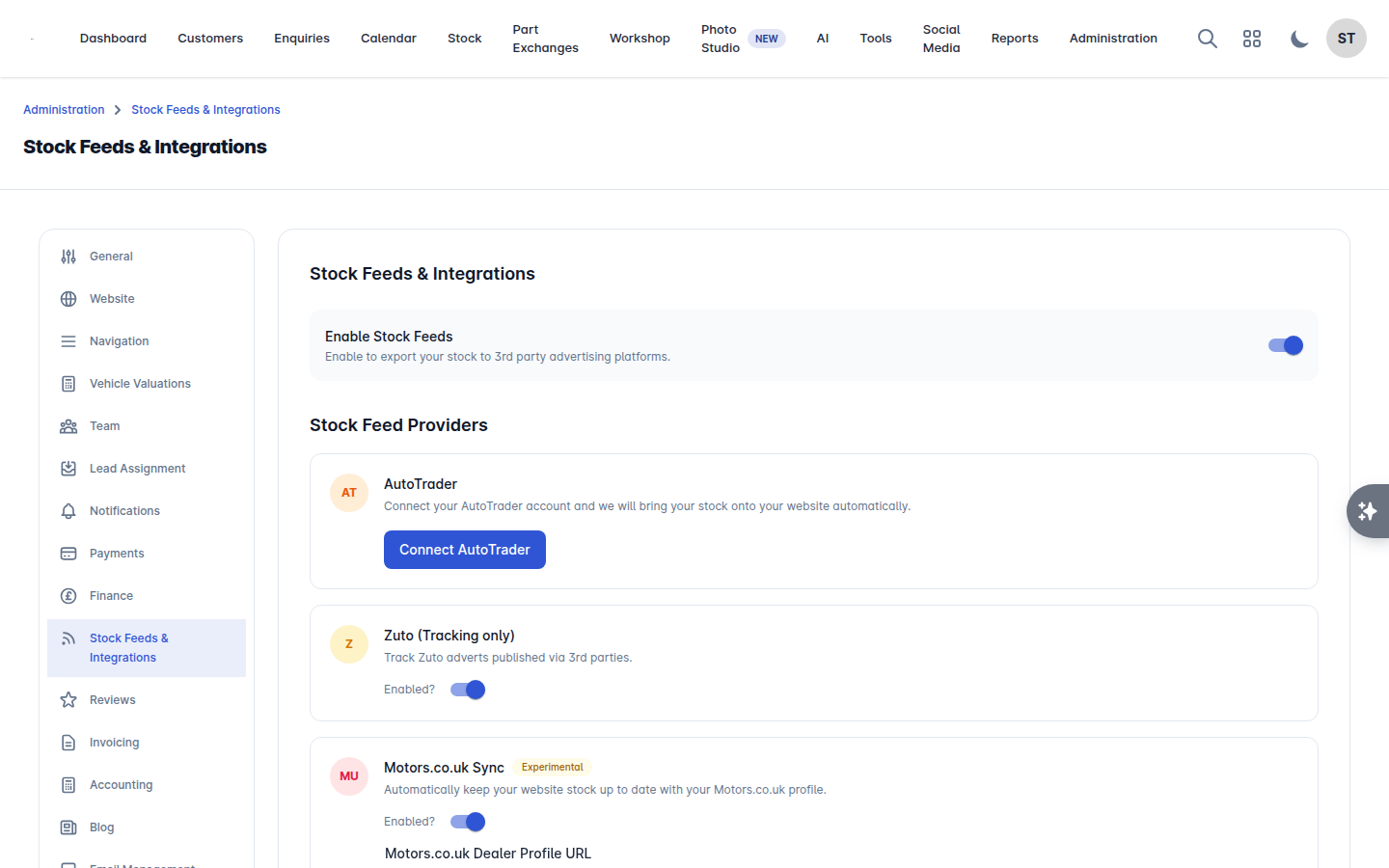
Go to Administration > Settings > Stock Feeds & Integrations and turn on Enable Stock Feeds. Each provider then has its own card.
AutoTrader
Connect your AutoTrader account and your stock comes into Vehiso and onto your website automatically. AutoTrader is connected per branch, using that branch's Advertiser ID - see Branches and opening hours. Choose the Integration Type:
Stock Retrieval - bring your AutoTrader adverts into Vehiso.
Stock Retrieval and Update - bring them in, and push your changes back to AutoTrader.
Two options are worth setting straight away:
Automatically push new stock to AutoTrader
Unpublish Reserved and Sold vehicles from AutoTrader - stops you advertising cars you have already sold
Sync AutoTrader Stock pulls everything across on demand. Vehicles that came from AutoTrader are badged as such in your stock list.
When you first request the connection, it goes to AutoTrader to approve. Stock usually goes live the same day.
Motors
Motors can go in either direction: Send my stock to Motors, Receive my stock from Motors, or both, plus Automatically push new stock to Motors.
Motors.co.uk Sync is different and simpler: give Vehiso your Motors.co.uk Dealer Profile URL and it keeps your website up to date from your Motors profile, with a Sync Motors.co.uk Stock button to run it on demand.
DoneDeal (Ireland)
Enable DoneDeal Sync and give your DoneDeal dealer page address, in the form https://www.donedeal.ie/dealer/your-dealership. Vehiso checks your dealer page twice a day and adds, updates or removes cars on your website to match. Sync now runs it immediately.
CarGurus, CarFinance247, ChooseMyFinance and Zuto
Each has its own card with a connection and an Automatically push new stock option.
Channels that need setting up with us
Some integrations are arranged rather than self-service. Select Request Integration, leave your contact number, and Vehiso calls you to set it up.
Integrations
The same panel has an Integrations section for services that are not stock feeds. The one there today is MotorCheck, connected with your own API key - see Tools.
If a car is not showing up where you expect
Work through it in this order:
Is the vehicle's Status one that gets advertised? Cars marked Sold, Reserved, Removed From Sale or Archived are handled differently, and there is a setting that deliberately unpublishes reserved and sold cars from AutoTrader.
Is the advert switch for that destination turned on for this vehicle?
Is the feed connected and enabled under Administration > Settings > Stock Feeds & Integrations?
Does the advert have what the channel requires - photos, price, mileage? The new stock experience shows an Advert completeness panel that tells you what is missing.
Give it time. Feeds run on a schedule, and AutoTrader photo syncs in particular take a few minutes.
The Stock column Stock Feeds, and the Active Stock by Feed panel on your dashboard, both show how many cars are published to each feed. They are the quickest way to spot a feed that has quietly stopped.