
Costs, notes and tasks on a vehicle
Costs
Every pound you spend on a car belongs on its record. Without that, the profit figures in your reports are just the difference between what you paid and what you sold it for, which is not the same thing at all.
Open the vehicle and go to the Costs tab.
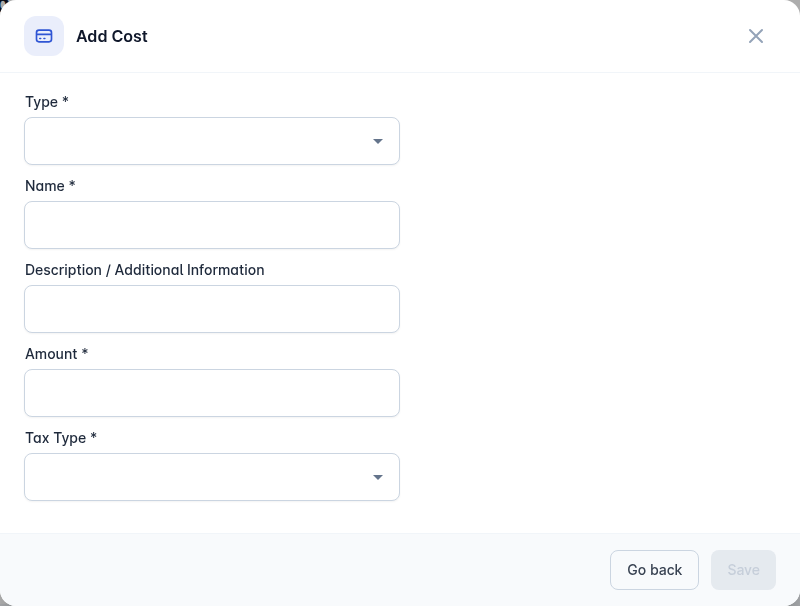
Select Add Cost.
Choose the Type: Fee, Reconditioning or Other.
Give it a Name and, if useful, a Description / Additional Information.
Enter the Amount and choose a Tax Type. A tax type is always required.
VAT or IPT - the field becomes Amount (excl. VAT), so enter the figure before tax, then either tick Standard National Tax Rate to use your country's standard rate or enter your own Tax Rate (%).
Exempt - no tax rate is asked for. This is the one to use where no tax applies, for example if you are not VAT registered. Enter the amount you actually paid.
Select Save.
The tab totals the costs and the tax for you.
Costs worth recording as a matter of habit: transport, valeting, paint and bodywork, tyres, MOT, servicing, keys, warranty provisioning and advertising fees.
Purchase orders
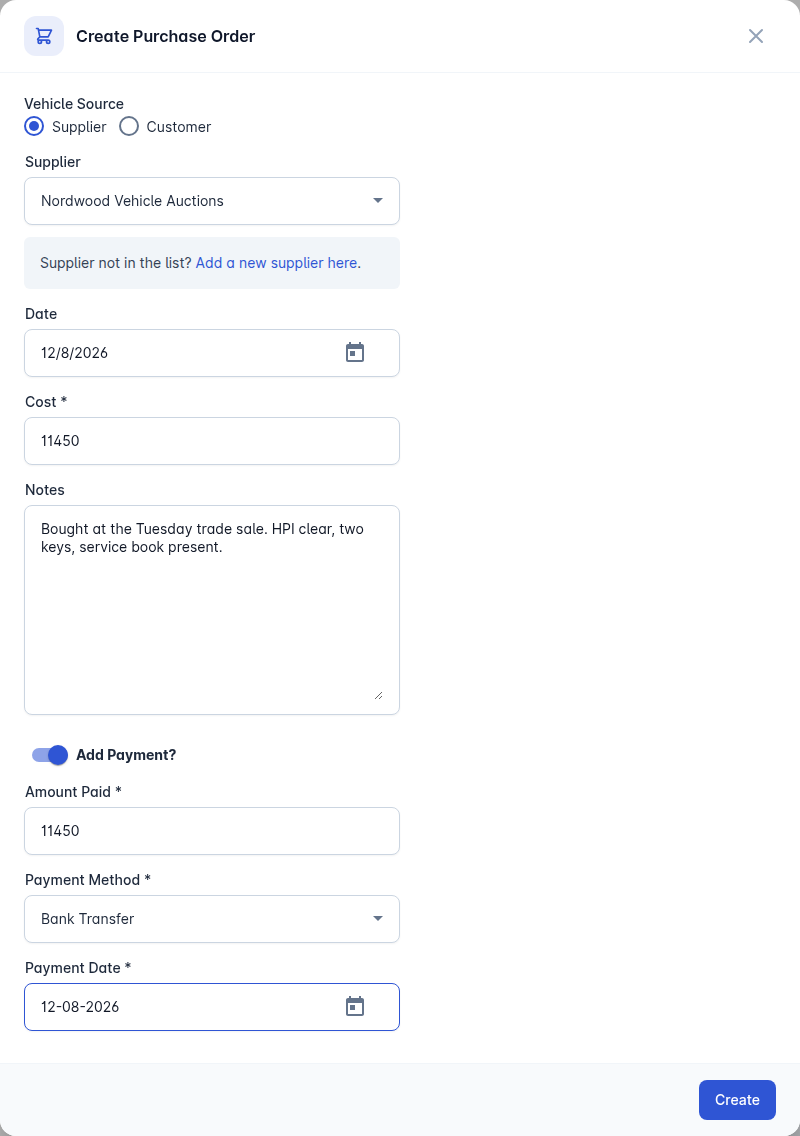
Where you bought the car from a supplier or a customer, record it with Create Purchase Order.
Choose the Vehicle Source.
Choose the Supplier, or the Customer if you bought it from a private seller. If the supplier is not in the list, add them from the link in the dialog. See Products and suppliers.
Set the Date, the Cost and any Notes.
Tick Add Payment? to record what you paid at the same time: the Amount Paid, Payment Method and Payment Date.
Select Create.
Notes
The Notes tab is for anything about this specific car that the next person needs to know: the mark on the rear bumper, the fact the second key is on order, what the seller told you about the cambelt.
Select Add Note, type it, save. Notes are stamped with who wrote them and when.
Tasks
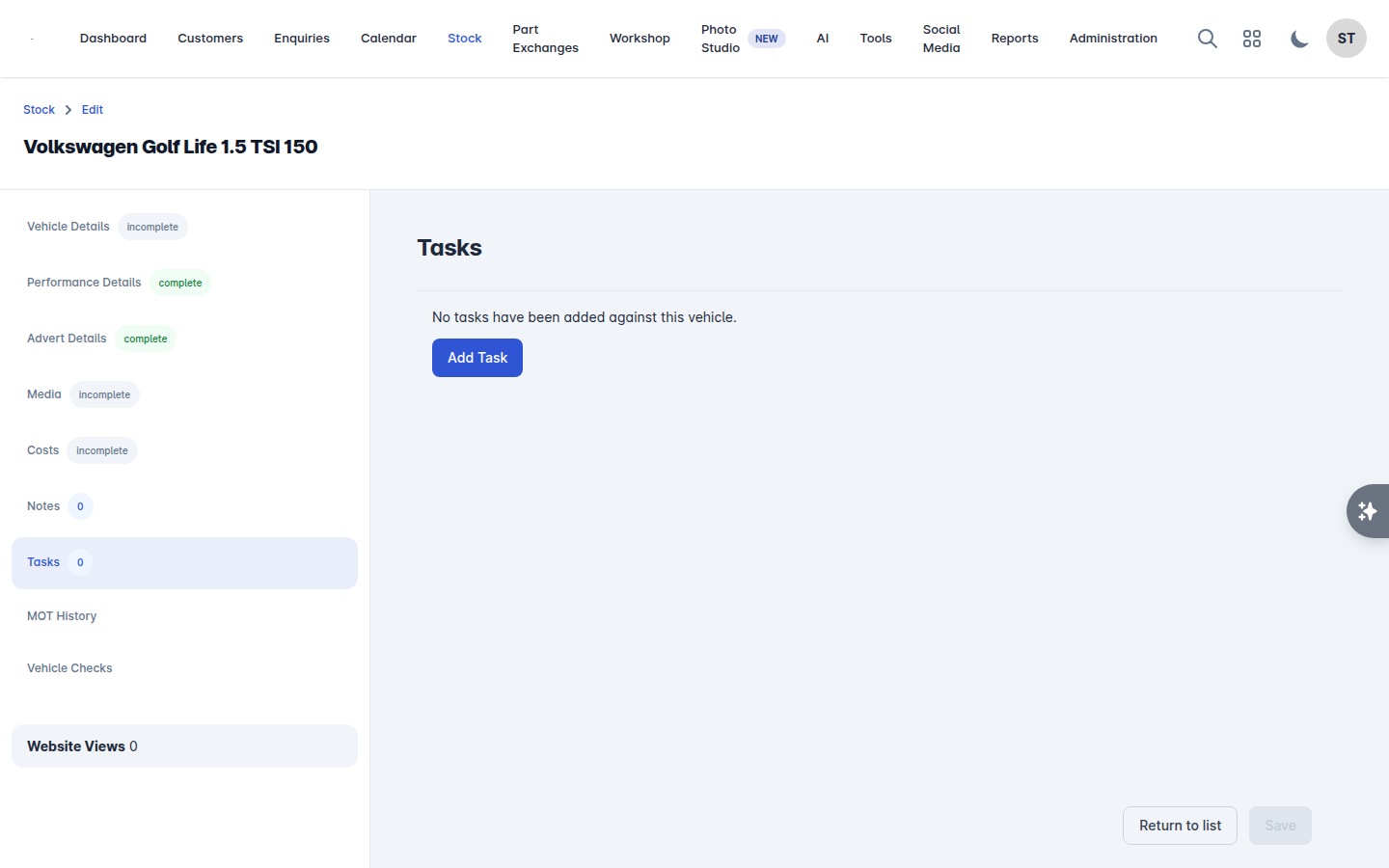
The Tasks tab is the prep list. A task has an owner and a deadline, and shows up on the calendar and in the dashboard's task panel.
Select Add Task.
Choose the User it is assigned to.
Set the Due Date / Time.
Write the Description / Note.
Save.
Tick Mark as Completed when it is done.
Using tasks for prep gives you one honest answer to "is that car ready yet", which is worth having when a customer is standing in front of you.