
Photo Studio
Photo Studio puts every vehicle photo on the same clean background, so your forecourt looks the same online whether the car was shot in sunshine or drizzle. You set up a look once, then apply it to any vehicle in a click.
Photo Studio is a paid feature. If it is not on your plan you will see an explanation and how to add it.
Go to Photo Studio.
Setting up a look
A look is a background plus how the car sits on it.
Select New look.
Give it a Name - "Our forecourt", for example.
Choose a background from the supplied set, or build your own.
Optionally Put your logo on the photo and choose where the logo sits: bottom right, bottom left, top right or top left.
Set Where the vehicle sits by clicking the picture, and the Vehicle size.
Open Fine tuning for shadow strength, shadow softness, shadow distance, reflection strength, reflection length and Match the lighting.
Tick Use this look by default if it should be the standard.
Select Save look.
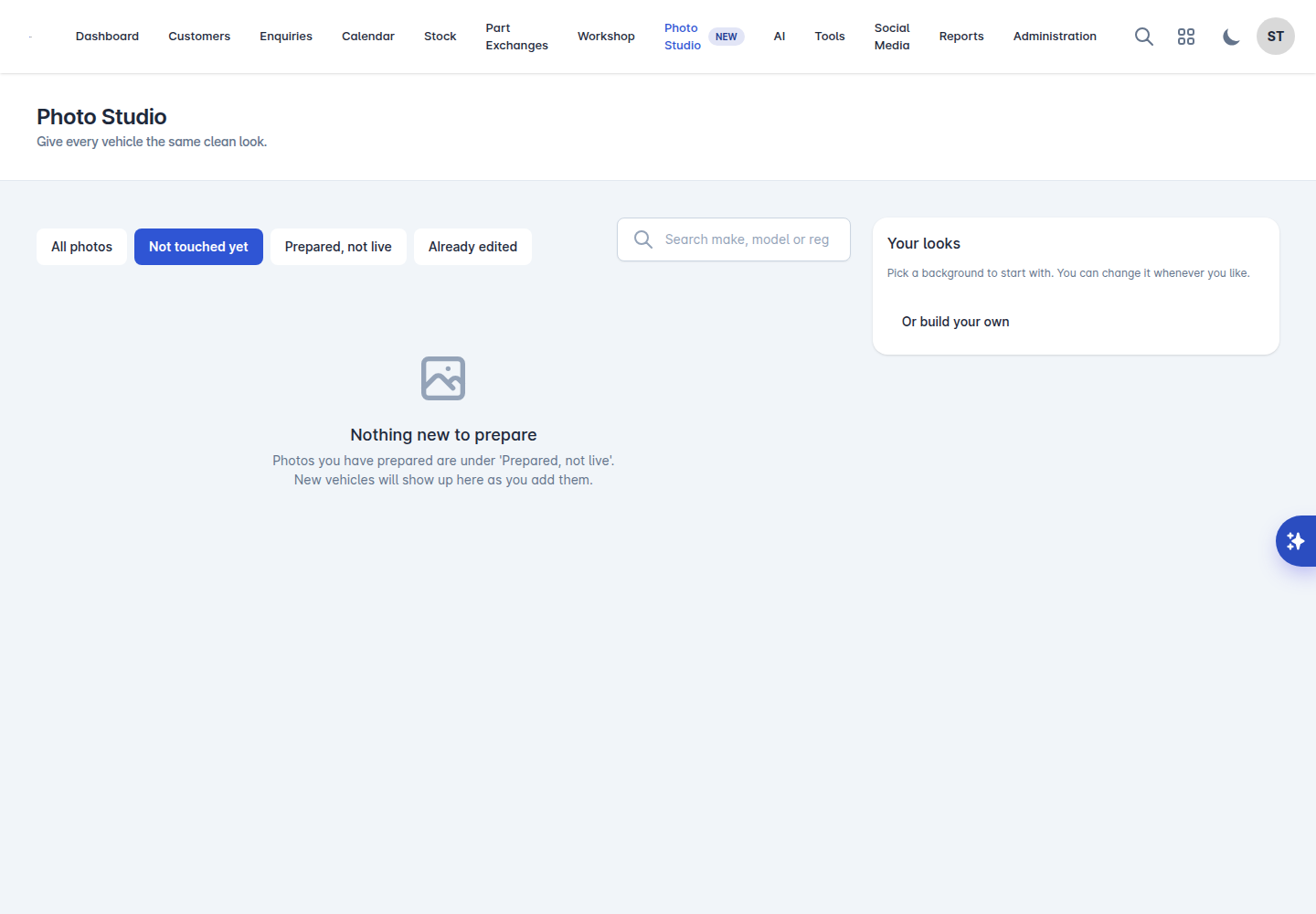
You can have several looks and switch between them. Trying a different look on a photo you have already prepared costs nothing.
Preparing a vehicle's photos
Find the vehicle. Filter by Not touched yet, Prepared, not live or Already edited, or search by make, model or registration.
Select the photos you want done, or Select all.
Check the cost. Photos prepared before are free to redo. Anything above what your plan includes is charged, and Vehiso tells you how many that is before you commit. You can choose Just do the included ones or Do all.
Select Prepare.
Photos process in the background. Batches under way are listed, and you get a count of how many are ready to review.
Reviewing and publishing
Nothing changes on your website until you publish.
Open the batch when it is ready.
Drag the slider to compare Before and After.
Use this one to keep a photo, or Leave this one out to drop it.
Select Publish to put the ones you kept live on your website.
Anything the AI struggled with is flagged as worth a look before publishing, or as one that did not work. Trying another look on those costs nothing.
Undoing an edit
Undo edit puts the original photo back on the listing. The edit is discarded, but preparing that photo again later is still free.
Your allowance
The top of the page shows what is Included this month and your Balance. Photos you have already prepared are free to change, so experimenting with looks does not cost you anything - only new photos count against the allowance.