
E-signatures and order packs
Sending the paperwork
From the order on an enquiry:
Download Order Pack gives you the paperwork as a PDF to print or save.
Email documents sends it.
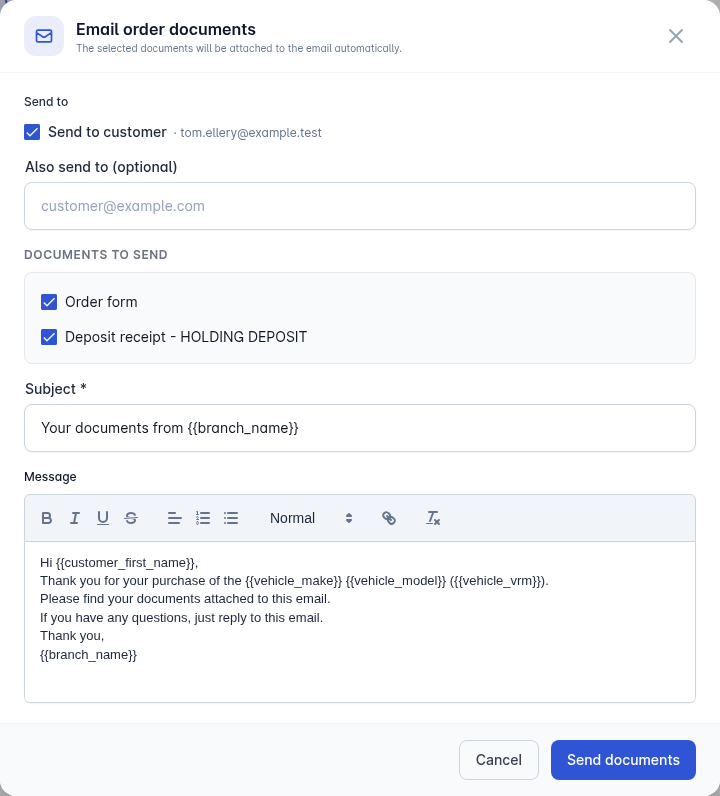
In the Email order documents dialog:
Tick the Documents to send. Depending on the deal that can include the Order form, Offer sheet, Invoice, Deposit receipt, Balance receipt and Payment receipt. Anything still generating is shown as Still being prepared - wait a moment and reopen the dialog.
Choose who it goes to under Send to: the customer, or the Finance company on a financed deal. If a party has no email address on file, the option says so.
Add another address under Also send to (optional) if someone else needs a copy.
Edit the subject and message if you want to.
Select Send documents. The chosen documents are attached automatically.
Getting documents signed
Vehiso can collect the customer's signature on the order form or invoice, and on any other documents you add to the enquiry.
In the showroom: E-Sign Now
Use this when the customer is standing in front of you.
Select E-Sign Now.
Under Who's signing?, choose the Signatory.
Choose how to sign:
Sign on this device - hand them your tablet or turn the screen round.
Sign on another device - they scan the QR code and sign on their own phone.
They sign, and you select Done.
Remotely: Request E-Sign
Use this when the customer is not with you.
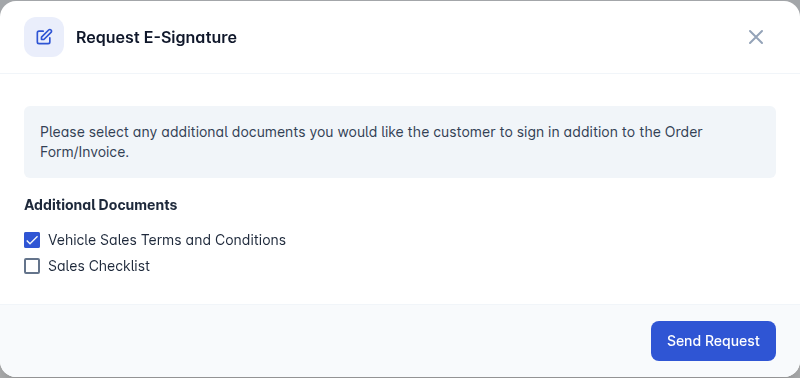
Select Request E-Sign.
Tick any Additional Documents you want signed alongside the order form or invoice. Only documents already added to this enquiry appear here - add them first from the Documents panel.
Select Send Request.
The customer gets an email with a link to sign. While it is outstanding you can Resend E-sign email or Cancel E-Sign. Once signed, View Signed Document(s) shows you the signed copies.
Where the signature lands on the page
For your own documents, you decide where the signature goes. Under Administration > Documents, choose Signing boxes on a document and place the boxes on the PDF.
If you replace the PDF afterwards, Vehiso warns you that the file changed after the boxes were placed. Check the boxes are still in the right place before sending it out again. See Documents.
Finance and the commission disclosure
Where an order is on finance and the Commission Disclosure document has not been completed, the enquiry shows a warning with a link to add it. Get that signed with the rest of the paperwork rather than chasing it afterwards.