
Add a vehicle to stock
Everything downstream depends on the stock record: your website listing, your adverts on AutoTrader and elsewhere, the enquiry, the order, the invoice and your margin. It is worth ten minutes.
There are two versions of the add and edit screens. The classic version uses a set of tabs. The new stock experience walks you through four steps and is available as a feature preview. Both are covered below; they save to exactly the same place.
Before you start
Set your default VAT scheme under Administration > Settings > General so you are not choosing it on every car.
Have your branches set up, so the vehicle can be listed against the right location. See Branches and opening hours.
Classic: adding a vehicle
Go to Stock and select Add.
1. Look the vehicle up
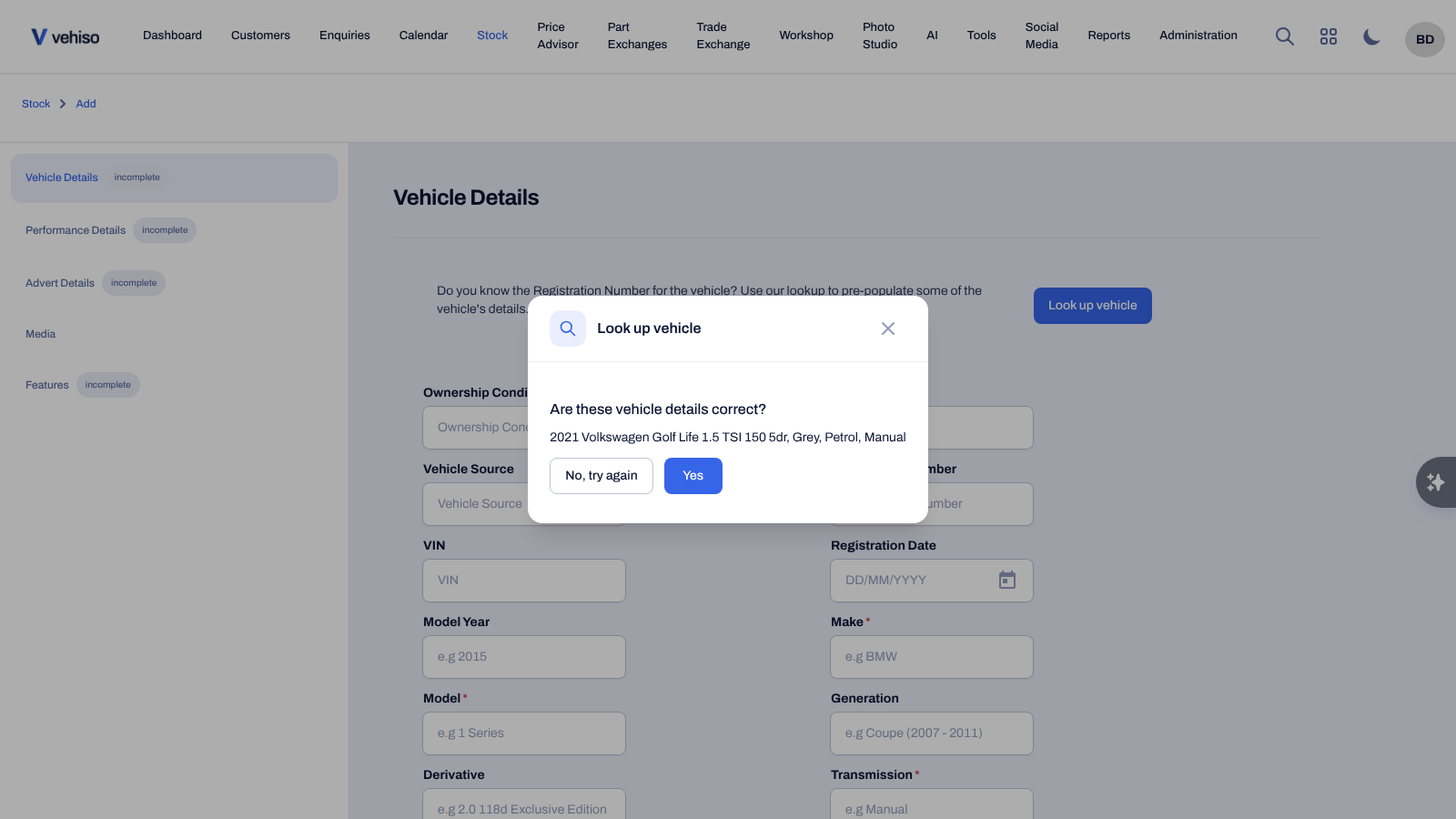
Enter the Registration Number and select Look up vehicle. Check the details that come back and confirm they are right. The lookup fills in most of the vehicle details for you.
A US dealership gets Look up VIN in place of the registration lookup, which decodes the VIN instead.
If the lookup cannot find the car, or you are adding one without a registration, fill the details in by hand.
2. Advert Details tab
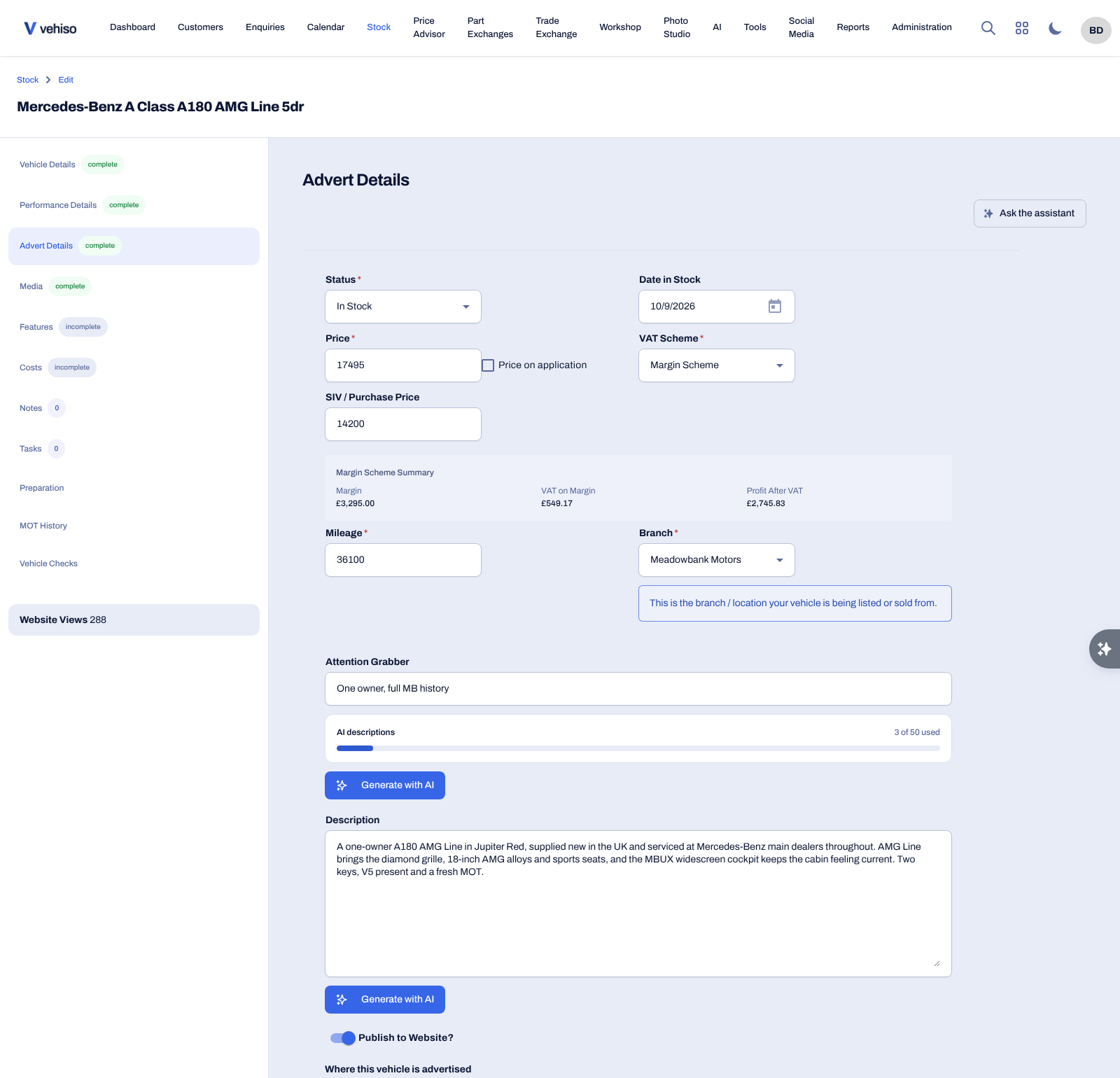
This is the commercial side of the record.
Field | Notes |
|---|---|
Status | Pending Stock, In Stock, Reserved, Sold, Delivered, Removed From Sale or Archived |
Date in Stock | Drives the days in stock figure and your stock ageing reporting |
Price | What you are advertising it at. Price on application hides the figure |
VAT Scheme | Standard, Margin or Exempt. Vehiso's own guidance is that Standard suits cars bought from VAT-registered businesses and Margin those bought from private sellers or non-VAT-registered businesses, but eligibility for the margin scheme also depends on the vehicle and on your keeping the records the scheme requires. Follow your own VAT policy, or current HMRC guidance, rather than the supplier type alone |
SIV / Purchase Price | What the car cost you. Everything about your margin depends on this |
Mileage | |
Branch | The location the vehicle is listed or sold from |
Physical Location | Where the car actually is, if that is different. Use the address lookup |
Attention Grabber | The short line above your advert. AutoTrader limits this to 30 characters and warns you if you go over |
Description | The main advert copy |
On a margin scheme car, a Margin Scheme Summary shows the Margin, the VAT on Margin and the Profit After VAT as you type.
Both the attention grabber and the description can be written for you: select Generate with AI, add a prompt if you want to steer it, and Apply the result. Read what comes back before you publish it - AI is good at summarising but it does get things wrong.
3. Vehicle Details tab
The specification: Ownership Condition (New, Pre-Registered or Used), Vehicle Type, Vehicle Source, Registration Number, VIN, Registration Date, Make, Model, Trim, Generation, Derivative, Transmission, Fuel Type, Engine Size, Number of Doors and Seats, Body Style, Colour and Interior Colour, Number of Owners, Number of Keys, Key Tag / Tracker Number, V5 Present?, Document Reference Number (V5) and MOT Expiry.
Motorhomes and caravans get extra fields: Berths, Length, Width, Gross Weight and Layout.
Most of this arrives from the lookup. Fill in the rest, particularly keys, owners and V5 - they are the details buyers ask about.
4. Performance Details and Features
Performance Details - BHP, Torque, CO2, Zero to Sixty, Cylinders, Cylinder Arrangement and Valves per Cylinder.
Features - the equipment the car was built with. Select Lookup Features to fetch the factory list. A registration is required, and each lookup uses one call from your enhanced vehicle data allowance. The tab only appears if you have enhanced vehicle data, or stock feeds with AutoTrader connected.
5. Media, Costs, Notes, Tasks and the check tabs
Media - photos and video. See Photos and media.
Costs, Notes and Tasks - see Costs, notes and tasks. These three only appear once the vehicle has been saved.
MOT History - GB only. The car's test history, with Refresh MOT History to pull the latest. Failures show their Reasons for Rejection / Comments, which is useful before you commit to prep.
Vehicle Checks - the MotorCheck reports filed against this car. See Tools.
AutoTrader Adverts - where this car is published on AutoTrader. Only shown when AutoTrader is connected. See Advertising your stock.
Select Save.
New stock experience: adding a vehicle
With the preview turned on, Add walks through four steps.
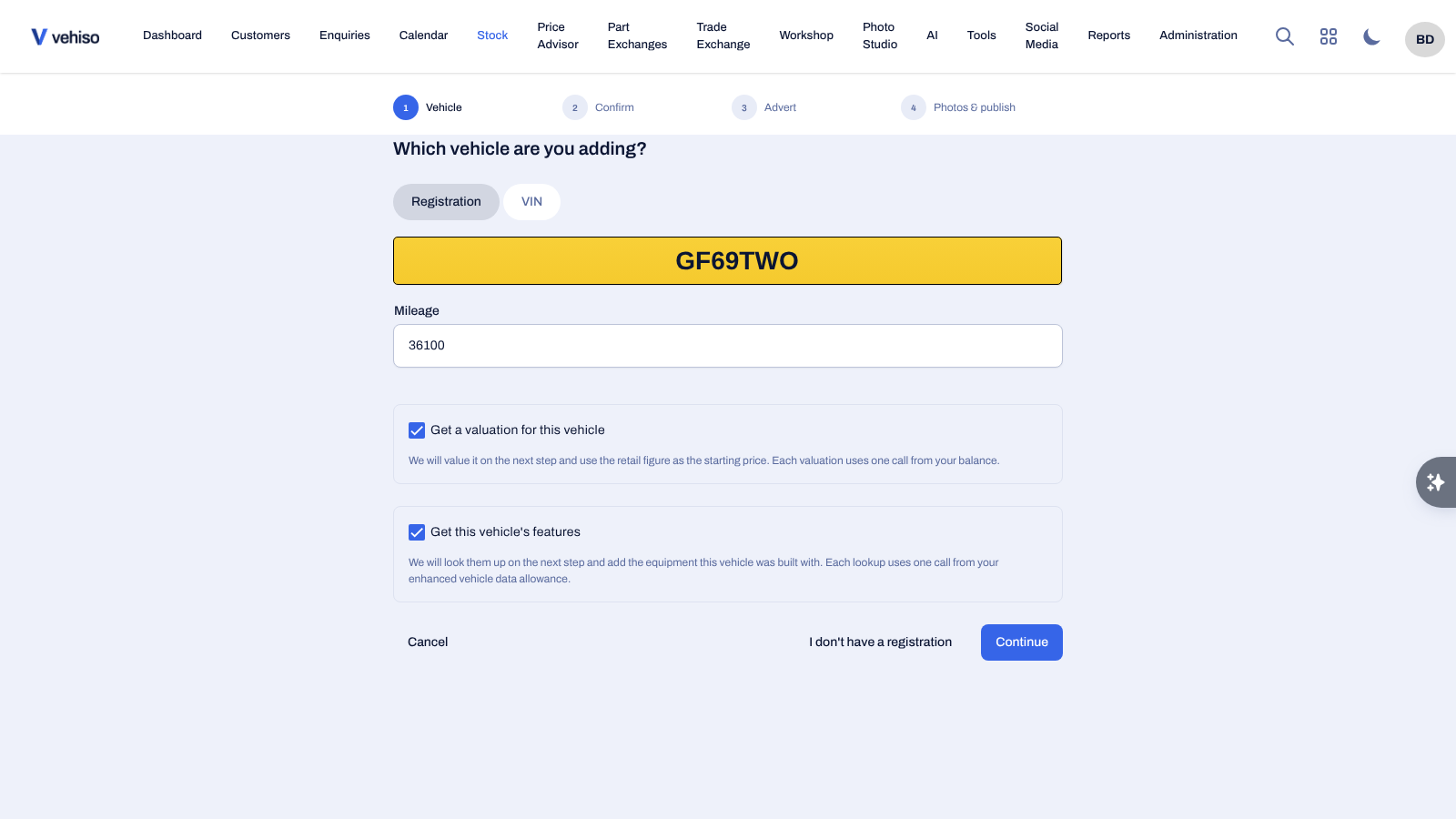
Vehicle - "Which vehicle are you adding?" Enter the Registration or the VIN, plus the Mileage. There is an I don't have a registration option. You can also tick Get a valuation for this vehicle and Get this vehicle's features, and they are fetched on the next step.
Confirm - "Is this the right vehicle?" Check the facts that came back - mileage, year, colour, fuel, owners - and Amend anything wrong. If the lookup could not answer everything, you are asked to fill the gaps here.
Advert - price and location: Price, VAT Scheme, Branch, Status and Ownership condition. If you asked for a valuation, the retail figure is used as the starting price and shown for reference.
Photos & publish - upload your photos and choose where to Advertise on, including your Website and any connected feeds. Select Add to stock.
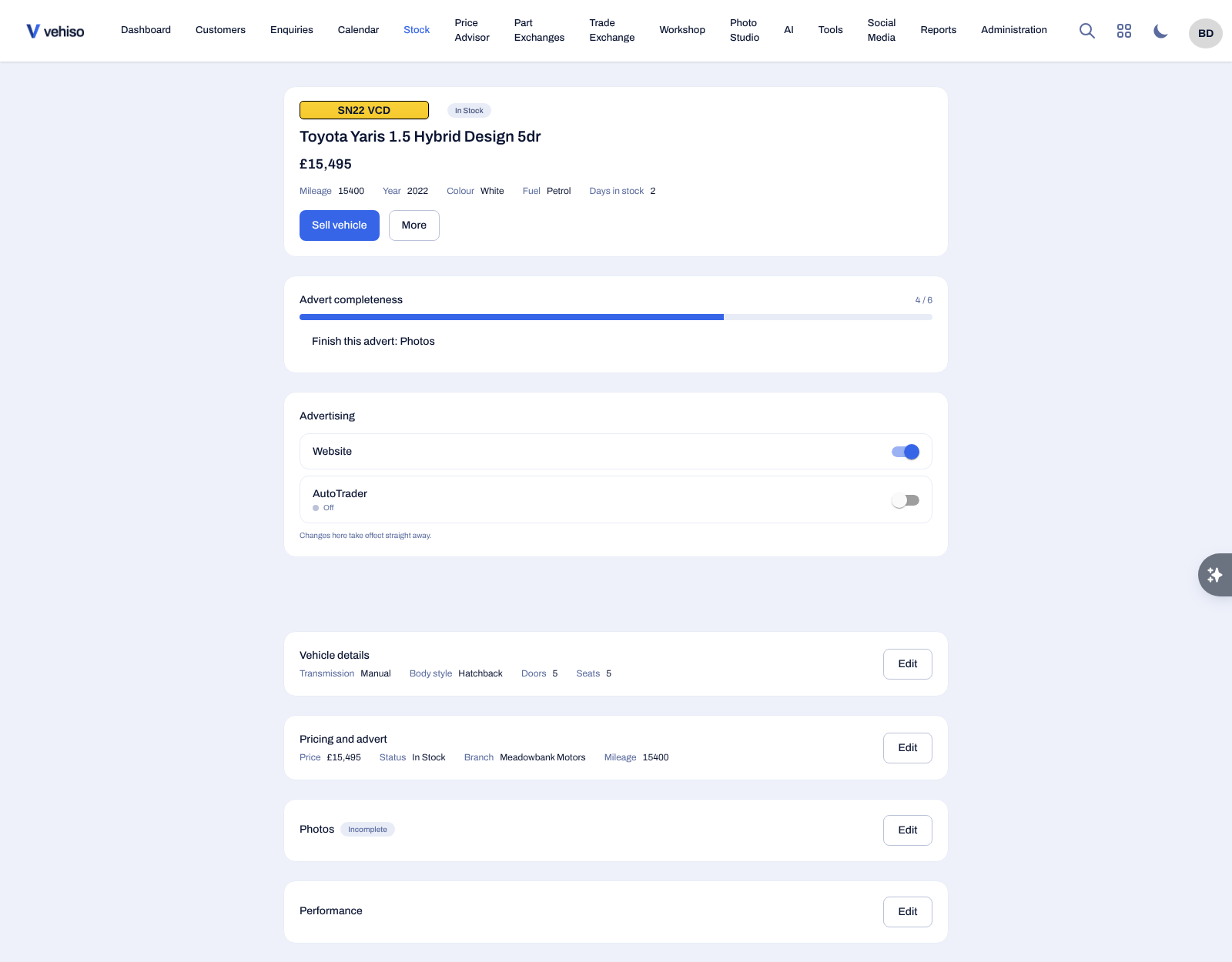
After that, the vehicle opens on a summary page with an Advert completeness panel telling you exactly what is still missing - vehicle details, pricing and advert, photos, performance, features or advertising - with an Edit link straight to each one.
Your stock list
Stock opens showing vehicles In Stock. Use Filters to change that.
Filter by Vehicle Statuses, Vehicle Sources, Stock Feeds, VRM, VIN and Vehicle Tags. The columns cover Vehicle, Price, Mileage, Year, Status, MOT Expiry, Source, Days in Stock, Website Views, Branch and Tags.
Badges tell you at a glance when a car's MOT has expired, when it is published to your website, and where it came from.
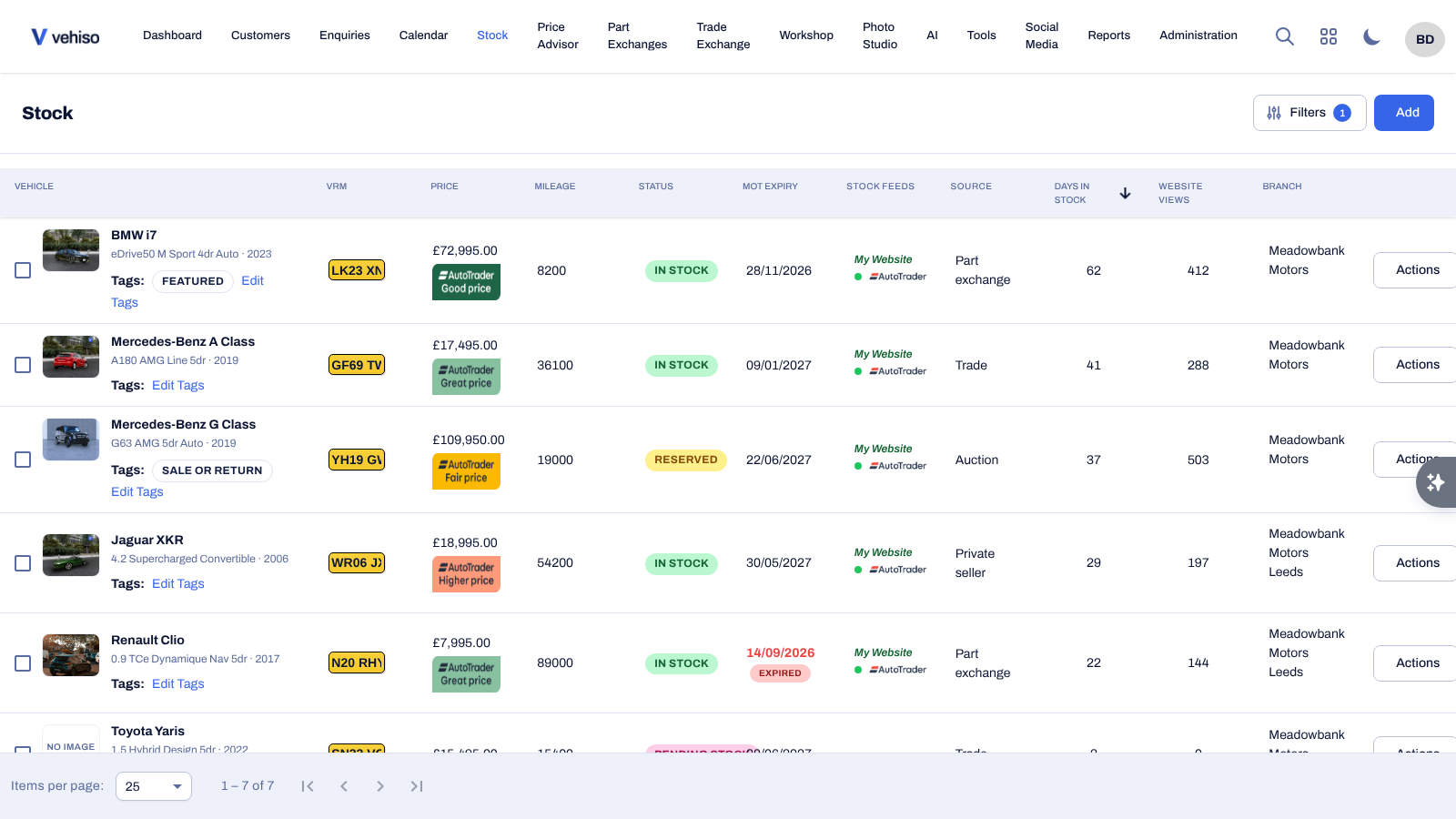
From a row you can also:
Sell vehicle - see Offers and orders.
Download brochure - a PDF of the vehicle. Allow popups if nothing happens.
Edit Tags - your own labels for grouping stock.
Select several vehicles and Update stock feeds in bulk - see Advertising your stock.
Price position
Where price data is available, a Price position indicator shows whether your price reads as a Great price, Good price, Fair price, Higher price or Lower price, and how far you are from the next band. It is for you: it is not shown on your website.