
Part exchanges
A part exchange is the customer's car, taken against the deal. Vehiso tracks it in two places: on the enquiry, where its value comes off what the customer pays, and in Part Exchanges, where you turn it into stock.
Adding a part exchange to an enquiry
Open the enquiry and select Add Part Exchange.
Look the car up by Registration or by VIN, and select Search.
Where VIN lookup is available, it uses the public NHTSA database, so coverage depends on the vehicle. Some details, such as colour and mileage, still need entering by hand.
A full VIN is 17 characters. Vehiso accepts 11 to 17 letters and numbers, never containing I, O or Q, so a partial VIN can be tried - check the details that come back before you save them.
Check the details that come back and confirm they are right.
Fill in the rest: Make, Model, Mileage, Condition and Service History.
Save.
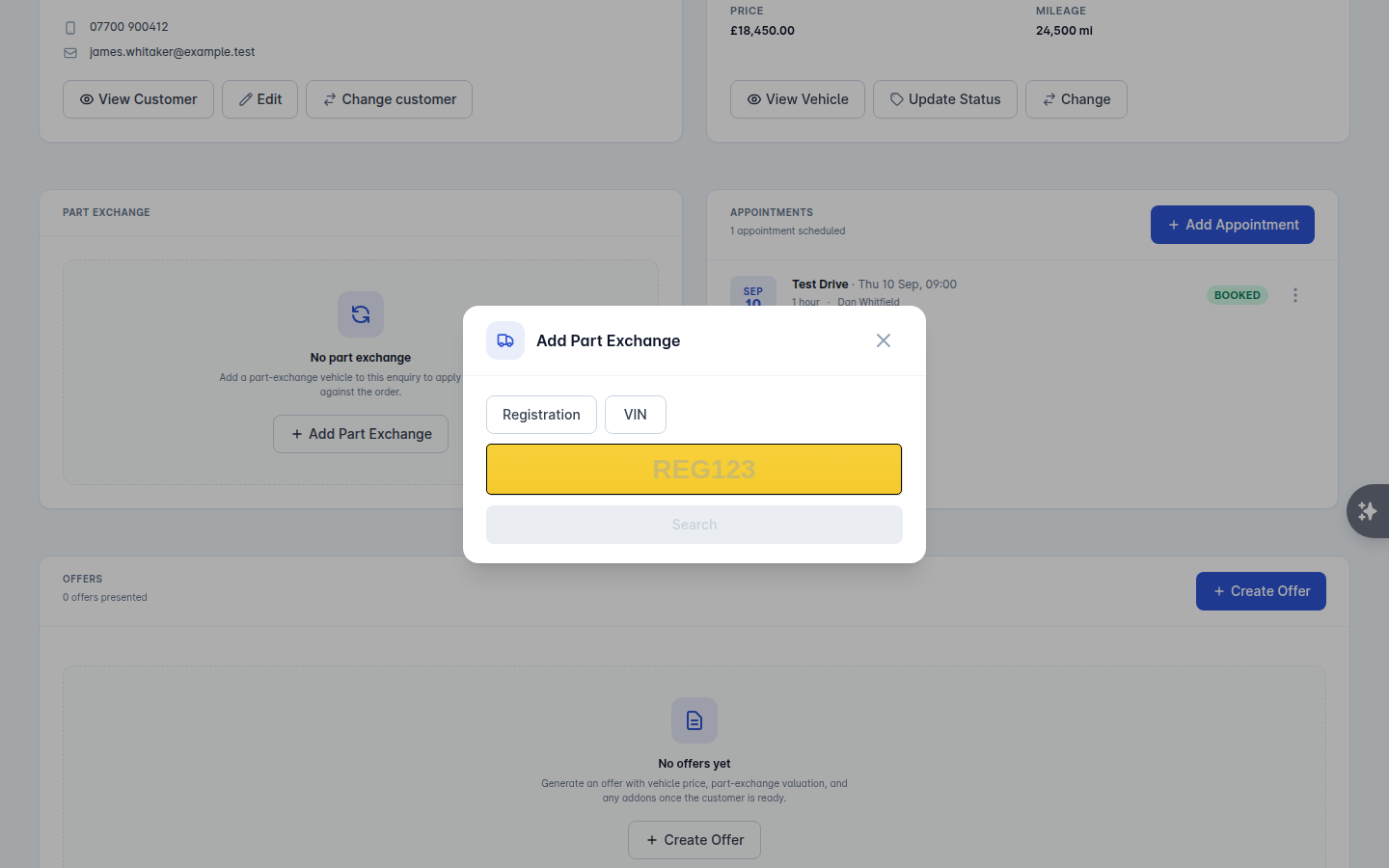
Use Edit Part Exchange to correct the details later. To swap it for a different car entirely, use Change rather than editing - that re-runs the lookup.
Valuing it
Where you are connected to a valuation provider, the part exchange panel can pull figures in for you. Select Get Valuations and you get back a set of bands - typically Retail, Private, Trade and Part Exchange, or Dealer Forecourt, Trade Retail and the rest depending on the provider - along with the valuation date.
Valuations are part of a paid add-on and each one uses a call from your balance. See Tools for valuing a car that is not attached to an enquiry.
Your own valuation
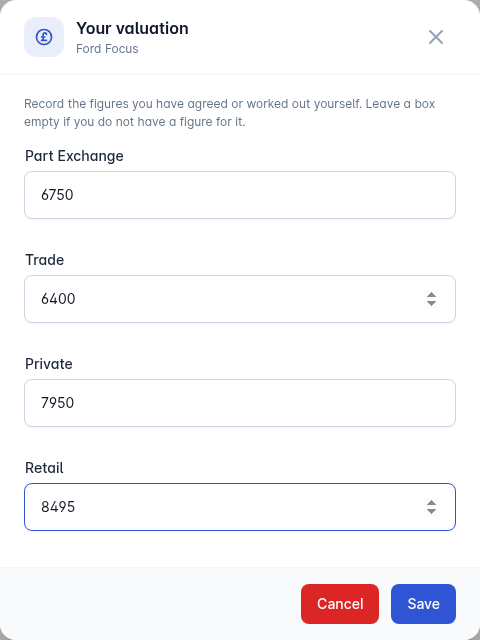
You do not need a provider to record what the car is worth. Select Add valuation under Your Valuation and enter the figures you have agreed or worked out yourself: Part Exchange, Trade, Private and Retail. Leave any box empty if you do not have a figure for it, and use Edit valuation to change them later.
Until you record one, the panel says you have not added your own valuation for this part exchange.
Photos
Add photos of the trade-in under Photos with Add photos. They upload in the background, each one opens full size when you select it, and each one can be removed again. Photograph the damage, the tyres, the interior and the mileage at appraisal: it is what settles the conversation if the car turns up in a different condition to the one you priced.
The Part Exchanges list has View photos on each row too, so you can look at the appraisal shots without opening the enquiry.
What lands on the deal
The figure that matters on the deal is the one you agree with the customer, which you enter as the Valuation on the offer or order. Any outstanding finance goes in as the Finance Settlement Amount, with the Finance Settlement Lender.
Getting it into stock
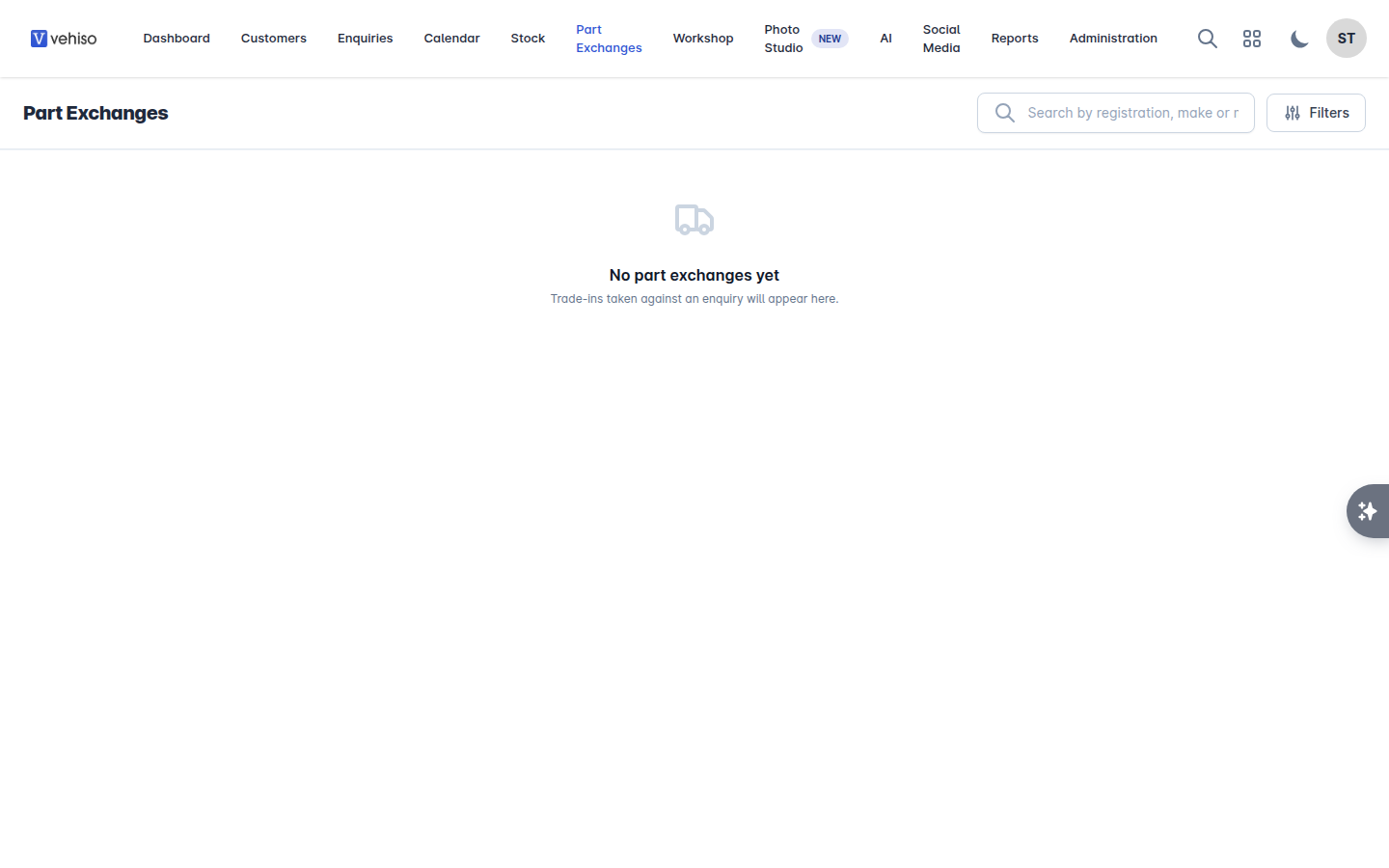
Go to Part Exchanges. Every trade-in taken against an enquiry is listed here, with whether it is already In stock or Not yet in stock.
To bring one into stock:
Select Add to stock on the row.
Set the Forecourt price - what you intend to sell it for.
Check the SIV. It is pre-filled with the allowance you agreed with the customer.
Set the Stock status and Stock source.
Confirm.
Everything already known about the car is carried over, so you are not typing it in twice. The row then offers View in stock instead, and the vehicle behaves like any other: photos, costs, adverts and feeds. See Add a vehicle to stock.
A part exchange can only be added to stock once. If it has been done already, the row tells you so.
Other actions
View enquiry - back to the deal it came from.
Change status - move it along without taking it into stock.
Search by registration, make or model, and filter by status or by whether it is in stock.
Why bother putting them into stock
The SIV carried over from the trade-in is what makes your margin figures real. Take the part exchange into stock at the allowance you actually gave, add the prep costs as you spend them, and the stock and sales reports will tell you the truth about what you made on both halves of the deal.