
Offers and orders
An offer is what you put to the customer: the vehicle price, what you will give for their part exchange, any products, and the finance figures. An order is what happens when they say yes. An order produces the order form, and the order is what you invoice.
The normal flow is offer, then order, then invoice. If you would rather skip the paperwork in the middle, see Simple sales workflow at the end of this article.
Creating an offer
From the enquiry, select Create Offer.
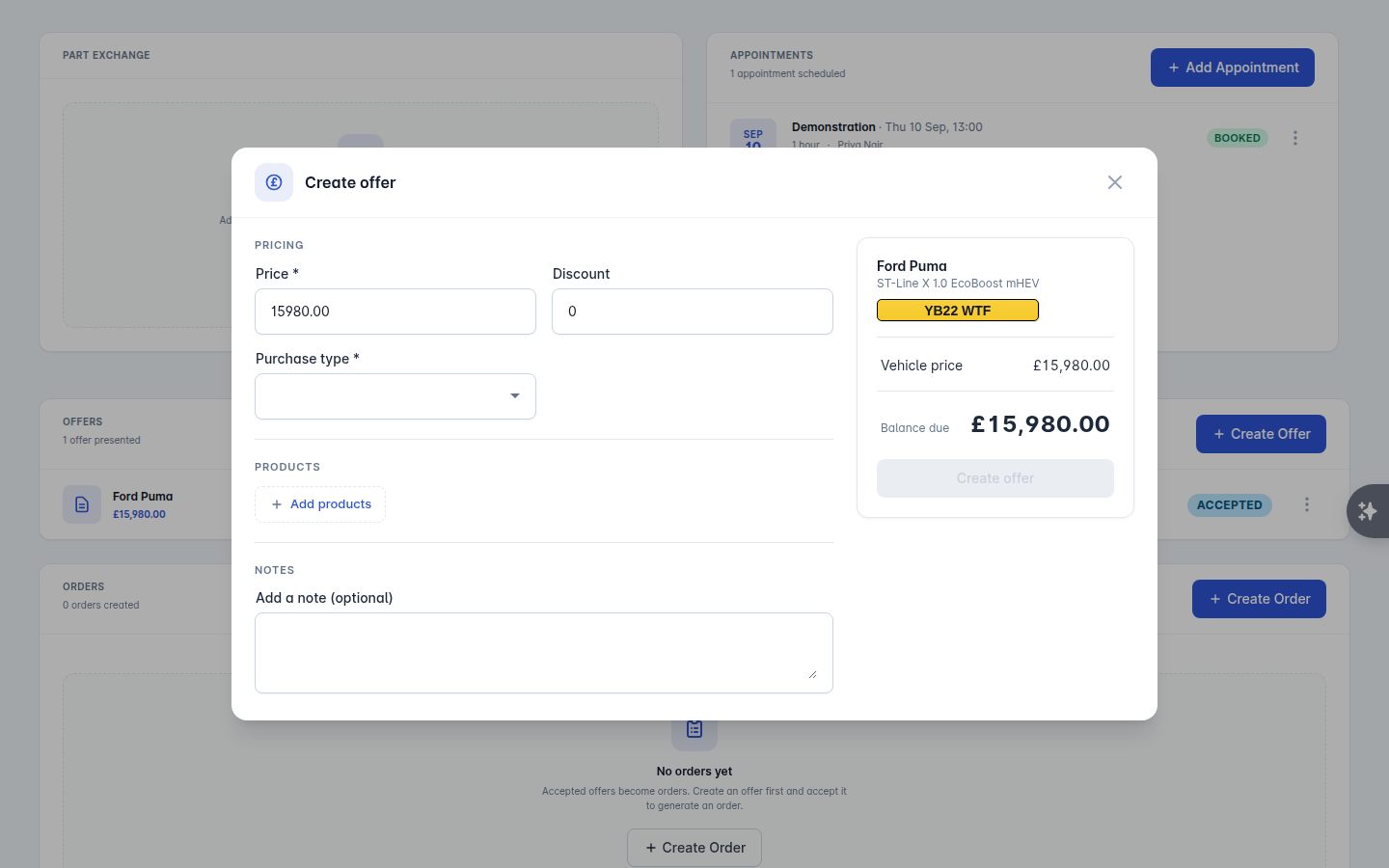
Fill in:
Field | Notes |
|---|---|
Offer Price | What you are offering the car at |
Valuation | What you are allowing for their part exchange |
Finance Settlement Amount | Outstanding finance on the part exchange, if any |
Finance Settlement Lender | Who that finance is with |
Purchase Type | Cash or Finance |
Cash Input from Customer | The cash deposit they are putting in |
Products | Warranty, insurance and anything else you sell |
Notes | Anything that should appear on the offer sheet |
Products come from your own list. Anything you sell has to exist under Administration > Products before it shows up in the search here. See Products and suppliers. You can change a product's price on the offer with Edit Price without changing your master list.
Finance figures
If the purchase type is Finance, open the Finance Calculator to work out the monthly figures that appear on the offer sheet.
Choose the Finance Provider. Providers come from your suppliers list - if yours is not there, Add them as a supplier.
Check the Total Deposit. Vehiso shows the part exchange plus cash input, and Use this amount fills it in for you.
Set the Annual Mileage.
Add each Term you want quoting, in months, with Add.
Select Calculate.
You get a set of quotes showing APR, first payment, regular monthly payment, final payment and option to purchase fee for each term. Remove Quotes clears them and starts again.
Once saved, the offer appears in the Offers panel showing the VRM, part exchange, settlement, products and when it was created. From there you can View Offer to see the offer sheet, Delete it, or accept it.
Turning an offer into an order
When the customer accepts, select Accept & Create Order on the offer. The order is created from the offer, so the price and part exchange carry across and cannot be edited on the way through.
To create an order without an offer, select Create Order on the enquiry and fill in the same details yourself.
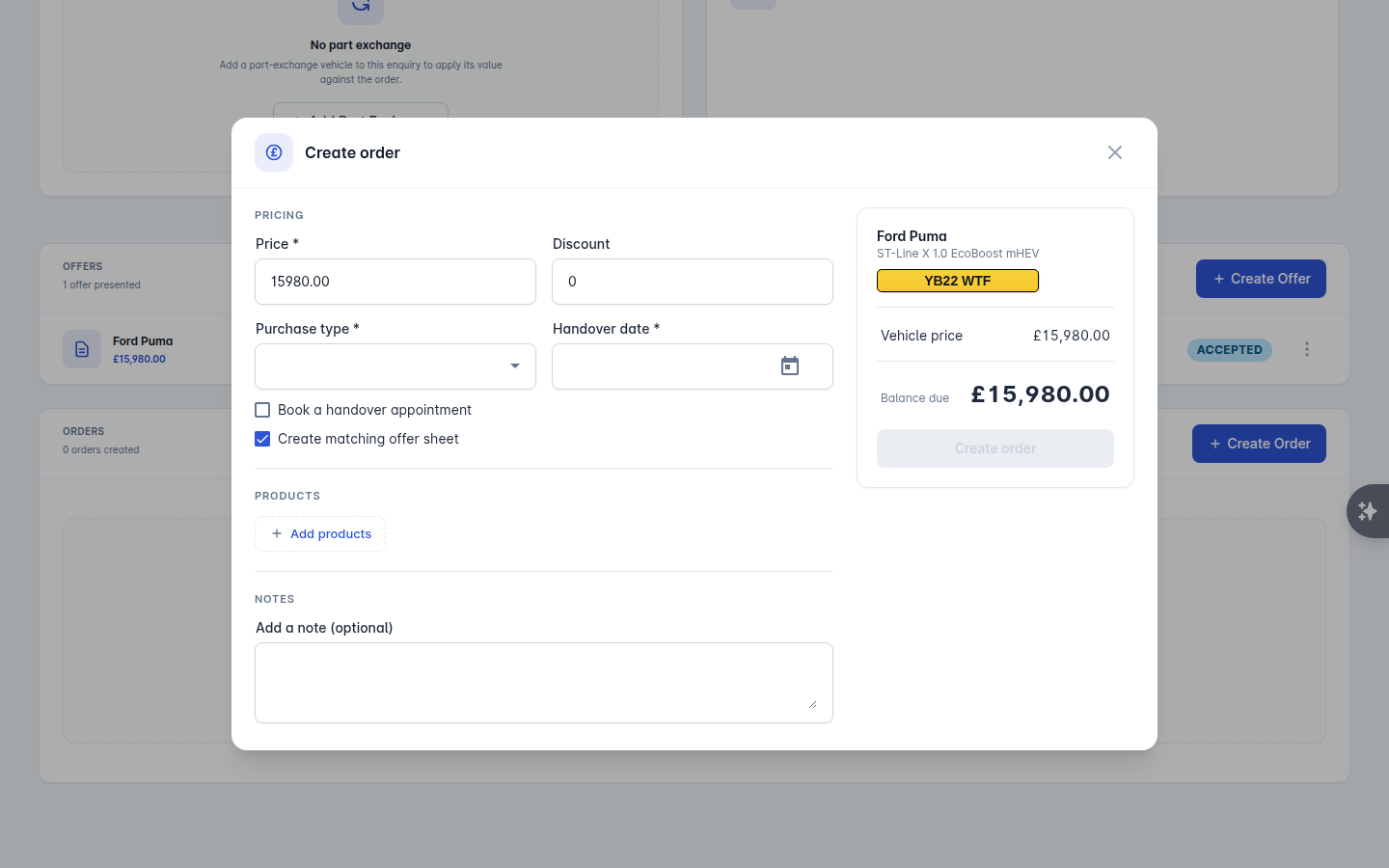
Extra fields on an order:
Field | Notes |
|---|---|
Estimated Handover Date | Shown on the order paperwork and used in reporting |
Delivery / Collection Date | When the customer is getting the car |
Create Handover Appointment | Books the handover into the calendar. Choose the salesperson and how long to allow |
Create matching offer | Produces an offer sheet to match the order, where you went straight to order |
Exclude Deposits from Deal Paperwork | Leaves deposits already taken off the order form and invoice |
If the customer has already paid a deposit and you want it shown on the order form, record the payment before you create the order. The dialog links you straight to where to add it. See Invoices and payments.
Creating the order moves the enquiry status to Order.
Living with an order
The Orders panel is the deal from here on. It shows whether the order has been signed and whether an invoice has been issued, and gives you the actions:
Download Order Pack - the paperwork as a PDF.
Email documents - send the order form, offer sheet, invoice and receipts to the customer or the finance company. See E-signatures and order packs.
Request E-Sign or E-Sign Now - get the order form signed.
Regenerate Order Form - rebuild the PDF after changing something.
Create Invoice - see Invoices and payments.
Cancel Order - the deal has fallen through.
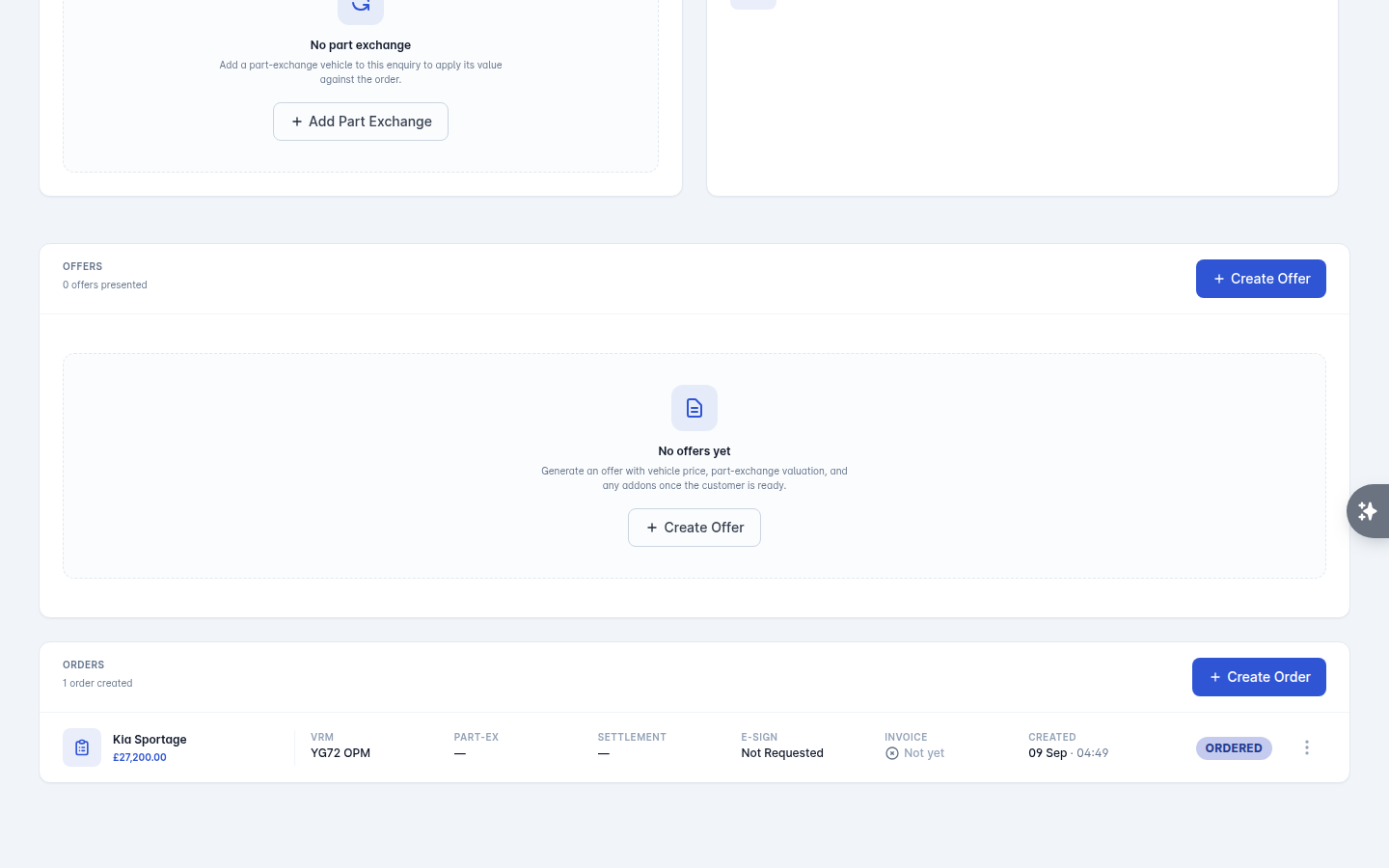
If the order is on finance and the Commission Disclosure document has not been completed, a warning appears at the top of the enquiry with a link to add it. Deal with it before the customer signs.
Selling straight from stock
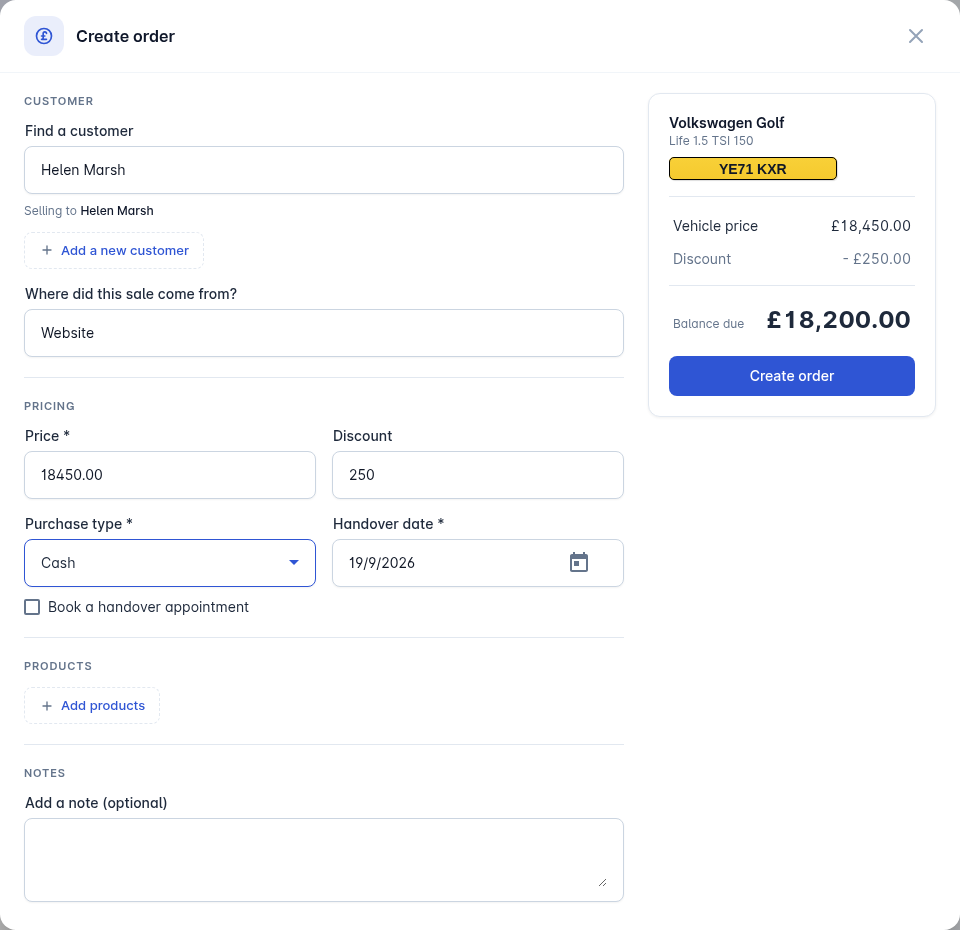
You do not have to start on the enquiry. Open a vehicle in Stock and select Sell vehicle. You pick the customer (or add a new one there and then), set the price and any discount, add the part exchange and products, and choose whether to Create offer, Create order or Create invoice. A running summary shows the vehicle price, discount, products, part exchange, settlement, deposits taken and the balance due.
Everything it creates lands on an enquiry, exactly as if you had started there.
Simple sales workflow
Smaller dealers often do not want offer sheets and order forms at all. Turn on Simple sales workflow under Administration > Settings > Invoicing and selling a vehicle creates the invoice straight away, with no offer and no order form in between.
Everything else - payments, receipts, part exchanges, reporting - works exactly the same.