
Invoices and payments
Creating an invoice
An invoice comes from an order. On the enquiry, find the order in the Orders panel, open its actions menu - the three dots at the end of the row - and select Create Invoice.
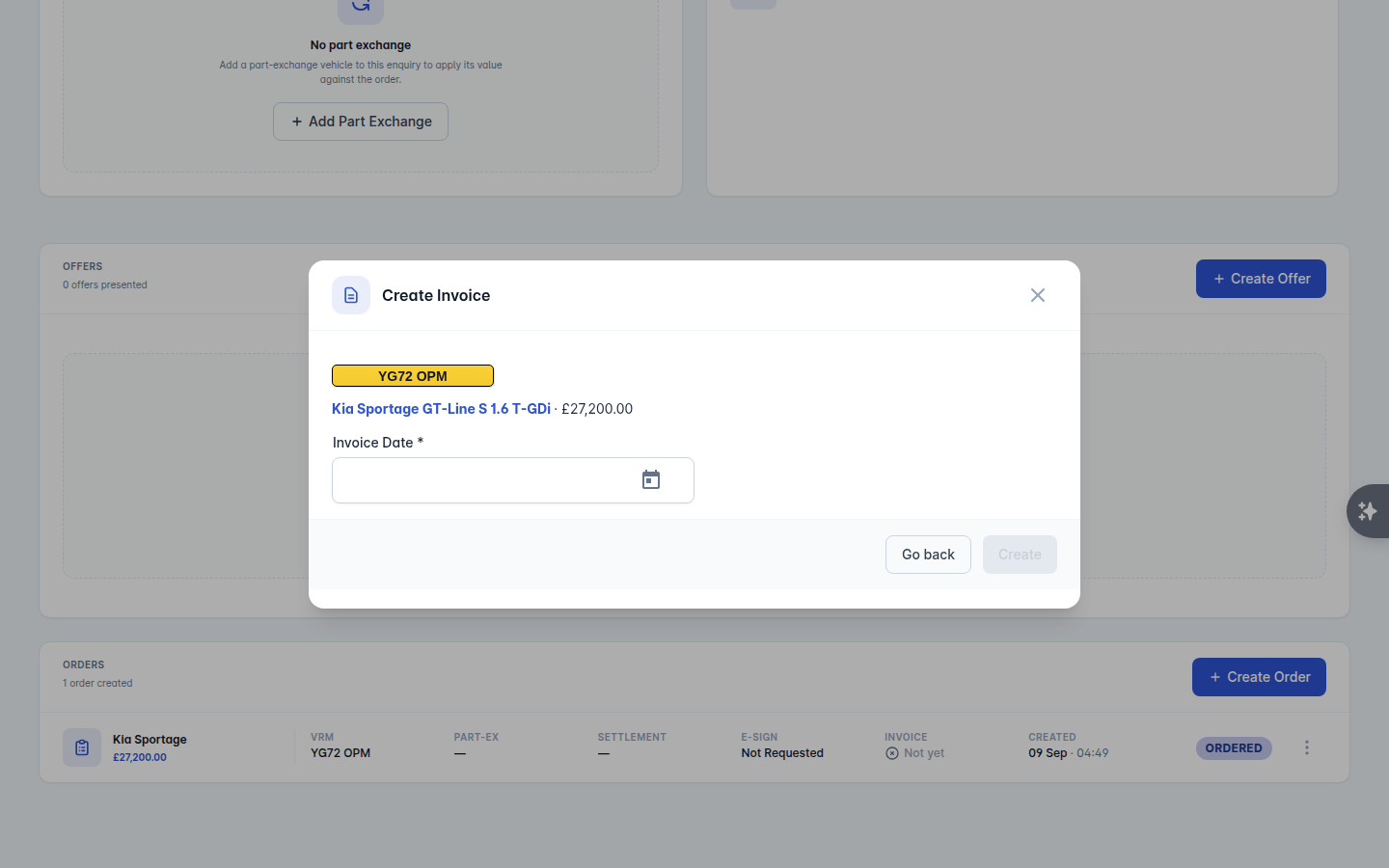
The dialog shows what is going on the invoice - the vehicle, the Part Exchange and any Products, with amounts shown excluding VAT where that applies - and asks for the Invoice Date. Select Create.
Once issued you can:
View Invoice - open the PDF.
Void Invoice - cancel it. Voiding leaves the record in place rather than deleting it, so your numbering stays intact.
Email documents - send it to the customer or the finance company. See E-signatures and order packs.
If you use the Simple sales workflow, selling a vehicle creates the invoice directly with no offer or order form in between. See Offers and orders.
Invoice settings
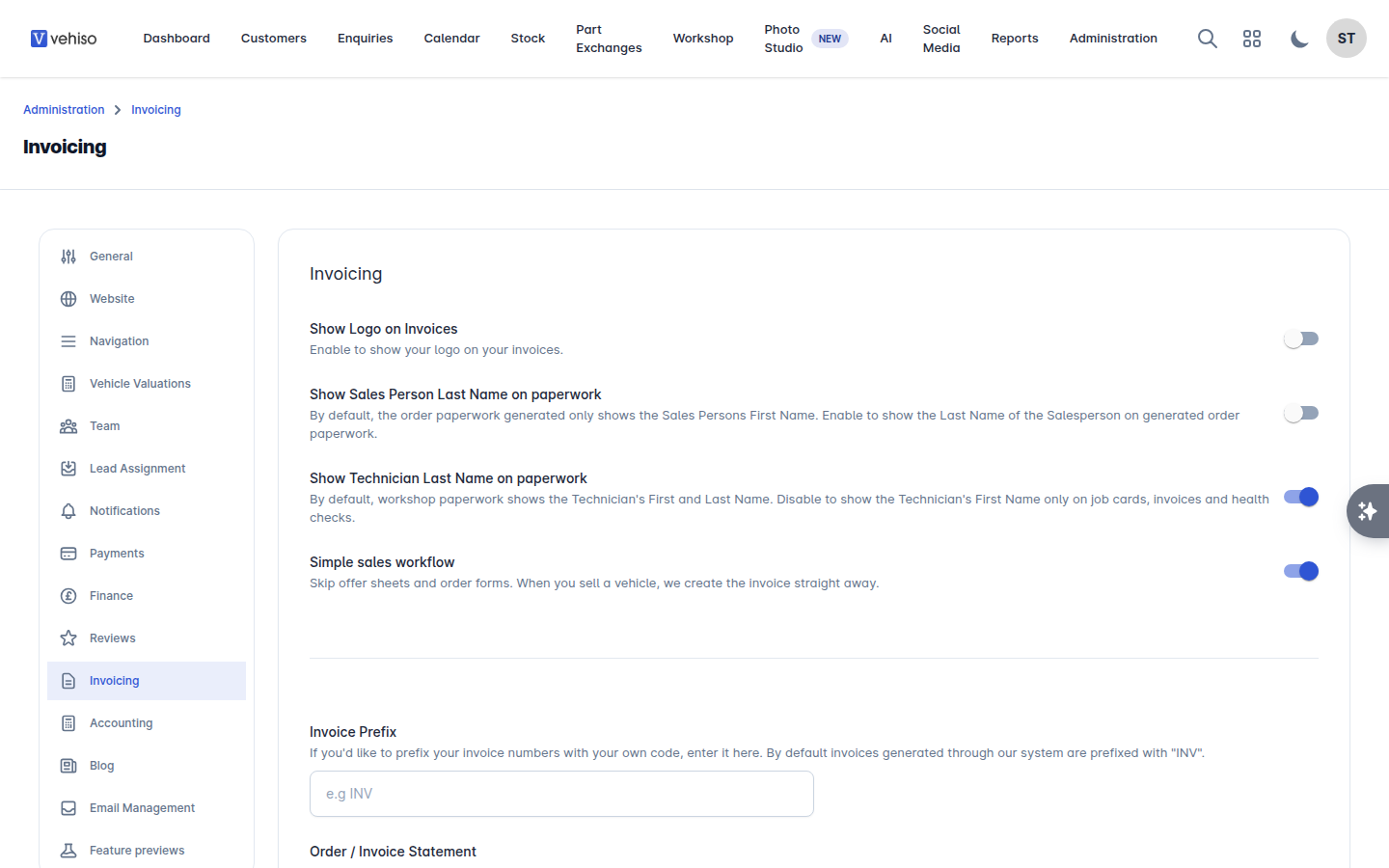
Under Administration > Settings > Invoicing:
Setting | What it does |
|---|---|
Show Logo on Invoices | Puts your logo at the top of invoices |
Invoice Prefix | Your own code in front of invoice numbers. Invoices are prefixed INV unless you change it |
Order / Invoice Statement | Wording shown at the bottom of the first page of the order form and invoice, for example your terms |
Show Sales Person Last Name on paperwork | By default order paperwork shows the salesperson's first name only |
Show Technician Last Name on paperwork | Workshop paperwork shows both names by default. Turn this off for first name only |
Simple sales workflow | Skip offer sheets and order forms |
Recording payments
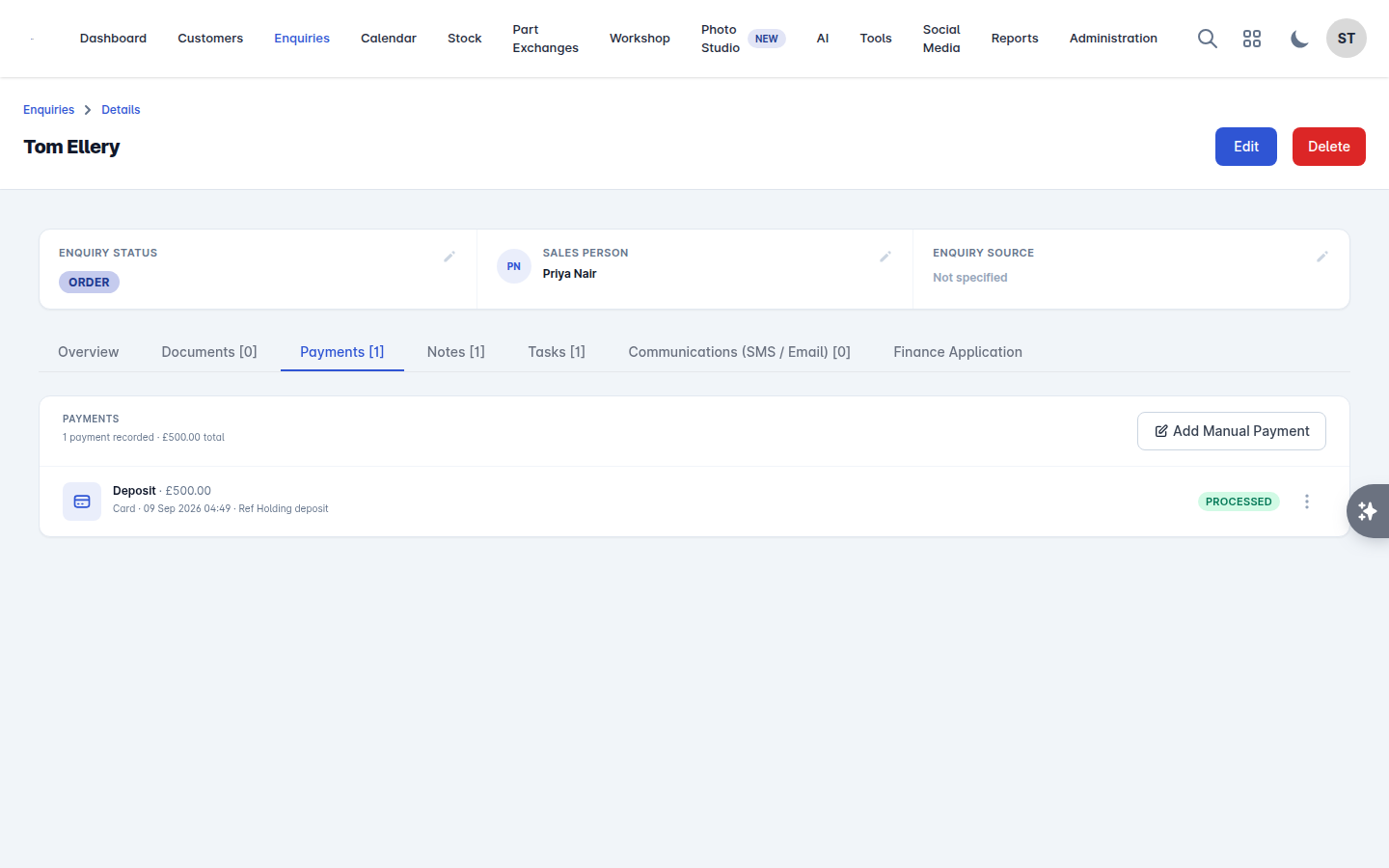
The Payments panel on the enquiry shows everything taken against the deal, with a running total. There are four ways to add one.
Add Manual Payment
For money taken outside Vehiso: cash, a bank transfer, a cheque, or your own card terminal.
Select Add Manual Payment.
Choose the Payment Type: Deposit or Balance.
Choose the Payment Method: Cash, Bank Transfer, Card, Cheque, Finance, or one of the connected providers.
Enter a Payment Reference and the Payment Amount.
Select Add Payment.
Take Card Payment
Takes the card payment there and then, through your connected provider. Enter the Amount and Continue to the secure card form.
If you see "No card payment providers are connected", set one up first under Administration > Settings > Payments. Vehiso supports Stripe, PayPal and Square. See Payments, finance and accounting.
Request Payment
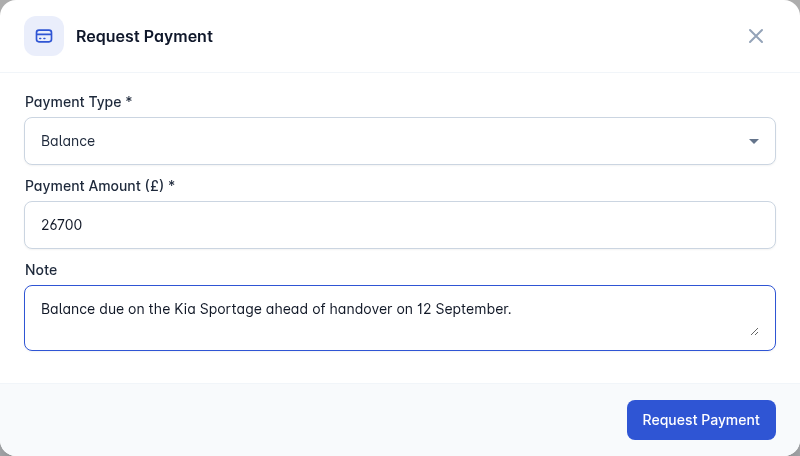
Sends the customer a payment link instead of taking the card details yourself. Enter the Amount and a Note, and select Request Payment. They pay online and the payment appears here automatically.
Record Finance Settlement
For the money the finance company pays you on a financed deal. It records their settlement against the order's invoice, and posts to the Finance Clearing account you have mapped in your accounting software (falling back to your primary bank account if you have not mapped one).
Working with a recorded payment
Each payment row has its own actions:
Download Receipt - the receipt as a PDF.
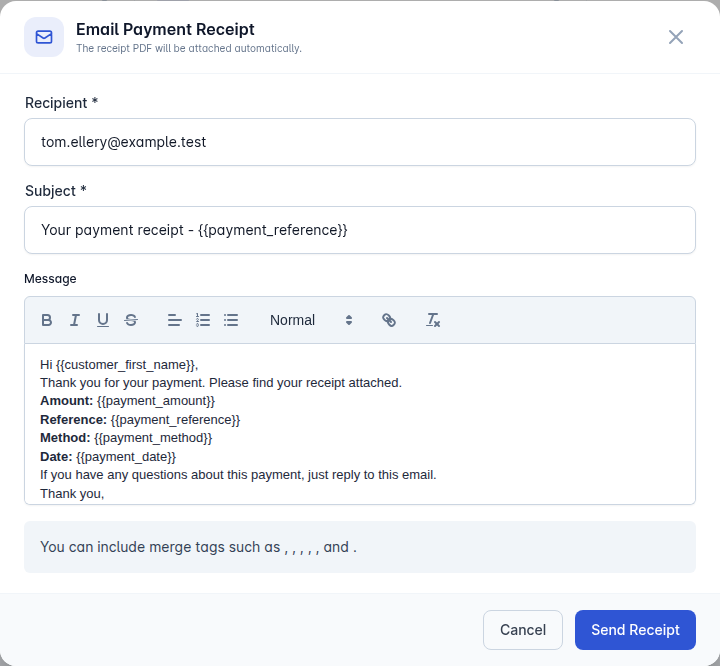
Email Receipt - send it to the customer. The PDF is attached automatically, and you can edit the subject and message first. Merge tags are available for the customer's first name, the amount, reference, method, date and branch.
Refund Payment - for payments taken through a connected provider.
Mark as Deposit or Mark as Balance - correct the type if it was recorded wrongly.
Delete Payment - only manual payments can be deleted. Payments taken through a provider have to be refunded instead, so the money and the record stay in step.
Deposits and the order form
Deposits already recorded are deducted from the balance due on the paperwork. Two things follow from that:
Record a deposit before creating the order if you want it to appear on the order form.
Tick Exclude Deposits from Deal Paperwork on the order if you would rather the paperwork showed the full amount.
Workshop invoices
Workshop jobs are invoiced from the job card, not from an enquiry, and have their own payment handling including a payment link and Mark as Paid. See Workshop invoicing and payments.
Keeping your accounts in step
Connect Xero or Sage under Administration > Settings > Accounting and invoices and payments sync across automatically. Map your nominal codes and tax codes first, and check the mapping with whoever does your books - see Payments, finance and accounting.