
Working an enquiry
The enquiry detail page is the deal. Everything you do with that customer happens here, and everything that has happened is on the page in order. This article covers the day to day: the overview, notes, tasks, appointments, messages and documents. Offers, orders, invoices and payments have their own articles.
Open an enquiry from Enquiries, or from the customer's record.
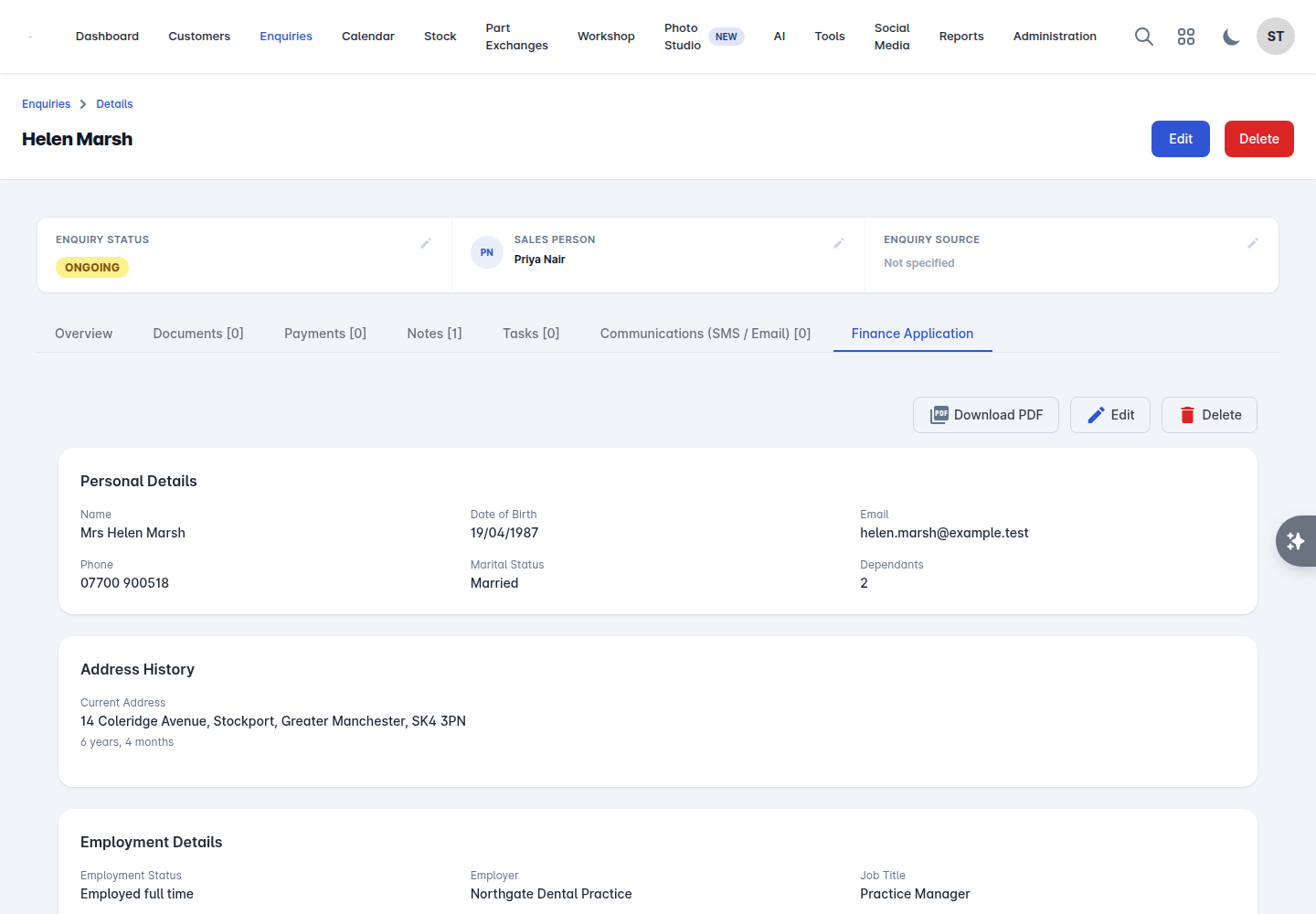
The page is tabbed, and each tab counts what is on it: Overview, Documents, Payments, Notes, Tasks, Communications (SMS / Email), and Finance Application where the customer applied for finance through your website.
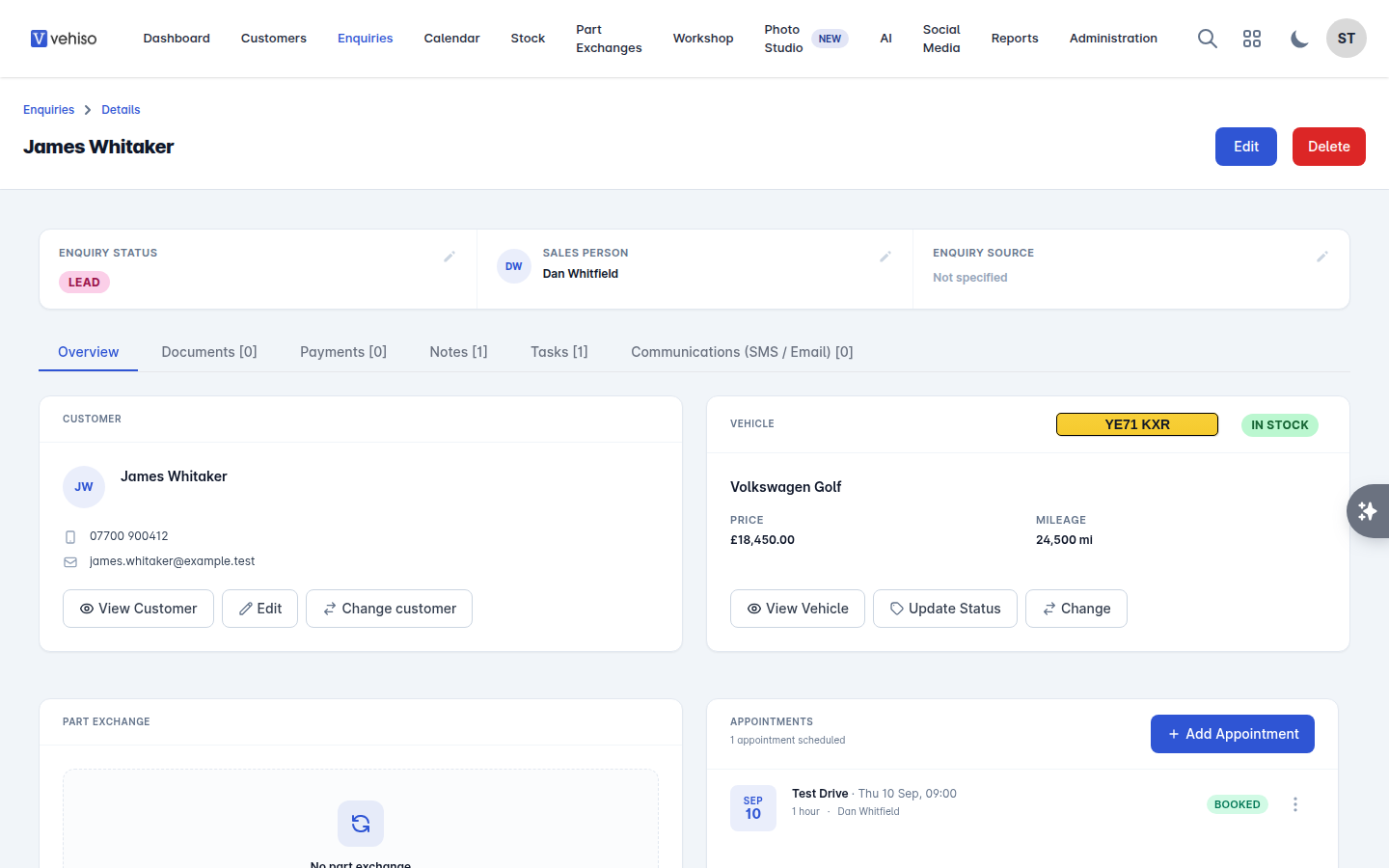
The top of the page
Three things sit at the top and set the tone of the whole record:
Enquiry Status - Update Status to move it along the pipeline.
Sales Person - who owns it. Unassigned until someone takes it. Use Update Sales Person to change the owner.
Enquiry Source - where the lead came from. Update Enquiry Source if it was logged wrongly.
Customer and vehicle
The Customer panel shows who you are dealing with, with View Customer to open their full record and Edit to correct their details.
Change customer points the enquiry at somebody else. Use it when a lead landed on a duplicate record or a mistyped one: you pick an existing customer, and the panel redraws with their details. It does not create a customer - if the right person is not on file yet, add them first from Customers, or use the full edit form.
The Vehicle panel shows the car, its Price and Mileage, with View Vehicle to open it in stock. If no car is attached yet you will see "No vehicle attached" - select Add Vehicle and search by make and model, registration or VIN. Use Change to swap it for a different one.
You cannot quote or create an order without a vehicle attached, so attach it as soon as the customer settles on a car.
Notes
Notes are the memory of the deal: what was said on the call, what the customer cares about, what the next person picking this up needs to know.
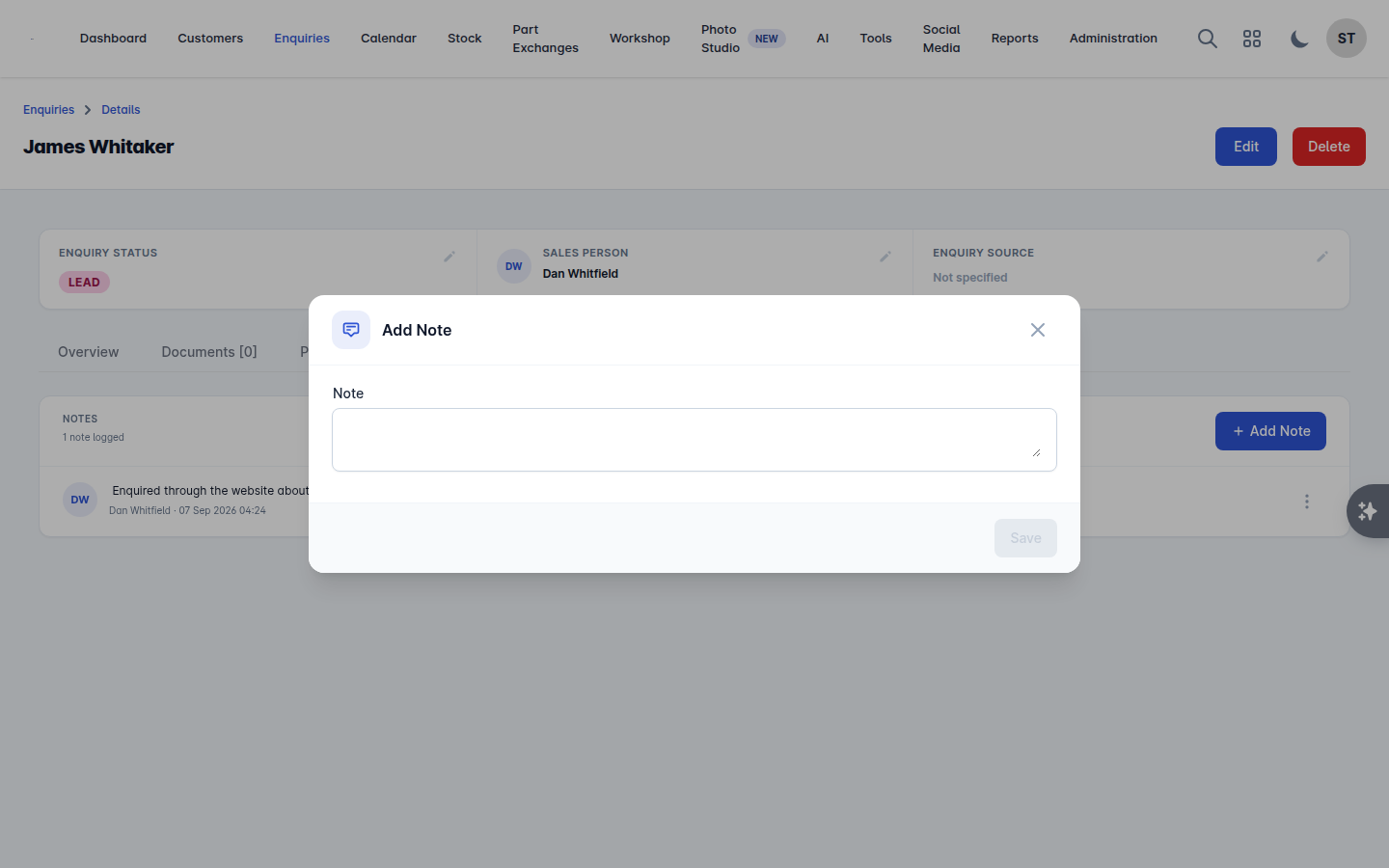
Open the Notes tab, select Add Note, type it and save. Notes are stamped with who wrote them and when.
Tasks
A task is a reminder with an owner and a deadline: chase the finance, call back Tuesday, order the second key.
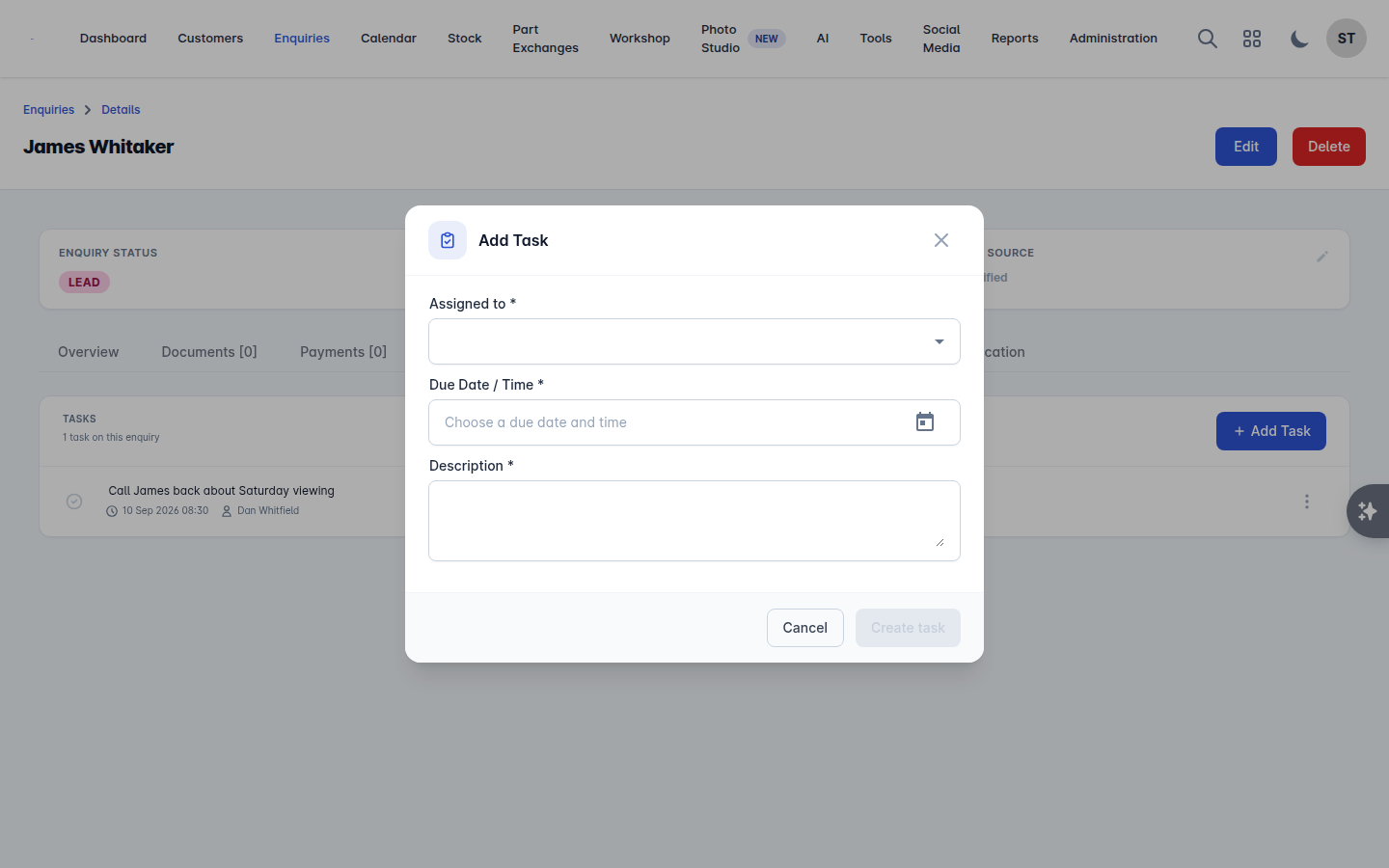
Select Add Task.
Choose who it is Assigned to.
Set the Due Date / Time.
Write the Description.
Select Create task.
Tasks show on the enquiry, on the calendar, and in the Tasks panel on the dashboard. Tick Mark as done when it is finished, or Mark as not done if you closed it too soon.
Appointments
An appointment is time booked with the customer: a viewing, a test drive, paperwork or the handover.
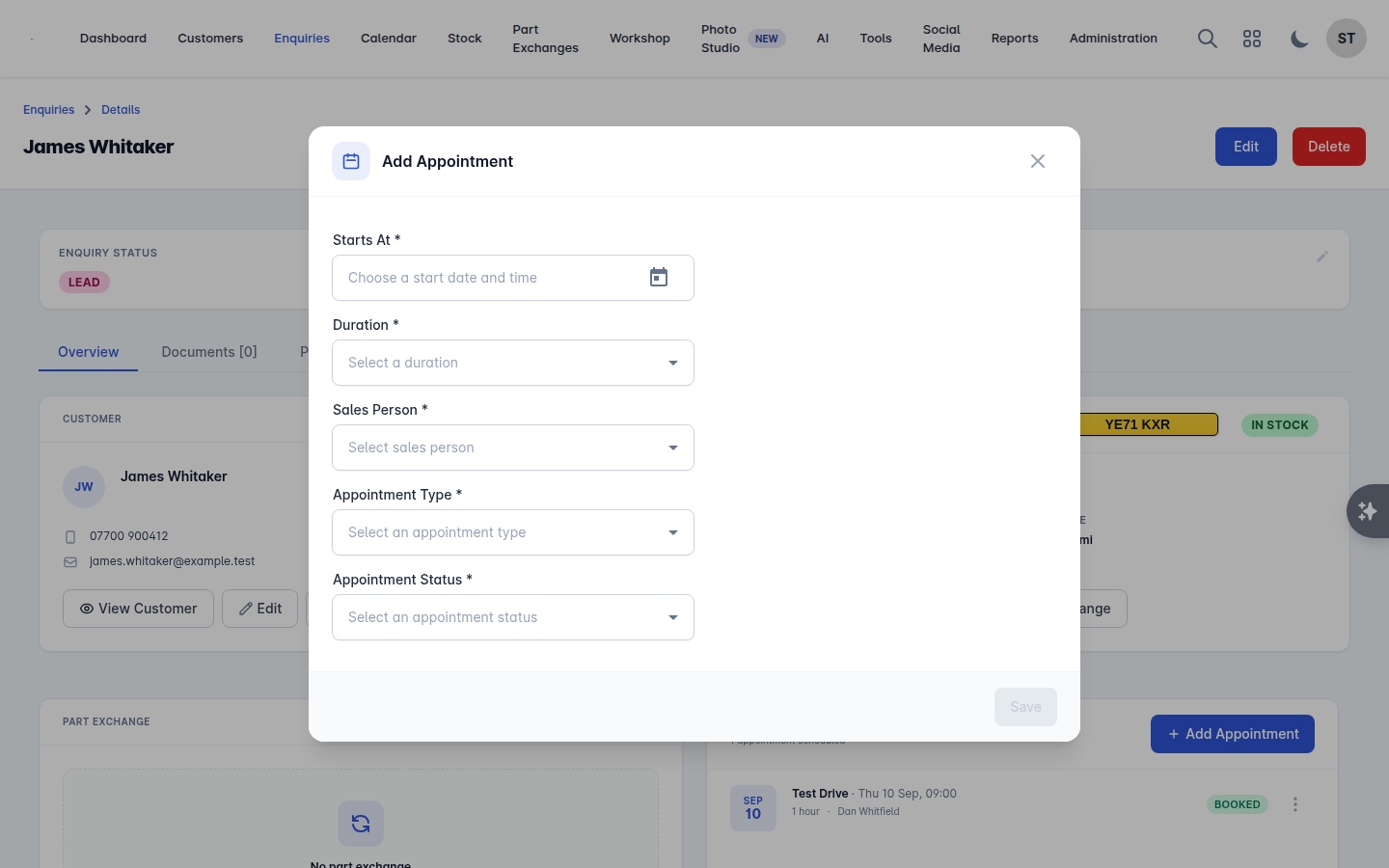
Select Add Appointment.
Set Starts At and a Duration.
Choose the Appointment Type: Demonstration, Test Drive, Paperwork Completion or Handover.
Choose the Appointment Status: Booked, Completed or Cancelled.
Save.
Appointments appear on the calendar and in Upcoming Appointments on the dashboard.
A handover appointment can also be created for you when you create an order. See Offers and orders.
Messages
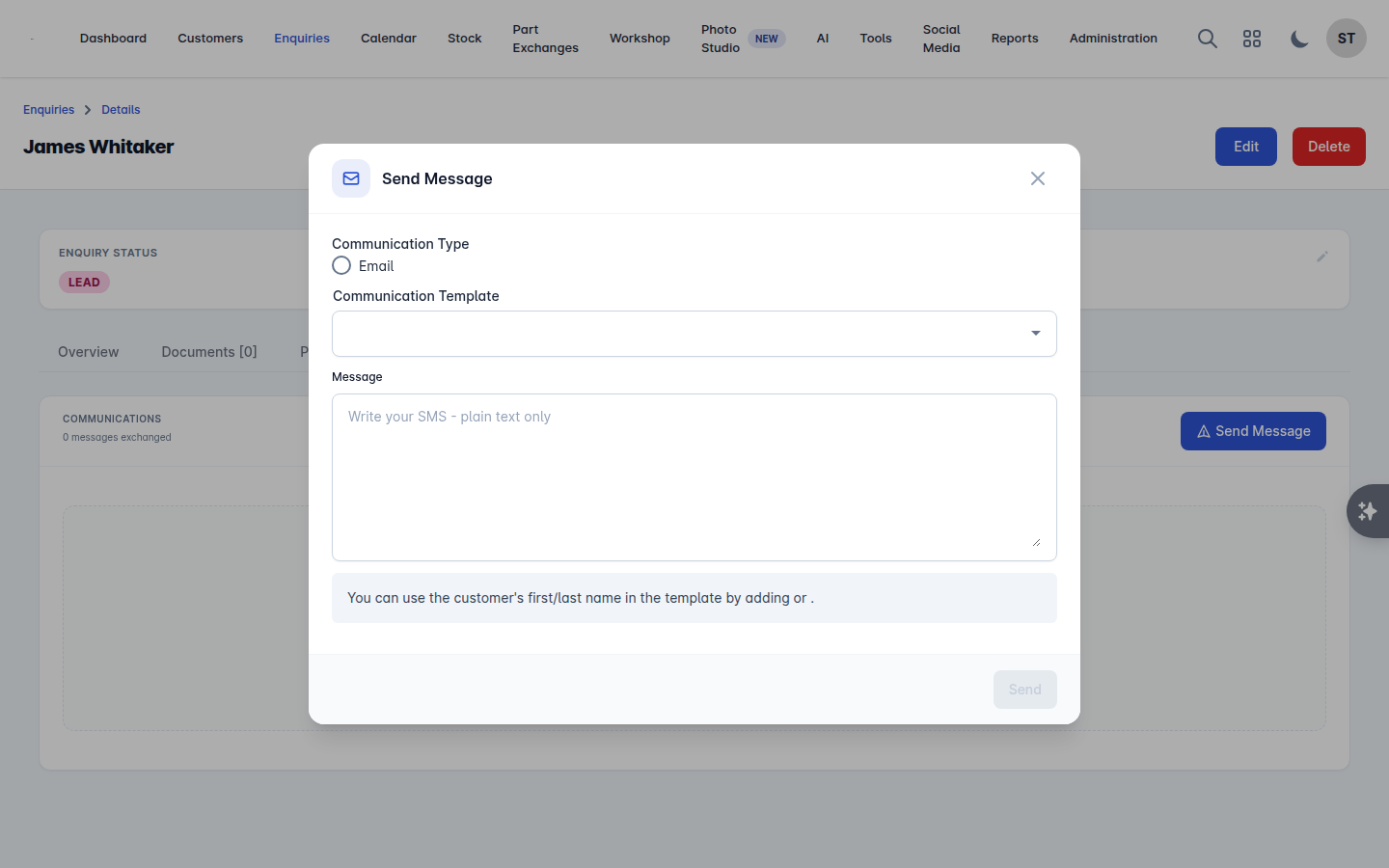
The Communications panel is every email and text exchanged on this enquiry, sent and received, newest first.
To send one:
Select Send Message.
Choose the Communication Type: Email or SMS.
Optionally pick a Communication Template to start from. See Communication templates.
Write the Subject (email only) and the Message. SMS is plain text and shows a character count as you type.
Select Send.
You can personalise a message with the customer's name using the merge tags shown under the message box.
Documents
The Documents panel is where finance paperwork, terms, ID checks and anything else you want to keep with the deal lives.
Select Add Document and choose from your Available Documents. These are the documents you set up under Administration > Documents - see Documents. Some documents are added to every new enquiry automatically.
Documents can be sent for signature. See E-signatures and order packs.
One to know: the Sales Checklist document can only be added once the enquiry has an order.
Part exchange
If the customer is trading a car in, add it here with Add Part Exchange. Its value comes off the order. See Part exchanges.
Finance applications
Where a customer applied for finance through your website, the enquiry has a Finance tab holding the application: personal details, address history, employment details, the amount to finance, deposit and preferred term, and the consents they gave.
You can edit the application, download it as a PDF, or delete it.
A sensible working rhythm
Every call gets a note.
Every promise gets a task with a due date.
Every visit gets an appointment.
Every price discussion gets an offer, so the customer has something in writing.
Do that and the enquiry tells its own story - which matters when someone else has to pick it up, and when you are working out why deals are being lost.