
Add a customer
A customer record holds the person or business you are dealing with: their contact details, their address for paperwork, their marketing preferences, and every enquiry they have ever made. Everything else in the sales side hangs off it.
Most customers create themselves. A website enquiry, a finance application or a workshop booking all create the customer record for you. Add one by hand when someone walks in, phones up, or you are entering history from another system.
Adding a customer
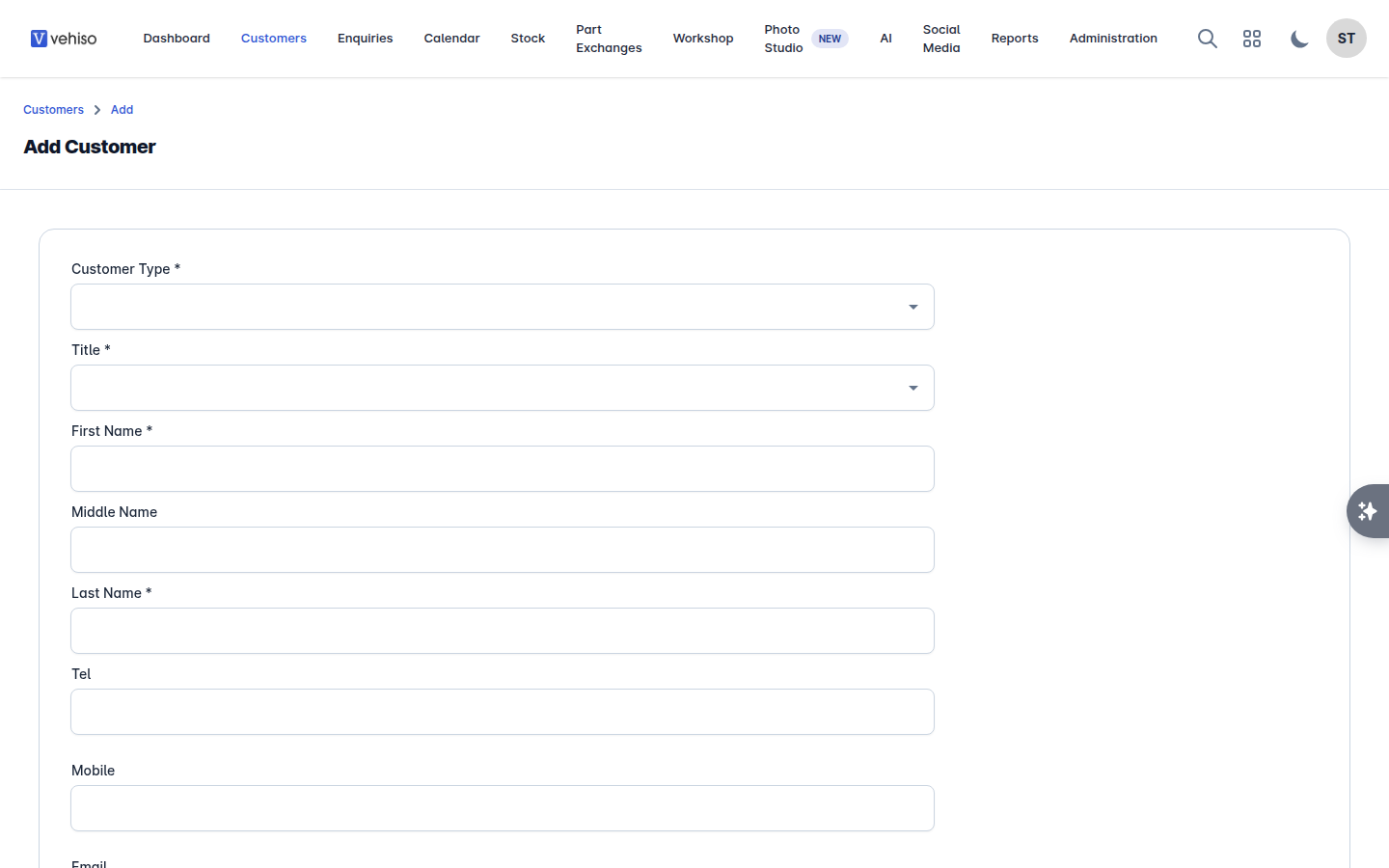
Go to Customers and select Add.
Choose the Customer Type: Individual or Business.
Fill in the details.
Field | Notes |
|---|---|
Business Name | Business customers only |
Title, First Name, Middle Name, Last Name | The name that appears on invoices and order paperwork |
Used for order packs, receipts, e-sign requests and marketing | |
Tel and Mobile | The mobile number is what text messages are sent to |
Date of Birth | DD/MM/YYYY. Needed for finance applications |
Address Line 1 and 2, City, County, Postcode, Country | Shown on invoices and order packs |
Select Create Customer.
Use the address lookup rather than typing an address by hand where you can. It keeps postcodes tidy, which matters when paperwork and finance applications are checked.
Finding a customer
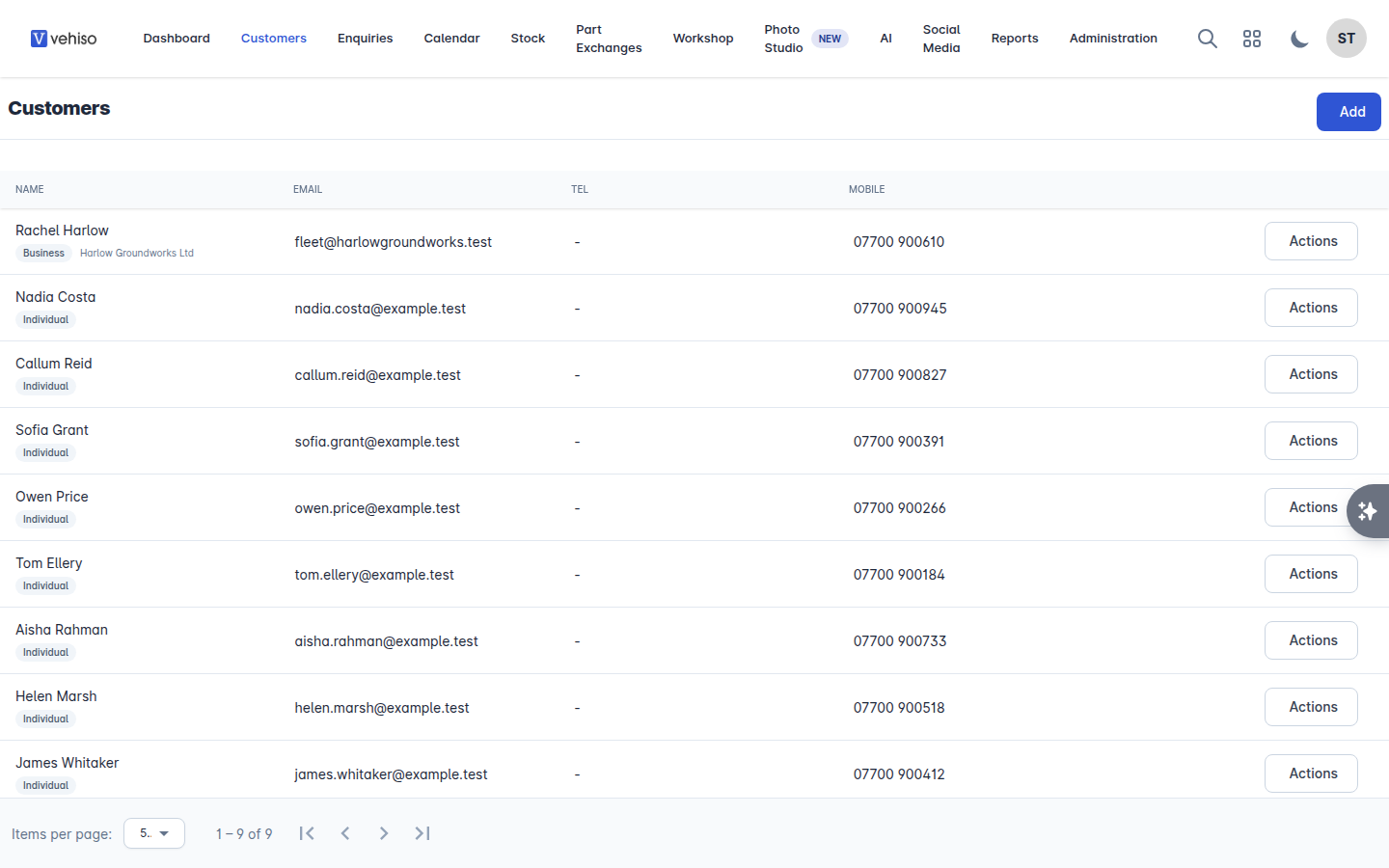
The Customers list has a search box and a filter panel. Search matches name, phone number, email address and postcode, so a partial phone number is usually the quickest way in. If you have more than one location, you can also filter by branch.
The customer record
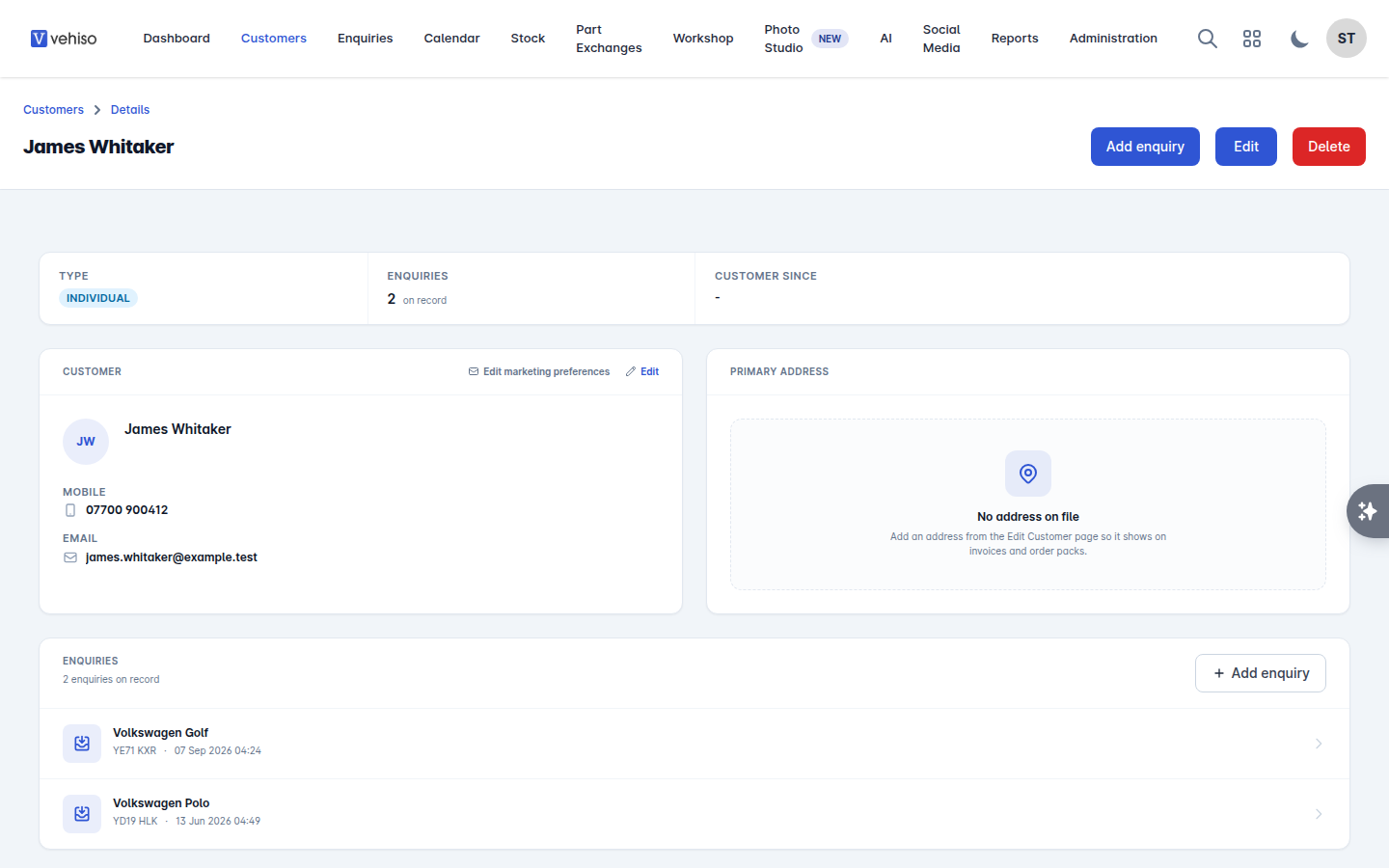
Open a customer to see everything about them in one place:
Whether they are a Business or an Individual, how many Enquiries are on record, and their Customer Since date.
Primary Address. If there is none, you are prompted to add one, because invoices and order packs use it.
Their contact details.
Enquiries - every enquiry they have made, newest first. Select one to open it, or select Add enquiry to start a new one with this customer already filled in.
Marketing preferences.
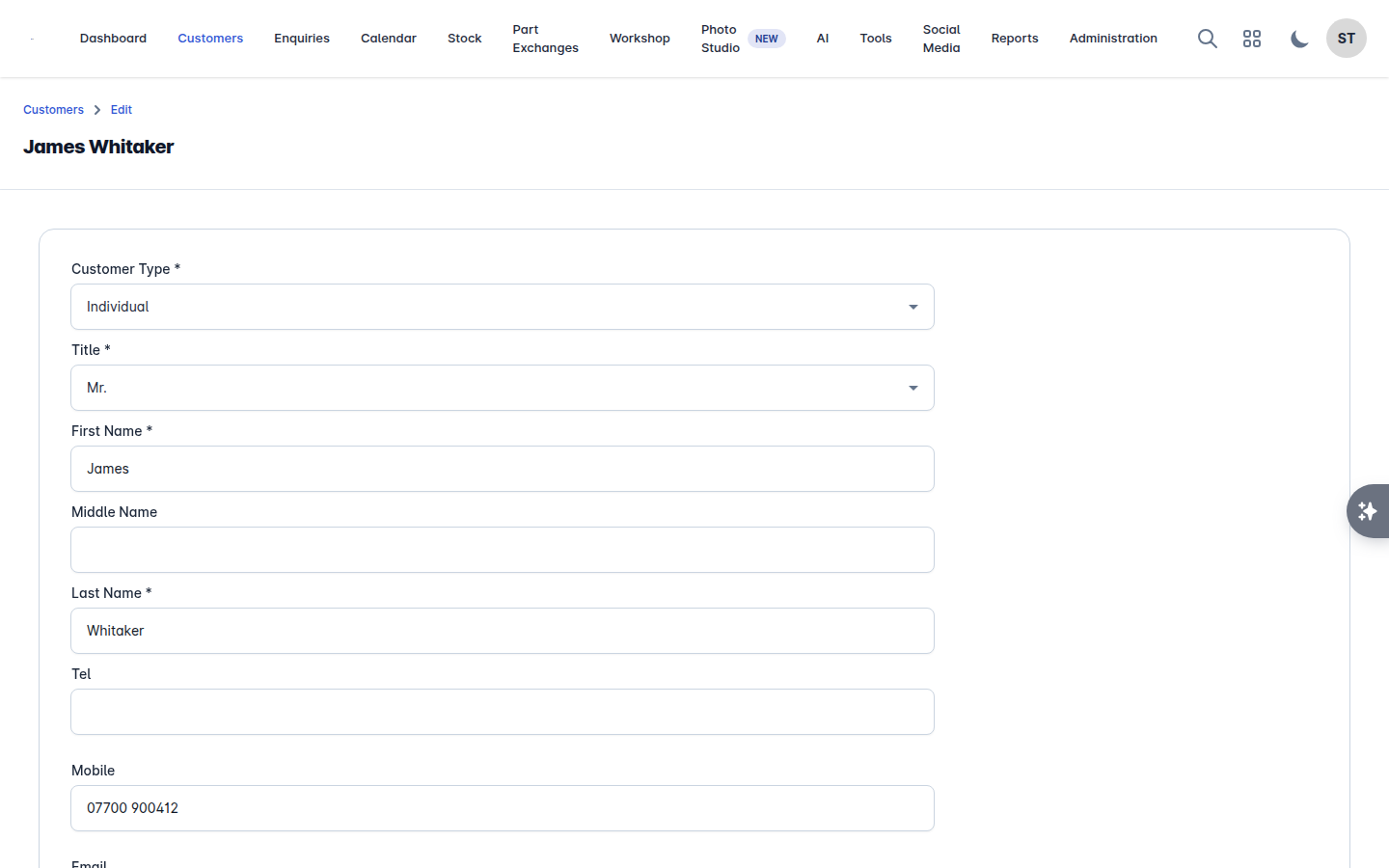
Use Edit to change any of their details.
Marketing preferences
Two consents are recorded against every customer:
Marketing emails
Marketing texts
Select Edit marketing preferences on the customer record to change them. They are also captured on the enquiry form, where they read "Customer agrees to receive marketing emails" and "Customer agrees to receive marketing texts".
These consents are enforced, not decorative. AI agents skip anyone who has not opted in, and record the reason as "Not opted in to marketing". Keep them accurate and your marketing stays on the right side of the rules.
Deleting a customer
Delete this customer permanently removes the customer and all of their details, and cannot be undone. If you only want them out of your marketing, turn their consents off instead.