
Dealership settings
Administration > Settings is where everything about your dealership lives: your name and logo, how your website looks, what you charge, who gets told about what, and which outside services you are connected to.
Settings are grouped into panels down the left. Which panels you see depends on your plan and your role - some are administrator only.
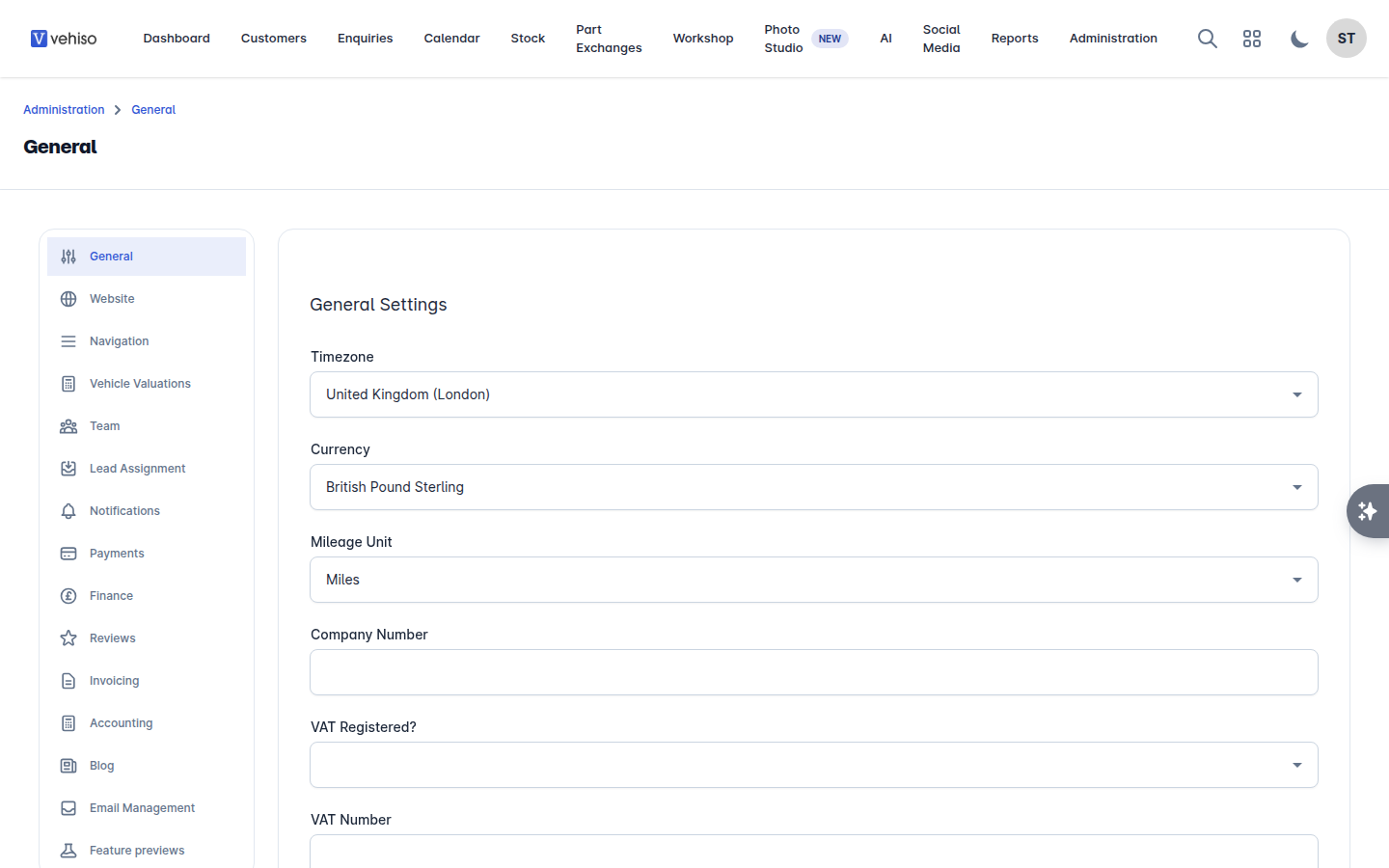
Panel | What it controls | Article |
|---|---|---|
General | Your dealership name, contact details, currency, mileage unit, timezone, VAT and company numbers, social links | This article |
Website | Logos, favicon, template, theme, colours, fonts, header and footer, home page sections | This article |
Navigation | The menu in your website's header | Website navigation menu |
Vehicle Valuations | The Value My Car page on your website | Value My Car |
Team | Inviting users, roles and branches | Your team |
Lead Assignment | Who owns a new lead when one arrives | Your team |
Notifications | Who is told about what, and how | Notifications |
Payments | Taking card payments online and in the back office | Payments, finance and accounting |
Finance | Finance providers and disclosure wording | Payments, finance and accounting |
Stock Feeds & Integrations | AutoTrader, CarGurus, Motors, CarFinance247 and other channels, plus integrations such as MotorCheck | Advertising your stock |
Reviews | AutoTrader and Google reviews on your website | Reviews |
Invoicing | Invoice numbering, logo, statement, sales workflow | Invoices and payments |
Accounting | Xero or Sage connection and nominal code mapping | Payments, finance and accounting |
Blog | Turning your blog on and off | Blog and team pages |
Email Management | Mailboxes on your own domain | Email management |
Feature previews | Opting in to features still in beta | This article |
General
The details that identify your business. They appear on your website, on your paperwork, or both, so they are worth getting right early.
Dealership name, description and website language
Contact phone number, email address and address, and whether to show a map
Currency and mileage unit (miles or kilometres)
Timezone - scheduled tools and AI agents run at your local time in this timezone
VAT registered, VAT number and company registration number
Default VAT scheme for new vehicles - see Add a vehicle to stock
Deposit type and amount - the deposit your website asks for when a customer reserves a car
Which vehicle details to show on your listings: number of owners, VIN, regional spec, warranty status
Social links - Facebook, Twitter/X, Instagram, LinkedIn and TikTok
Changes save on the panel you are editing. Anything that affects your website is live as soon as it is saved.
Website
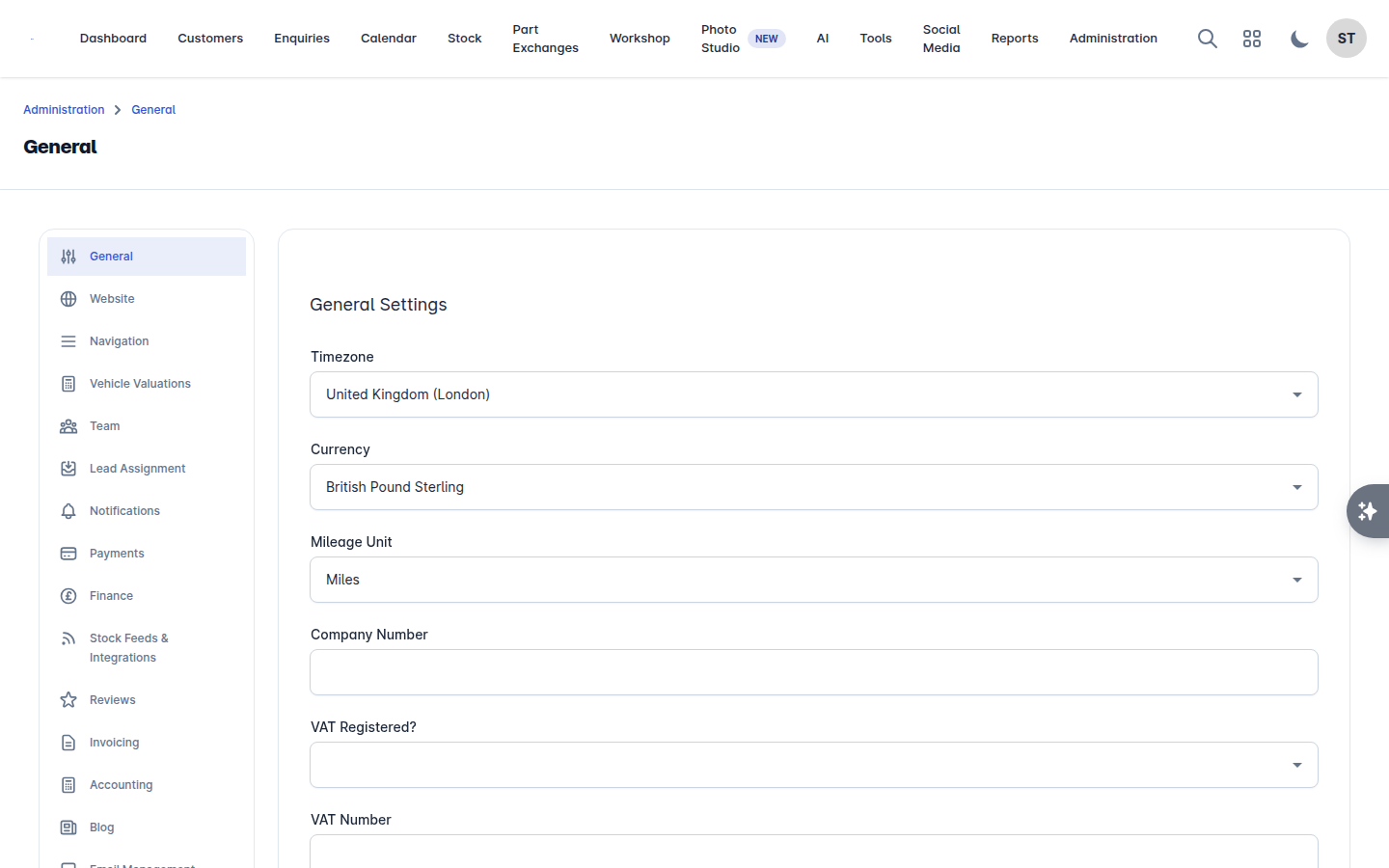
How your site looks. Most of this was set during the quickstart and can be changed here at any time.
Logos - a light logo, a dark logo and a large logo, plus logo sizes for the header and footer
Favicon and app icon
Template, theme (Light, Dark or Black) and colour scheme, or your own custom colours
Fonts - primary, secondary and accent
Header style, top bar and footer text
Home page sections: the search widget (heading, text, button, background image, slides, overlay), browse by brand, latest arrivals, selling points, showcase text and image, about us, warranty, services
The wording on your enquiry form
Ask website visitors for marketing consent and the Marketing consent wording shown beside the tick box. This is on by default. Turn it off and your forms stop asking, which leaves you with leads nobody may lawfully be marketed to, so leave it on unless you have a reason
For anything to do with the text and images inside a page, use the visual website editor instead: Edit Website opens your live site with editing turned on. See Pages and content blocks.
Feature previews
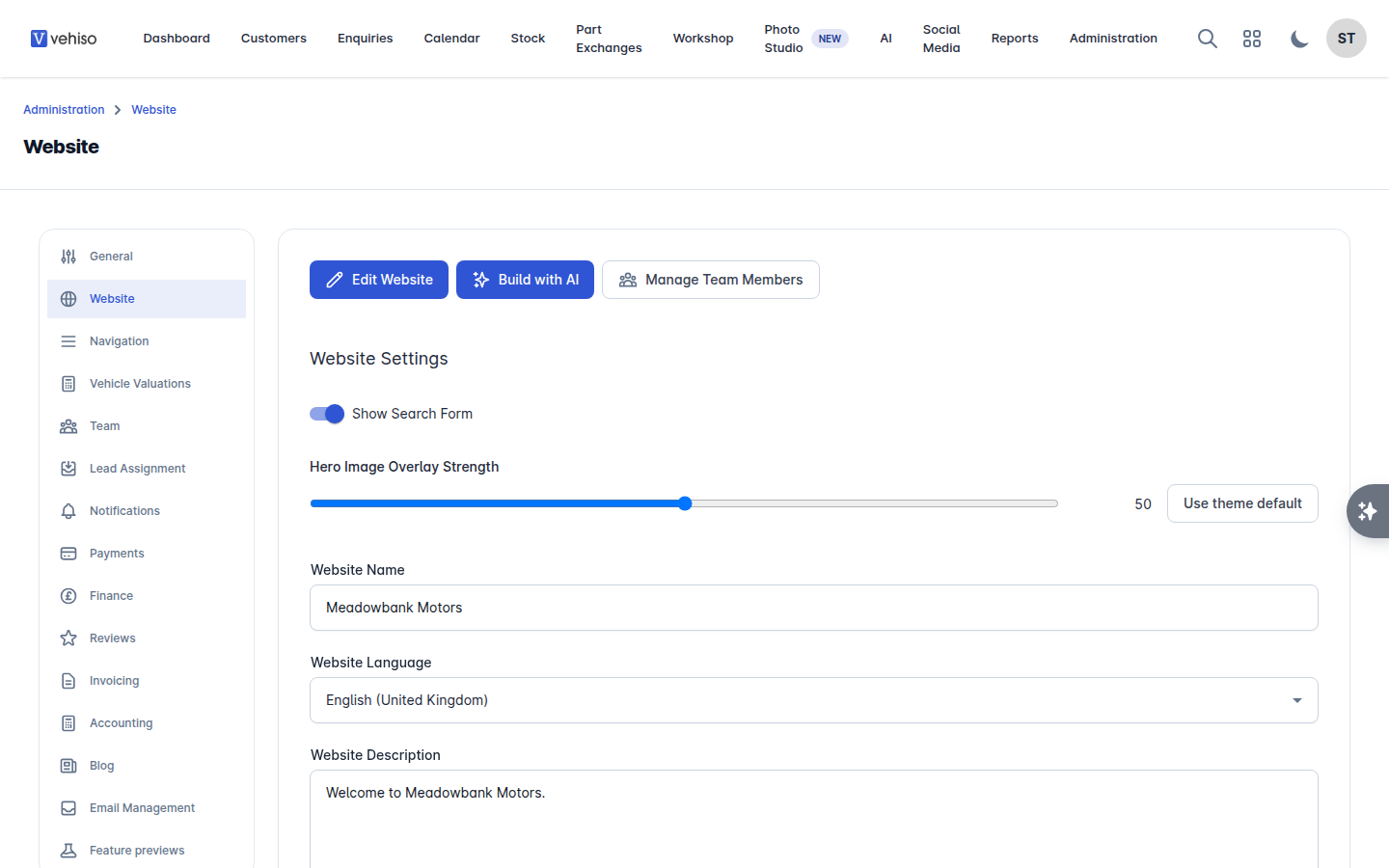
New features are sometimes released as a preview before they ship to everyone. The Feature previews panel lists what is available, marked Beta. Turn one on to try it, and turn it off again whenever you like.
The main one to know about is the new stock experience, which changes how vehicles are added and edited. Both versions are described in Add a vehicle to stock.
If a preview is switched on or off on another device, reload the page to pick up the change.
A note on plans
Some settings are part of a paid plan. Where that applies you will see Available on a paid plan with a link to see the plans, rather than the setting itself. If your dealership is managed by an agency, the message points you to them instead, because they look after your plan.