
Welcome to Vehiso
Vehiso is two things working as one: the website your customers see, and the back office (your DMS) where you run the dealership. A car you add to stock appears on your website. An enquiry from your website lands in your back office. A car you mark as sold comes off the website and turns into an order, an invoice and a payment record.
This article is the tour. Every other article assumes you know where things live.
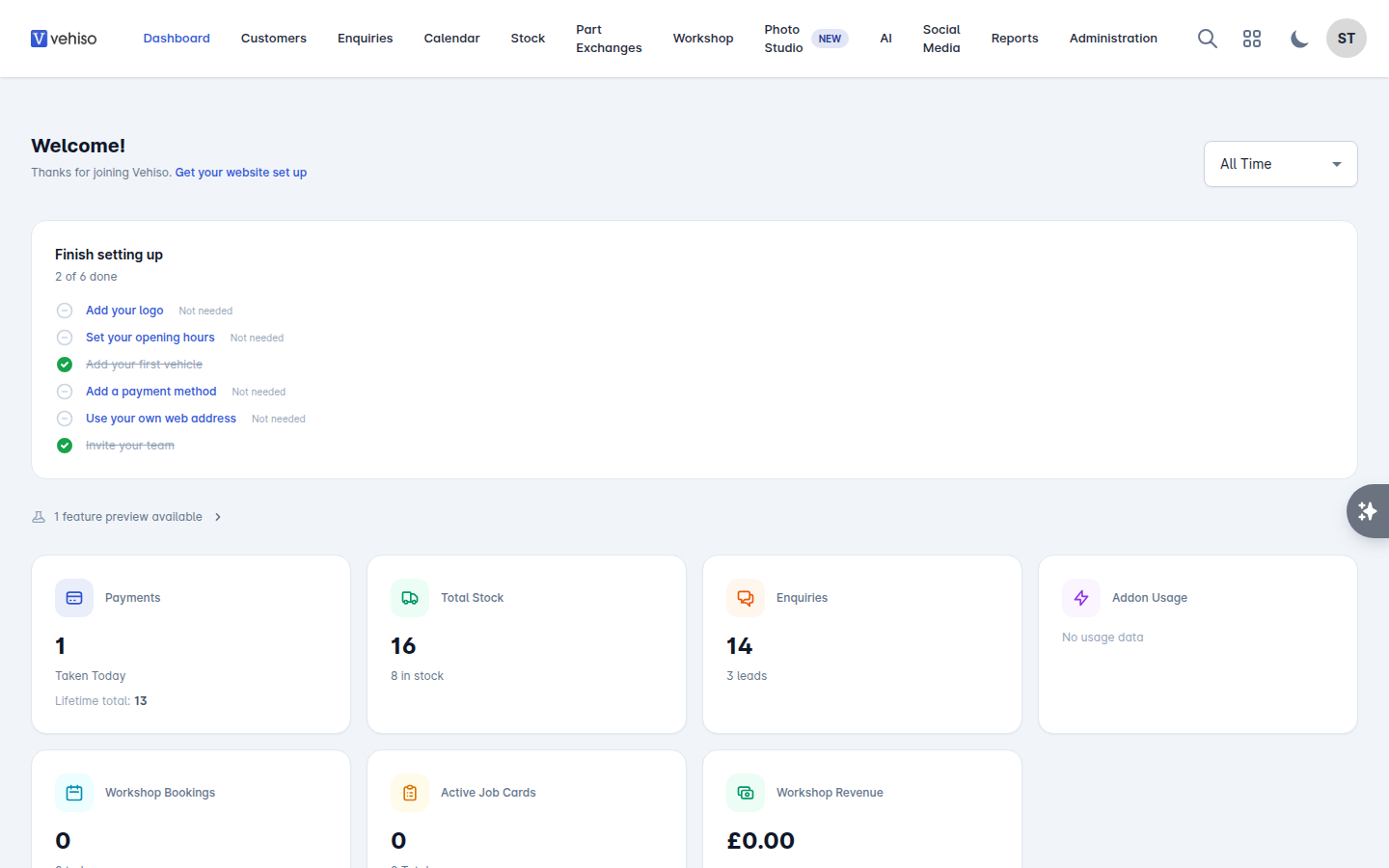
Finding your way around
The menu down the left is the whole system. What you see depends on your role and your plan, so your menu may be shorter than the list below.
Menu item | What it is for |
|---|---|
Dashboard | Today at a glance: payments taken, stock and enquiry counts, upcoming appointments, outstanding tasks, recent activity |
Customers | Every person or business you have dealt with |
Enquiries | Your sales pipeline, from first lead through to a delivered order |
Calendar | Appointments, tasks and workshop bookings on one timeline |
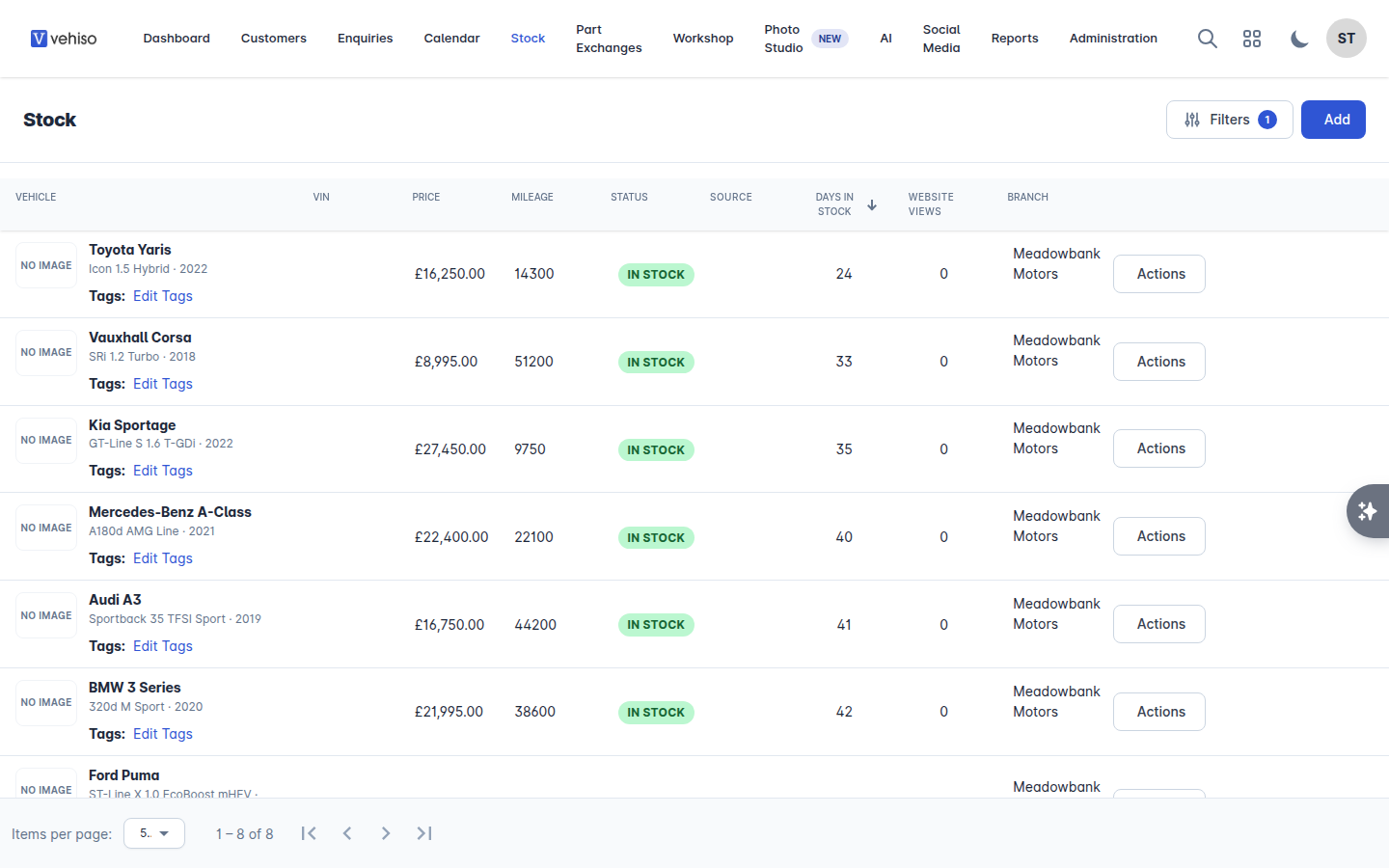
Stock | The vehicles you have for sale |
Part Exchanges | Trade-ins taken against an enquiry, and getting them into stock |
Workshop | Job Cards, Bookings, Inspection Templates, Parts, Purchase Orders, Reorder, Stock Takes, Returns and workshop Settings |
Photo Studio | Put every vehicle photo on the same clean background |
AI | AI recommendations, automated agents, and anything awaiting your review |
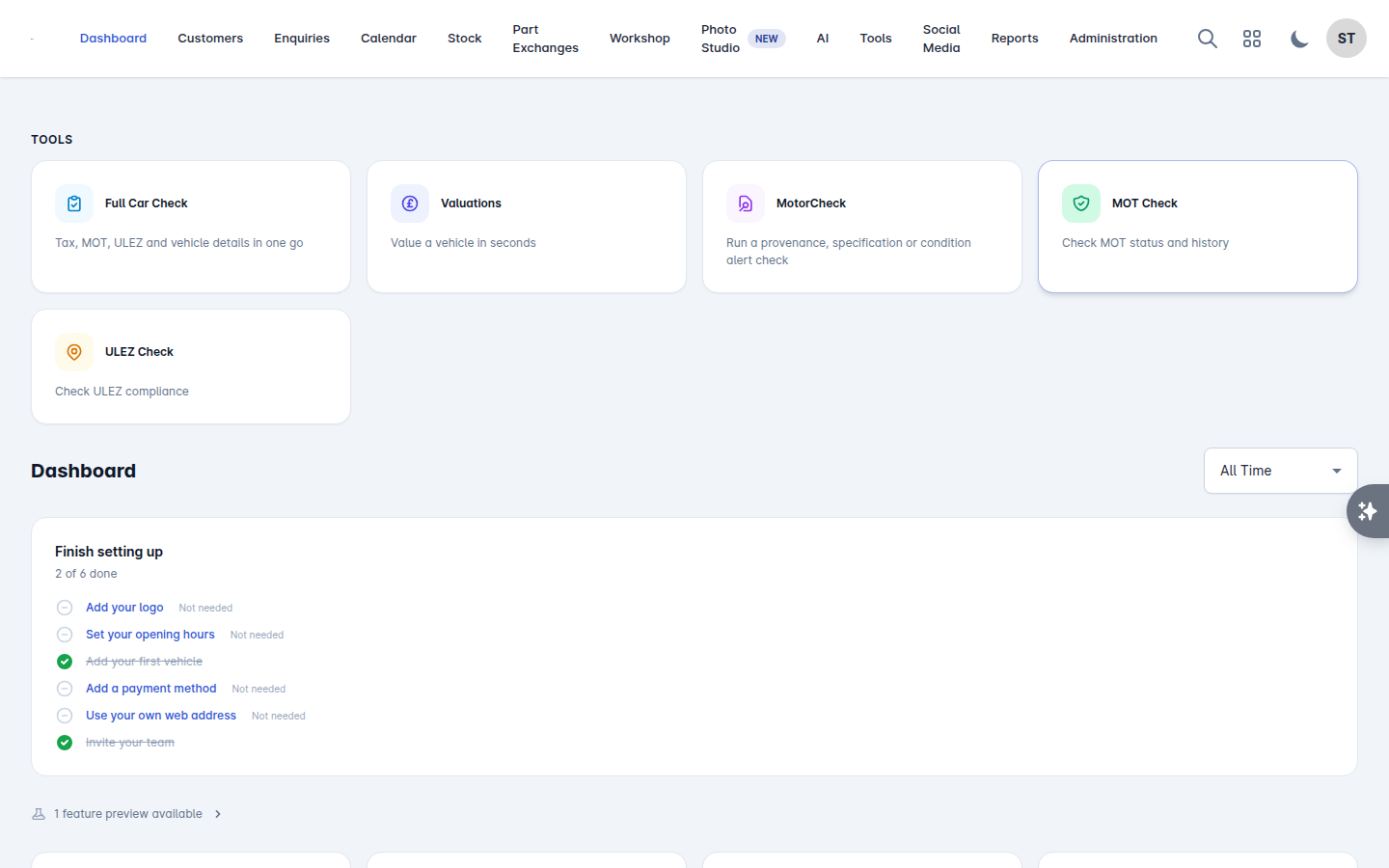
Tools | Full Car Check, MotorCheck, Valuations, MOT Check, ULEZ Check |
Social Media | Posts to your connected social accounts, and their performance |
Reports | Overview, Stock, Sales and Workshop reporting |
Administration | Settings, Branches, Communication Templates, Documents, Pages, Blog, Products, Reviews, Suppliers |
Some items only appear in certain circumstances:
Workshop and Valuations are plan features. If your plan does not include them, the menu entry is hidden.
Tools (Full Car Check, Valuations, MOT Check, ULEZ Check) is available to dealers in Great Britain, because it uses UK vehicle data. MotorCheck appears once your own MotorCheck account is connected.
Users with the Technician role see a cut-down Workshop menu instead: My Jobs, Time Log and Profile.
The order things are usually set up in
If you are starting from scratch, work through the articles in this order. Each one takes a few minutes.
Signing in and your account
Setting up your website with the quickstart
Dealership settings - your logo, contact details, invoicing
Branches and opening hours
Your team: users, roles and lead assignment
Add a vehicle to stock
Advertising your stock - your website, AutoTrader and other feeds
Then, once cars are live and enquiries start arriving:
Add a customer
Create an enquiry
Working an enquiry
Offers and orders
The setup checklist
New dealerships get a Finish setting up checklist on the dashboard. It tracks six things:
Add your logo
Set your opening hours
Add your first vehicle
Add a payment method
Use your own web address
Invite your team
Anything you genuinely do not need can be marked Not needed and it stops counting against you. The checklist disappears once every item is done or dismissed.
Getting help from inside Vehiso
The AI Assistant sits in the bottom corner of every page. It can answer questions about your own data ("which cars have been in stock over 90 days?"), draft an email to a customer, add a note or schedule a follow-up. Nothing is sent to a customer until you approve it. See The AI Assistant and recommendations.
If you are stuck on something the help centre does not cover, contact Vehiso support from the link in the help centre header.