
Signing in and your account
Signing in
Go to your dealership's back office address. It is the link in your welcome email, and it is worth bookmarking.
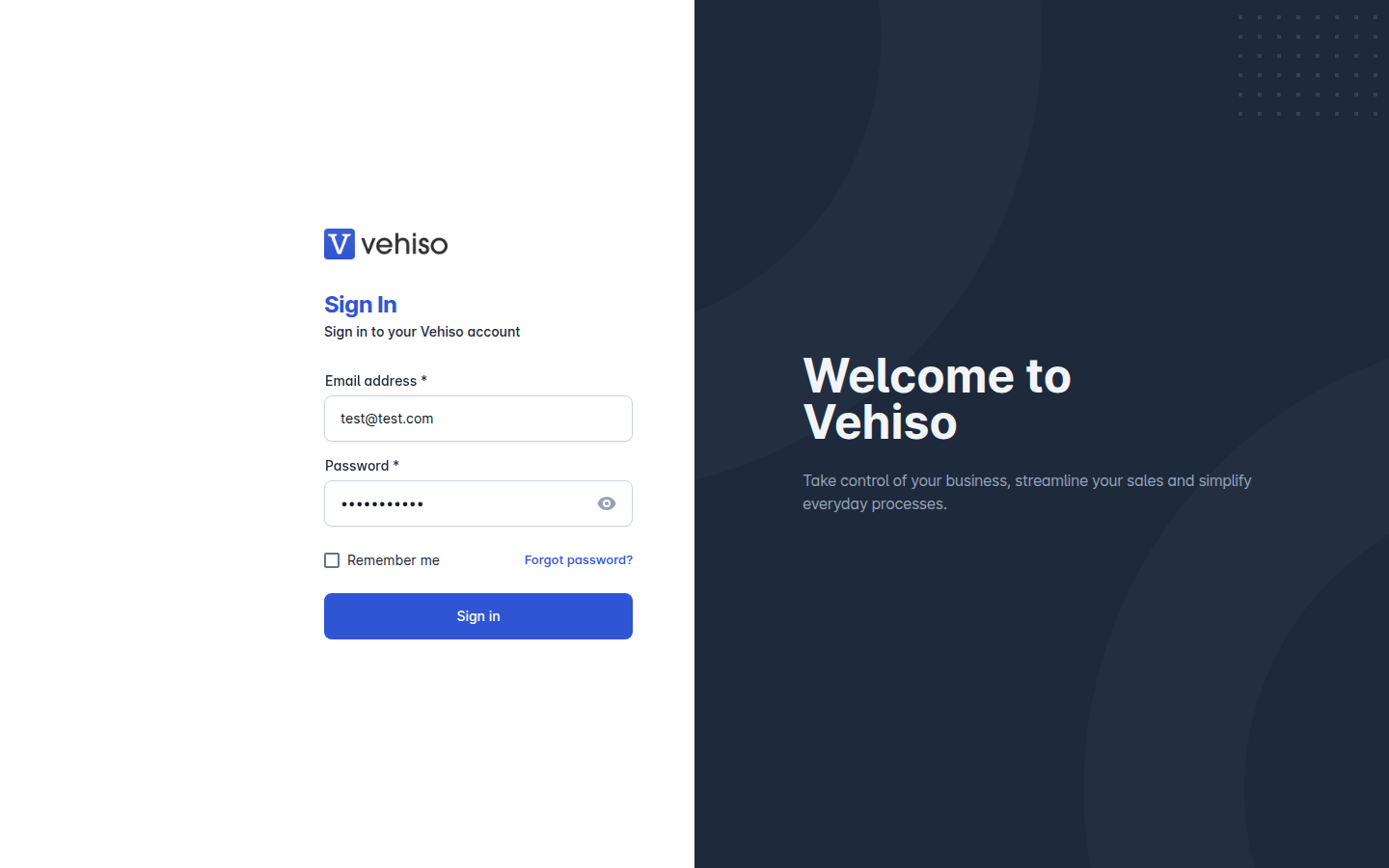
Enter your Email address and Password.
Tick Remember me if this is your own device, so you are not asked again every visit.
Select Sign in.
If you are signing in through the shared Vehiso sign-in page rather than your own back office address, you are also asked for a Dealer code. That is the number Vehiso gave your dealership. You can always find it later under your avatar in the top right, where it is shown under Dealer Code.
First time in: choosing your password
If someone invited you, your email contains a link to Choose a Password. Open it, set a password of at least 8 characters, and select Continue. That link signs you straight in; after that you use the normal sign in screen.
Forgotten password
Select Forgot password? on the sign in screen.
Enter your email address and select Send reset link.
Open the email and follow the link to Reset your password.
The link is single use. If it has expired, request a new one.
Your account settings
Select your avatar in the top right of any page.
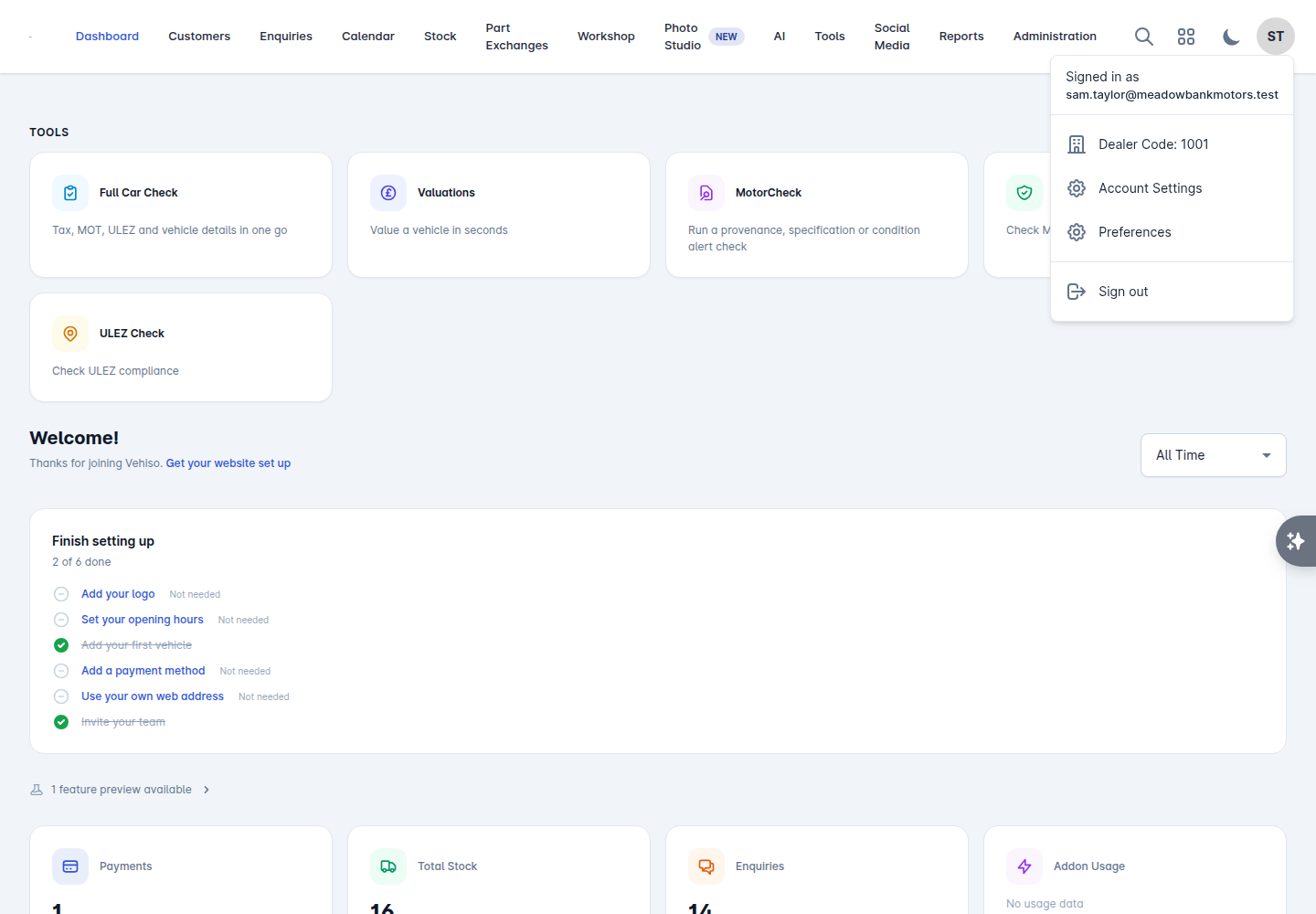
The menu shows who you are signed in as and your dealer code, and gives you:
Account Settings
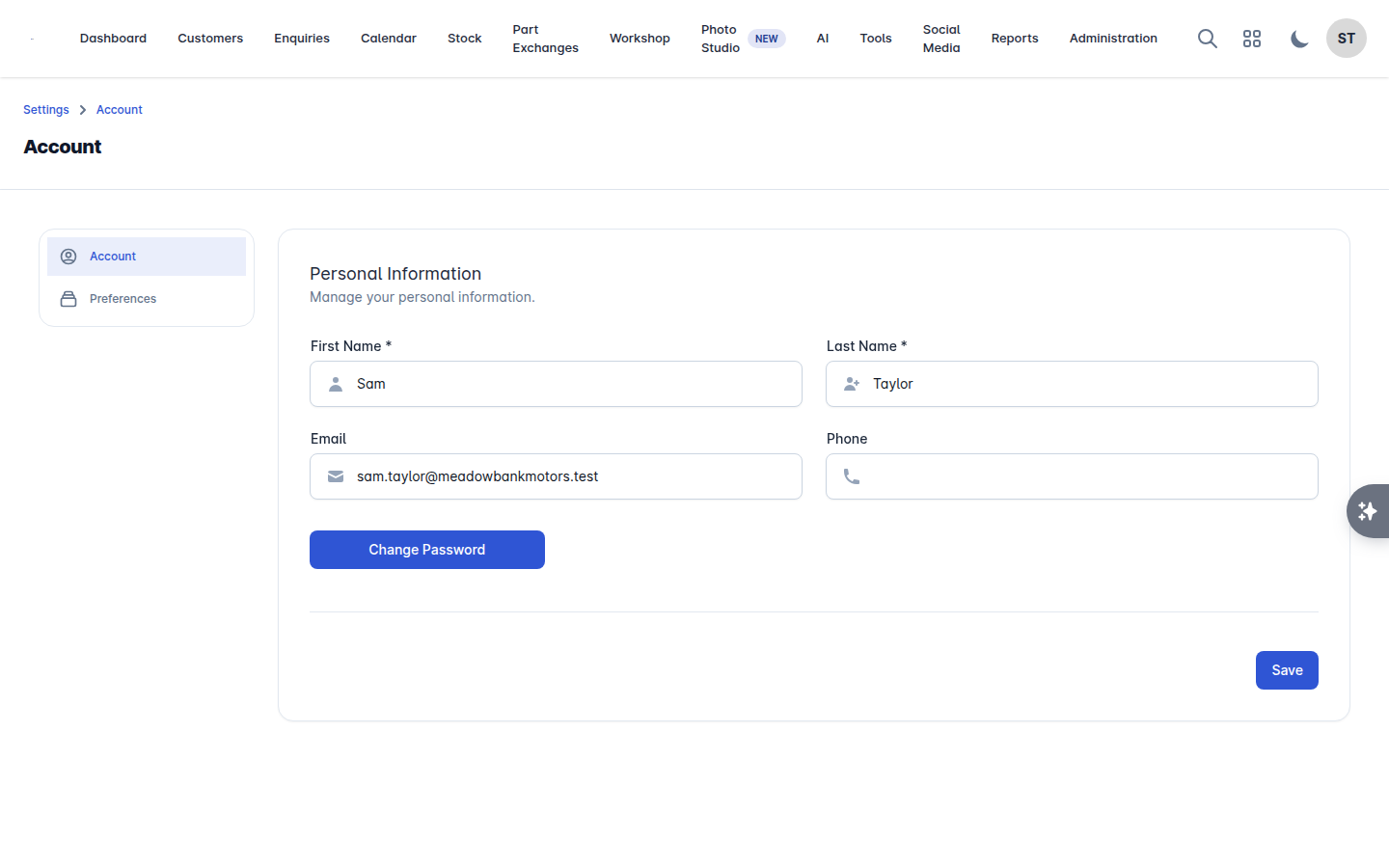
Your own details, not the dealership's: First Name, Last Name, Email, Phone. The phone number here is what text message notifications are sent to.
To change your password, use Change Password on the same screen. Passwords must be at least 8 characters.
Preferences
Language - the language the back office is shown in. This is personal to you, and is separate from the language your website is written in.
Scheme - Auto, Light or Dark. Auto follows your computer's setting.
You can also switch light and dark from the icon in the top toolbar.
Signing out
Select Sign out from the same avatar menu. On a shared computer, sign out rather than just closing the tab.
Who can see what
What you can reach in the back office depends on the role you were given. See Your team: users, roles and lead assignment for what each role can do. If a menu item you expect is missing, it is usually one of two things: your role does not include it, or it is not part of your plan.