
Setting up your website with the quickstart
The first time you sign in, Vehiso walks you through building your website. It takes a couple of minutes: you tell us about the dealership, we draft the pages with AI, and you keep, edit or skip whatever you like. Nothing you do here is permanent - every page can be rewritten later.
You can return to the wizard at any time at /quickstart, and everything in it can also be changed afterwards from Administration > Settings and Pages.
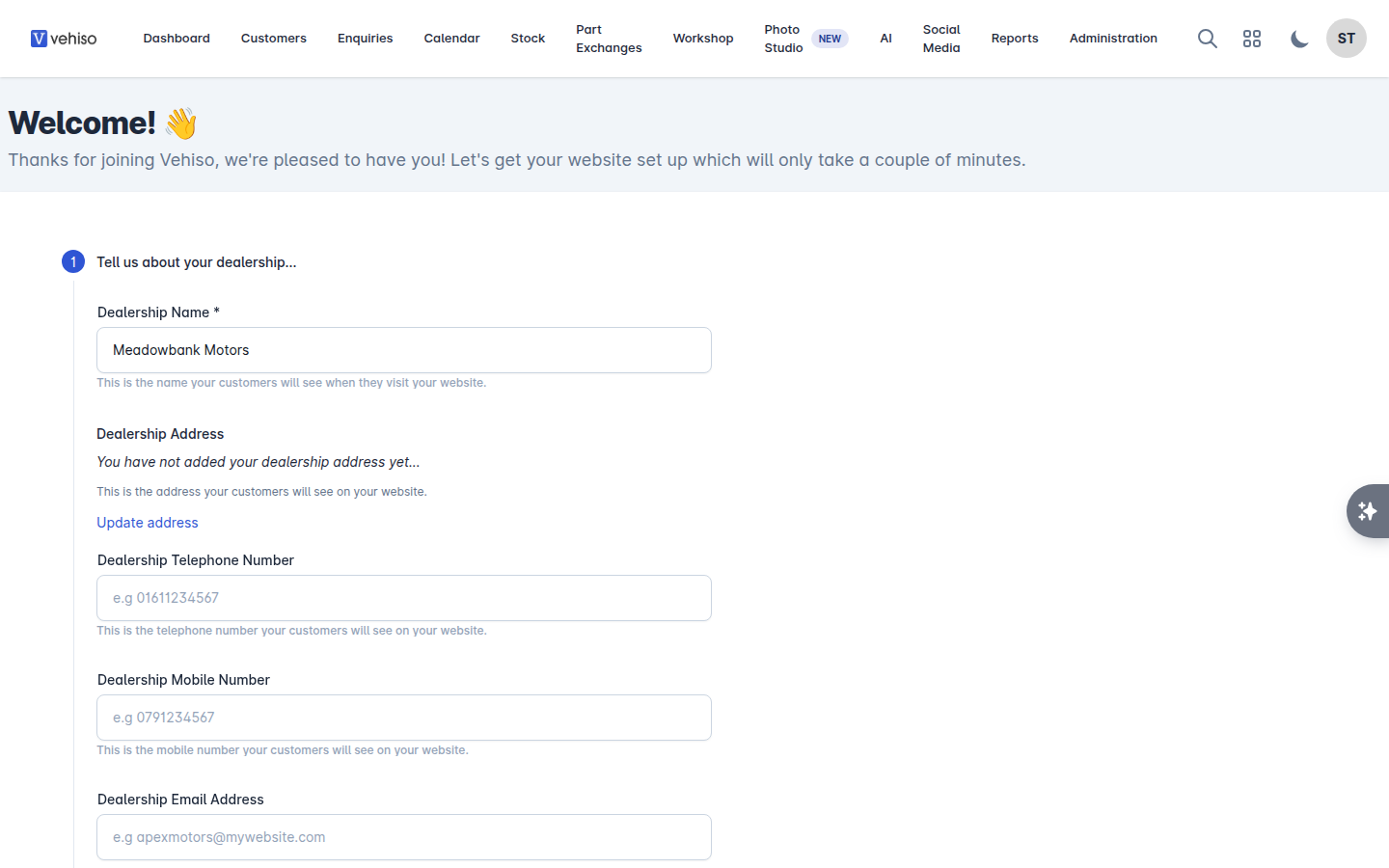
Step 1: Tell us about your dealership
These are the details customers see on your website, so use the public-facing versions.
Field | Notes |
|---|---|
Dealership Name | The name customers see when they visit your website |
Dealership Address | Shown on your website. Choose Hide my address if you trade without a public forecourt |
Dealership Telephone Number | The number shown on your website |
Dealership Mobile Number | Optional second number |
Dealership Email Address | Shown on your website, and where website leads are emailed |
Preferred Currency | Used for every price and financial figure |
Mileage unit | Miles or kilometres. Changing this later does not convert mileage you have already entered |
Timezone | Scheduled tools and AI agents run at your local time in this timezone |
Website Language | Your website and its starting content are written in this language |
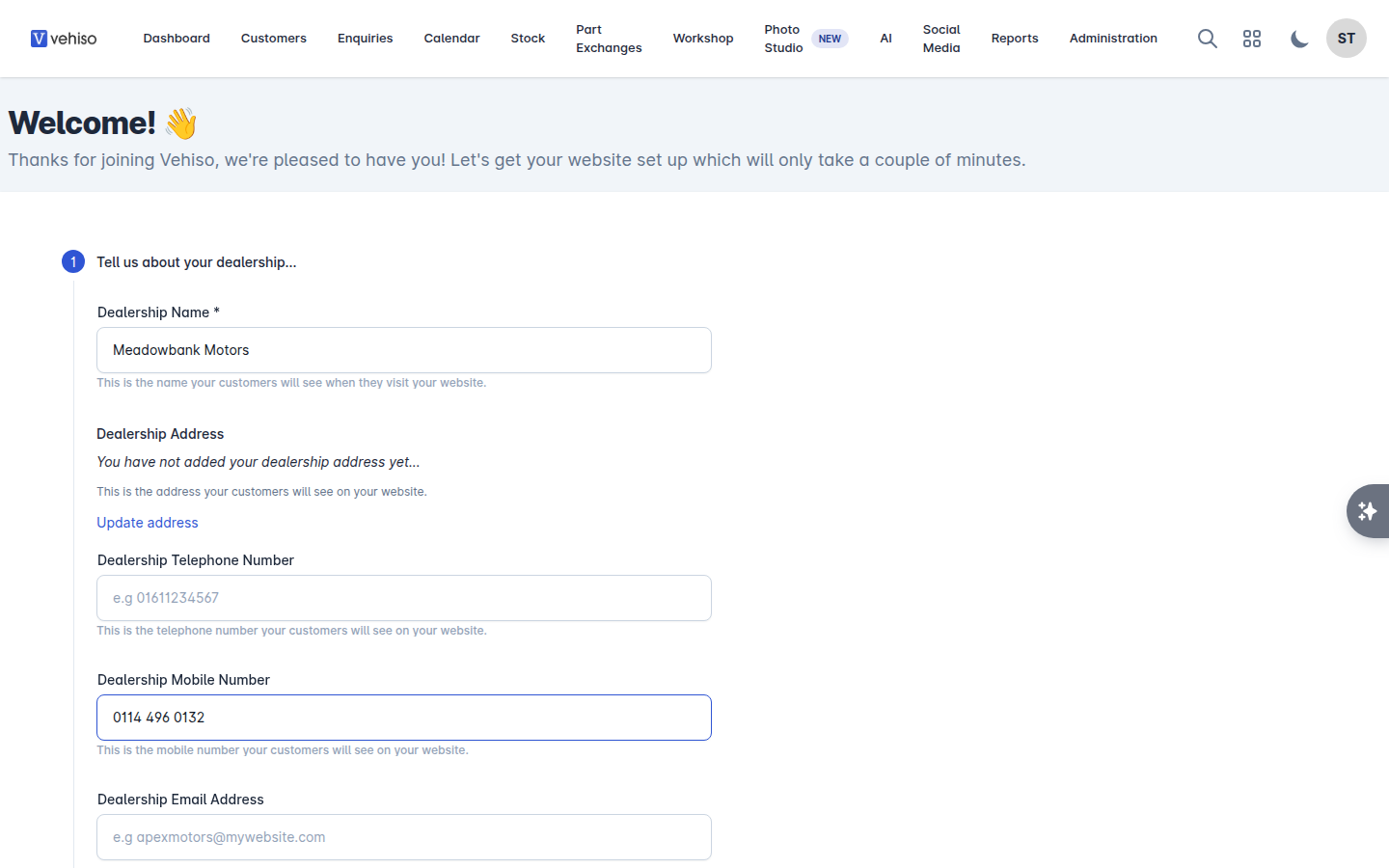
Select Next.
Step 2: Tell us about your dealership, in words
This step feeds the AI. The more specific you are, the less editing you do afterwards.
Tell us about your dealership - a short story that gets woven into your About and home pages. For example: "Family-run since 1998, focused on quality used cars."
Year established
Specialisations - the categories of vehicle you focus on. Also used to pick suitable images.
Services you offer - tick the in-house services you provide.
Warranty - the standard warranty included with every car you sell. This is not extended warranty a customer buys separately. Add anything else worth knowing under Describe your warranty.
We offer finance - turn on if you arrange finance, then list your Finance partners.
Unique selling points - up to 10. These become the selling points block on your home page.
Brand voice - a few words describing your tone, for example "friendly, family-run, no-nonsense".
The same step is where you choose the look:
Website Template, Website Theme (Light, Dark or Black) and Website Colour Scheme
Header Style, Search Widget Style and Selling Points Style
Search Widget Heading, Text, Button Label, Button Link and Background Image
Selling points background image
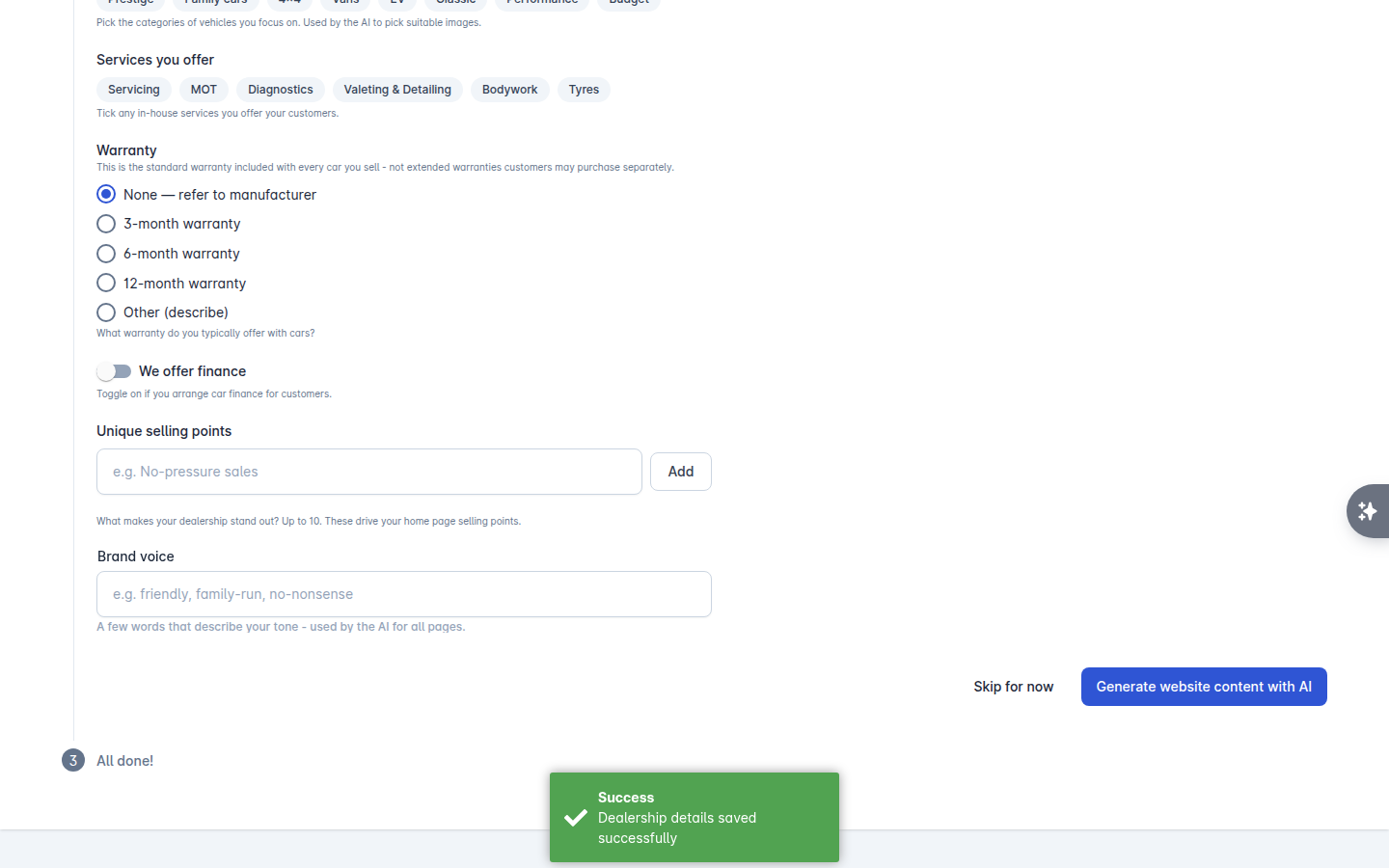
When you are happy, select Generate website content with AI.
Step 3: Review what the AI wrote
Pages appear as each one finishes. Every page is a card, and each card shows its status: Generating, Ready, Failed or Disabled.
On each card you can:
Regenerate - have another go at that page.
View preview - see it as a visitor would.
Edit inline - change the Heading, Body, list Items or Steps right there.
Don't include - leave that page off your website. You can Include this page again later.
Try again if a page failed.
Regenerate my whole site redoes every page in one go.
The Live preview panel on the right is your real website, updating as pages finish. Use View fullscreen for a proper look, or Open website editor to start editing on the site itself.
If you are on a trial, a counter shows how many AI generations you have left. Adding a payment method removes the limit.
Select Continue when you are done. You can Skip for now and come back later.
Step 4: All done
You get a link to your live website, plus the next few things worth doing:
Add a payment method if you are on a trial, so your site stays online when the trial ends.
Edit Your Website - the visual editor, where you change text, images and layout directly on the live site.
Set up your About us page.
Set up your Stock Feeds so your website and advertising channels stay in sync.
Invite your team members.
Select Continue to Dashboard to finish.
What next
Rewrite any section later with the AI website builder.
Add your own sections with pages and content blocks.
Get your first car live: Add a vehicle to stock